
Install
Inside DeepSeek Harness, with dsh-market
dsh plugin --profile web add dshmarket
Or from the command line
dsh plugin --profile web add dsh-worktree-space
Installing runs third-party code with your own permissions — it can read your files, use your credentials and reach the network. Review the source first, and pin a commit (github:owner/repo#sha) when you can.
Screenshots
README
Worktree Space for DeepSeek Harness: A task that covers multiple Git repositories can give each repository its own worktree on one shared task branch under a single task space directory, then register that task space as a workspace where agent sessions work on their own. Multiple tasks can go forward in parallel without interfering with one another; when the work is done they merge back into the target branch of each repository, and the worktree branches and task spaces are cleaned up as needed.
[!IMPORTANT] Beta (experimental): handing the commits and the merge conflicts to an agent is a feature in an experimental validation phase and is shown by default - set the plugin's agent handoff entry to hide to take those two entries off the finish dialog; its behaviour may still change (see the experimental section). The rest of this document describes the flow without an agent. Please report problems in GitHub Issues.
📑 Contents
- 🚀 Install
- ✨ Features
- 📂 Layout of a task
- 🔧 Requirements
- 🔐 Permissions and failure boundaries
- 🛠️ Usage ⚙️ Configuration · ➕ Create · 🗂️ Manage · 🏁 Finish
- 🤖 Experimental: handing the commits and the conflicts to an agent The two buttons · The flow
- 📄 Companion documents
🚀 Install
On the web client, from the command line:
dsh plugin --profile web add dsh-worktree-space
To uninstall: dsh plugin --profile web remove dsh-worktree-space. To update, remove and reinstall.
On the desktop client, from the plugin management page: sidebar → Plugins, put
dsh-worktree-space in Plugin package name, and press Install; to remove it, open
Worktree Space from the list, go to its Plugin details page, and press Uninstall at the
top right.
✨ Features
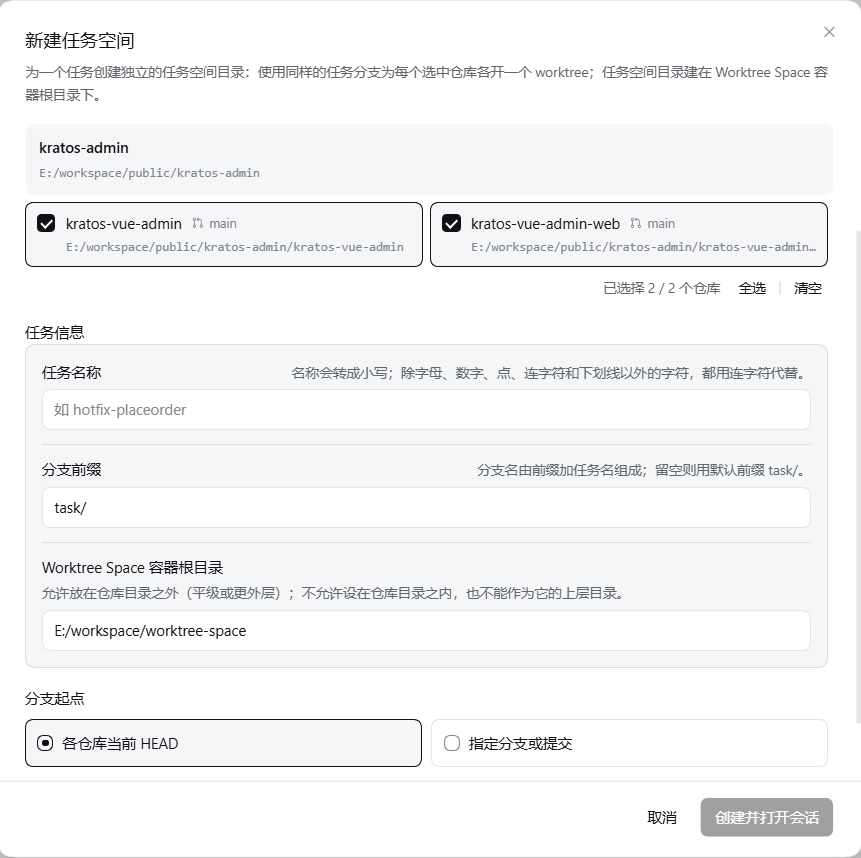
Create a task from a session. Pick a source root, name the task, choose the branch prefix, tick the repositories it should span, and say where the task space goes. Every repository gets a worktree on
<branch prefix><task>—task/<task>by default — starting from each repository's current HEAD, or from a named branch or commit.Registered as a Workspace named
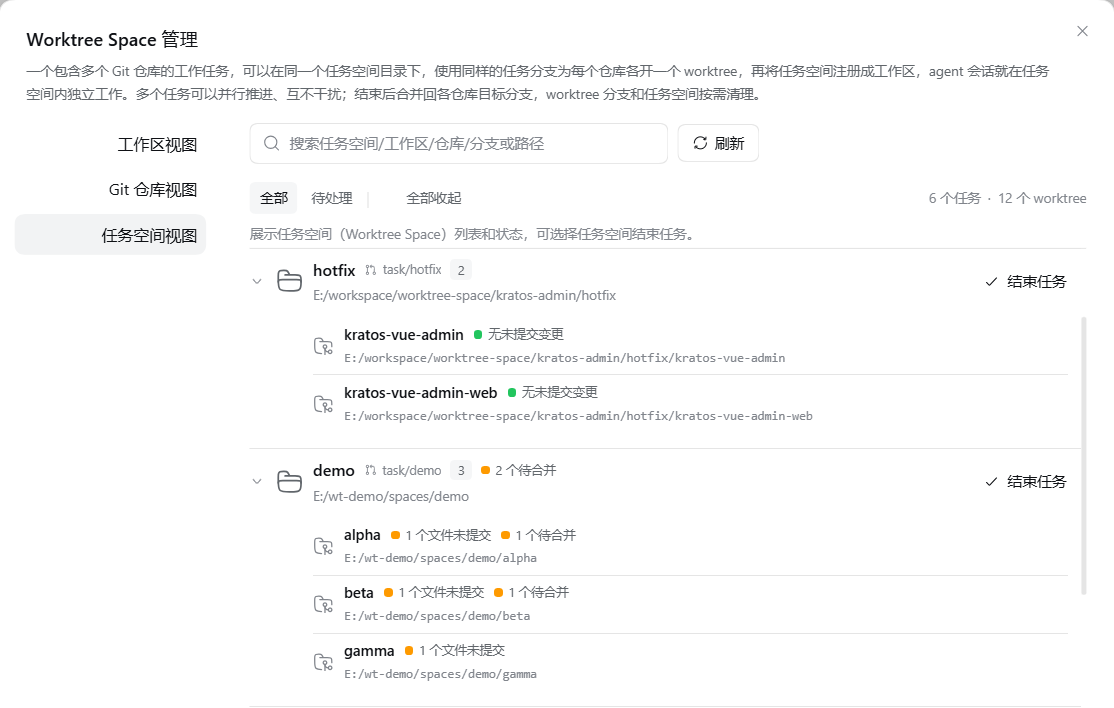
<parent>/<task>, opened with a session whose working directory is the task space, so an agent can edit across repositories without touching the source checkouts.A management page, with three views (both ways in, and their defaults, are described under Manage a Worktree Space):
- Workspaces shows which Workspaces can host a task space, and how many repositories each one has;
- Git repositories lists every Git repository found and the worktrees linked to it;
- Task spaces puts each task's repositories together (branch, how many files changed, whether it is locked or prunable).
All three can be searched, and Needs attention narrows them to rows worth a look (changes, a lock, something prunable, or a status that failed to read). The arrow on a row folds that row on its own; the button beside the filters folds or opens them all at once.
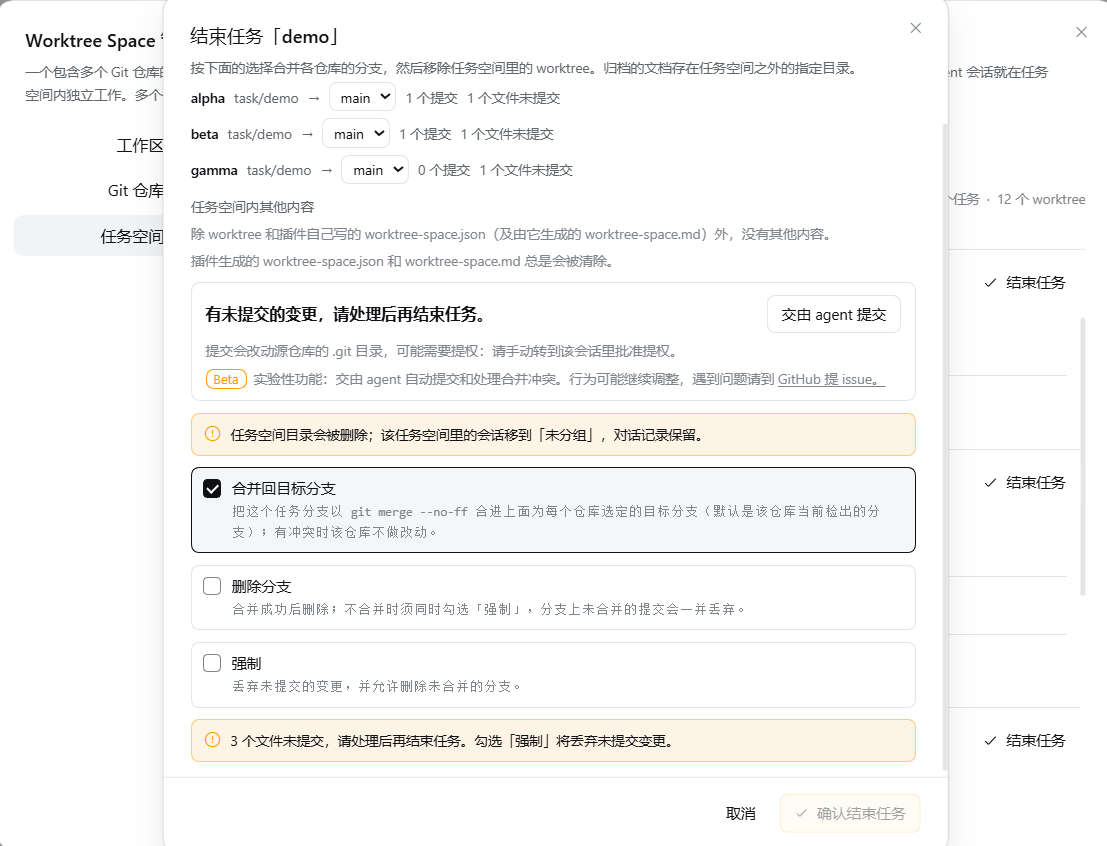
Finish a task from its row: each repository's branch is merged back into its target branch, the worktrees are removed, the task space's documents are filed under a selected directory, and the Workspace registration is removed — but not while a session in that Workspace is still running. Where the merge runs and what a conflict means: see Finish a Worktree Space.
Finish task space also sits in that workspace list's own
⋯menu, for directories that really are task spaces.New task space is in that same
⋯menu, for Workspaces that hold repositories, and opens the one create dialog.No extra service needed. The two entries, the scan depth and the directory limit all live in the plugin's own configuration (see Configuration). It follows DSH themes, takes its language from DSH, and gives the plugin list its own name, description and icon.
📂 Layout of a task
Terms: the Worktree Space container (the container below) is the directory the plugin keeps task spaces in — one container holds the task spaces of every project. The container’s own top level is the container root. Each paragraph names it in full the first time and in short after.
~/workspace/                            the root workspace: projects hang off this level, and the Worktree Space container root lives here too
├── repo-x/                             project x's main Workspace (a repository itself)
├── project1/                           project 1's main Workspace (several repositories)
│   ├── repo-a/
│   └── repo-b/
├── deep-path/project2/                 project 2's main Workspace, filed under a deeper directory
│   ├── repo-c/
│   └── repo-d/
└── worktree-space/                     the container root: the plugin's own zone
    ├── repo-x/                         the project layer, named after the source Workspace directory
    │   └── task-x/                     the task space — also the session's working directory
    │       ├── worktree-space.json     the task's record: branch, base, project, repositories, created
    │       ├── worktree-space.md       rendered from that record — branch, base and conventions
    │       └── repo-x/                 a worktree on <branch prefix>task-x
    ├── project1/
    │   ├── hotfix/
    │   │   ├── repo-a/                 both on a worktree named <branch prefix>hotfix
    │   │   └── repo-b/
    │   └── task-a/
    │       ├── repo-a/
    │       └── repo-b/
    ├── project2/                       filed under a deeper directory, and still the same container
    │   └── task-b/
    │       ├── repo-c/
    │       └── repo-d/
    ├── archived-docs/                  the archive root (default): non-Git output lands here
    │   └── project1/                   filed by project
    │       └── hotfix-20260926-020933/   `<task>-<YYYYMMDD-HHMMSS>`, one folder per task
    └── README.md                       written once, on first use: this is the worktree-only area

~/my-archive/                           an archive root, chosen in the plugin's settings
└── project2/                           same shape: a project layer, then a task name with its timestamp
    └── task-b-20260926-020933/
The Worktree Space container root is recommended one level below the root workspace (~/workspace/worktree-space),
and where that is depends only on the first directory below the volume root: ~/workspace/project1 and
~/workspace/deep-path/project2 are both offered the same container however deep their own project
sits. A different path can be given when a task space is created.
The project name is the source Workspace's directory name; the plugin layers by itself, so there is
nothing to fill in. Two projects in one Worktree Space container can each hold a task called hotfix without crowding
each other. When the Workspace directory is a repository (~/workspace/repo-x), the project and
repository layers end up with the same name — repo-x/task-x/repo-x. That repeat is deliberate: the
layout is three levels deep either way, so neither the plugin nor the client needs to be told which
level is which.
The Worktree Space container root is the plugin's zone: the first task space created under it writes a README.md
saying this is a worktree-only area and that git init / clone do not belong there (an existing one is
never overwritten). Conversely, if the container root is itself a Git repository — it has a .git —
creation is refused, and not a single directory is made.
The archive root splits two levels further, <project>/<task>-<YYYYMMDD-HHMMSS>/, so its shape mirrors the
Worktree Space container's and a project's documents stay in that project's own folder. By default it sits in the
container root, adding exactly one directory — archived-docs — to the whole volume.
Removing a worktree never deletes its Git branch; finishing a task merges the branch back before the worktree goes.
🔧 Requirements
- Node.js
>=22.19.0 - Git: it runs every worktree and branch operation, is not shipped with the
plugin, and has to be on
PATH - DSH
>=0.1.7-rc.1 <0.3.0-0, the 0.1.7 line without its0.1.7-alpha.xprereleases, and 0.2.x - Clients: the web client and the desktop client have both been installed and used for real
All four official releases were verified one by one — 0.1.7-rc.1, 0.1.7-rc.2, 0.2.0-rc.1
and 0.2.0-rc.2 — each against its own DSH CLI, in a disposable profile, through
install, start, uninstall and rollback. The per-release record is in
docs/store-evidence.md.
DSH enforces the DSH range declared in the manifest's peerDependencies: a runtime that does not
satisfy it has the install refused before pnpm runs, or the plugin refused at startup, with the
exact-version exemption (dsh plugin allow-version) offered instead. Fields such as engines.dsh are
declarations and block nothing. Anything outside the tested range is treated as unknown rather than
passed off as evidence; if you hit a version-specific problem, open an
issue.
🔐 Permissions and failure boundaries
At runtime this plugin reads and writes files and runs git. Those two permissions are its
function; they cannot be reduced to zero. Every runtime dependency is supplied by the DSH profile and
none of them ship with the plugin — installing it brings in no new runtime third-party dependency,
contacts no external service and reports no telemetry.
Permissions at a glance:
| Permission | Scope |
|---|---|
| File reads | The selected Workspace directories (breadth-first scan, skipping node_modules, dist, build, vendor and hidden directories except .worktrees); the record files in the task space and at the Worktree Space container root; each worktree's .git marker file; and, at finish, the contents of the files git lists, read only to decide whether a merge still carries conflict markers |
| File writes | Only inside the task space, the Worktree Space container root, and the archive directory the configuration names (see Configuration); finishing a task removes only the worktrees and documents the plugin itself created, and a merge also git worktree adds one temporary checkout under the system temporary directory and deletes it right after. It does not write the files of a source repository's checkout and does not write the DSH data directory |
| Command execution | git only, always as git -C <dir> <subcommand> with fixed argv through a single runGit seam — no shell. add and commit are not among them: the plugin writes no commit, uncommitted work stops that repository (see below), and a commit handed to an agent is run by the host's own session |
| Network | Only git push -u origin <branch>, and only when a push is explicitly requested; the plugin itself makes no HTTP requests |
| Credentials | Reads, stores and forwards none. A push uses whatever credentials the local Git is already configured with; the plugin never touches keys |
| Global resources | No global installs, no daemon or resident service, no writes to system directories |
The full account — what it reads, what it writes, which subcommands it runs and what happens when things fail — is in PERMISSIONS.en.md; the disposable-Profile install, start, uninstall and rollback acceptance evidence is in docs/store-evidence.md.
Failure boundaries (never silent):
| Situation | Behaviour |
|---|---|
| Directory scan hits its limit | Throws with Worktree scan limit reached; choose a more specific Workspace. — pick a narrower Workspace |
Any git command fails |
Throws git <args> failed (exit N): <stderr>, surfacing Git's own diagnosis verbatim |
| A repository still holds uncommitted work at finish | That repository stops (force is what discards it): uncommitted work is waiting in <worktree>; commit it before the task can be finished; the plugin writes no commit, the others carry on, and the result names each one |
| A merge is resolved but not committed | the merge in <worktree> is resolved but not committed — the state is kept as it stands |
| The resolved files still carry conflict markers | the resolved merge still has conflict markers in <files> — kept as they stand, no side is taken |
| The rehearsal merge conflicts | Does not auto merge --abort; the merge site is kept (with mergeSite and conflictedFiles) until it is resolved and committed, then carry on |
| The real merge meets a fresh commit | The rehearsal passed, then the real merge ran into a commit someone pushed in between: the merge is undone (merge --abort, the branch is left as it was) and Git's own words are surfaced; the worktree and the task branch are kept, and pressing Continue finishing rehearses again |
| Worktree removal fails | Reports failed to remove the worktree (uncommitted changes? force it deliberately); the worktree is kept and reported, and git worktree prune is the remedy |
| A task directory is not empty | The directory and the Workspace registration are kept rather than force-deleted |
| A fact cannot be confirmed | It is written as "unknown" — absence of evidence is never inferred as absence of access |
🛠️ Usage
⚙️ Configuration
In the UI (recommended): sidebar → Plugins → Worktree Space → the configuration
section of its Plugin details page, beside every other plugin's; changes take effect
immediately, no restart. The file can also be
edited directly: the plugin's config: block in profiles/<profile>/cordis.patch.yml under the DSH
data directory, which needs a DSH restart.
| Setting | Values | Default | Meaning |
|---|---|---|---|
| Panel entry (under New session) | show / hide | hide | The row in the sidebar's panel list that opens the management page full-width (the page brings its own left-hand navigation and its Back to conversation); hidden by default |
| Shortcut in the sidebar footer | show / hide | show | The shortcut at the sidebar foot, opening that same page as a dialog |
| Agent handoff entry (experimental) | show / hide | show | The finish dialog's two experimental entries, Hand the commits to the agent and Hand the conflict to the agent; hidden, the standard flow applies: commit and resolve the conflict yourself, then continue the finish |
| Scan depth | 1–5 levels | 2 levels | How many levels below a Workspace directory (level 0) the scan looks for Git repositories |
| Scan directory limit | 500 / 1000 / 2000 / 3000 / 5000 / 10000 | 1000 | How many directories one scan may read; past it, a smaller Workspace is requested |
| Default branch prefix | any text | task/ |
The prefix a new task space starts from; changing it in the create dialog and ticking Set as the default branch prefix writes it back here when the space is created |
| Worktree Space container root | default / custom directory | default | Where new task spaces go. The default is the best practice: it is derived from the source Workspace by the rule below. A custom directory that shares no common ancestor with the project's directory makes the session that hands commits and conflicts to an agent ask for authorisation by hand |
| Custom Worktree Space container root | any path | empty | Used only by the custom strategy; empty keeps the derived recommendation. Changing the Worktree Space container root in the create dialog and ticking Set as the default Worktree Space container root writes both back when the space is created |
| Archive documents location | in the container root / custom directory | in the container root | The root the archive is filed under; both strategies add a <project>/<task>-<YYYYMMDD-HHMMSS> folder beneath it, the stamp being the local time of that moment, to the second. The default files them in the Worktree Space container root's own archived-docs, wherever the task space was made |
| Custom archive directory | any path | empty | Used only by the custom strategy; empty files them in the Worktree Space container root's archived-docs |
A scan covers every Workspace. It goes breadth-first, reading up to eight directories at
a time per level. Any directory holding .git counts as a repository; node_modules,
dist, build, vendor and hidden directories are skipped (except .worktrees).
➕ Create a Worktree Space
Terms: the source root is the Workspace directory handed to the plugin — a repository itself, or a directory whose top-level children are repositories; the source tree is that directory and everything under it. The create dialog calls it the "repositories' directory".
- In a session, click New Worktree Space above the composer.
- Name the task — it is lower-cased, and spaces, Chinese and other characters become dashes
(
hotfix-placeorder); an invalid name is reported with the rule it breaks. - Set the branch prefix when a different one is needed. The branch is this prefix plus the task
name, and an empty field falls back to the configured default (
task/unless you changed it). The line under the field always names the default it would use. Tick Set as the default branch prefix — offered only when the entered prefix differs from the configured default — to write it back to the plugin's settings when the space is created. - Say where the task space goes — the Worktree Space container root. It has to sit beside the
repositories' directory: not inside it, and not above it. A recommended path is
pre-filled —
worktree-spaceone level below the root workspace — and rarely needs changing. Another location also works: Set as the default Worktree Space container root then appears under the field; ticking it writes that path back to the plugin's settings when the space is created, and the note below it states what that choice costs. For how the recommendation is worked out and what the container holds, see Layout of a task. - Tick the repositories the task should span — each card names the branch its HEAD is on — and choose the branch base.
- Click Create and open. The new Workspace opens a session whose working directory is the task space.
If the task space is built but registering the Workspace fails, the dialog says why and allows the registration to be retried.
🗂️ Manage a Worktree Space
Open the management page — two ways in:
- The Worktree Space shortcut at the sidebar foot (shown by default) — opens it as a dialog;
- The Worktree Space row under New session (hidden by default, turn it on in the configuration) — opens it full width in the main column, where the page brings its own left-hand navigation: Back to conversation first, since the panel takes the column the conversation was in, then the three views. The dialog form keeps the switcher in its toolbar.
The three
views differ as described under Features: Workspaces shows where a task space can start, Git
repositories shows every Git project found and its worktrees, Task spaces shows each task and its
repositories. The summary on the right follows the view (N tasks / N Workspaces /
N repositories · M Worktrees), and reads shown / total while a search or filter is
narrowing the list.
The panel rescans every time it is opened, but it first paints what the Host still remembers
of the previous scan, so it shows data straight away and swaps in the fresh result when the
scan lands (Scanning every Workspace… marks the wait). That memory lives in the DSH instance's own
process only: nothing is written to disk, and it is gone when the instance exits.
🏁 Finish a Worktree Space
Use Finish task on the task row, or Finish task space in the workspace list's ⋯ menu.
The dialog spells out what is about to happen — uncommitted files, commits to merge, the
branch to merge into, and the task space's own documents (the archive option only appears
when there is something to archive). Merging back is selected by default; deleting the
branch and forcing are not.
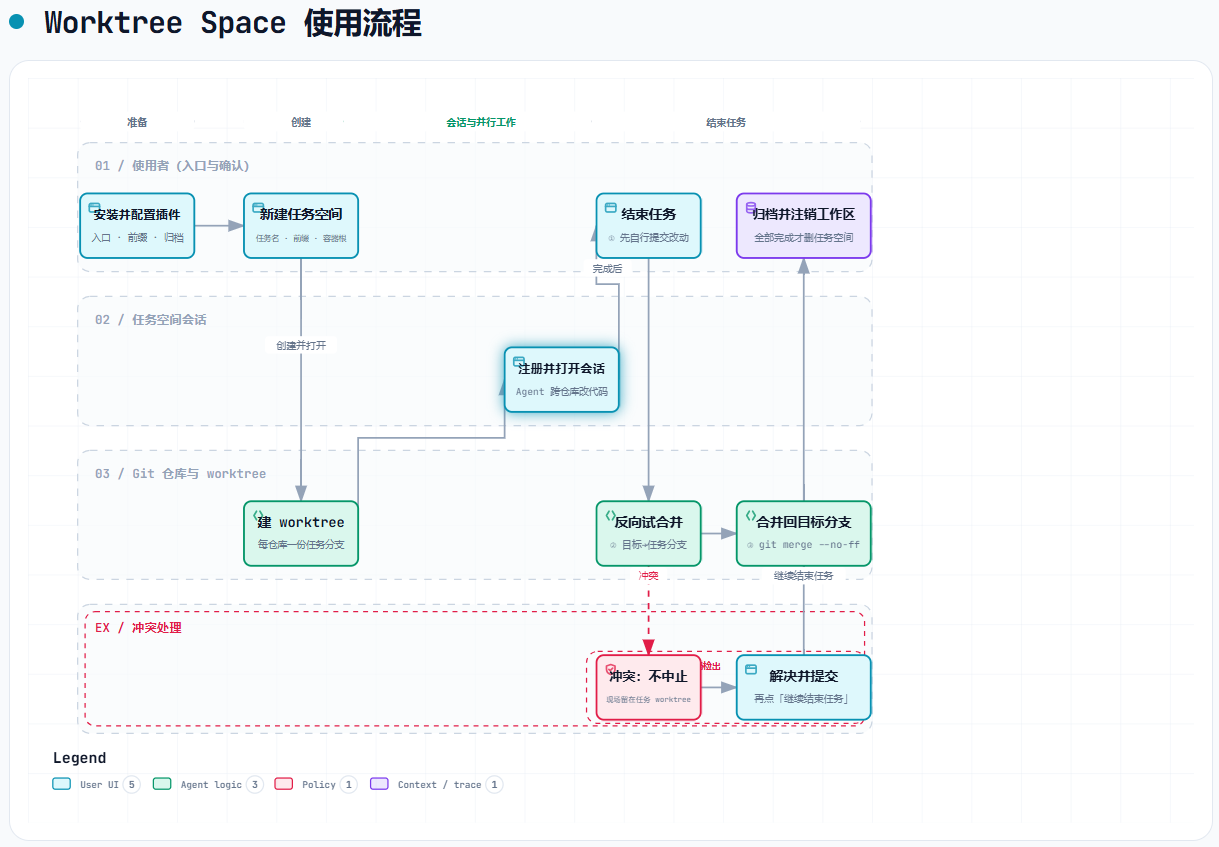
Finishing a task space is one standard path, in three steps:
1. The commits are yours to make; this plugin never writes one. While the plan shows
uncommitted changes in a repository and Force is not ticked, Finish task stays
unavailable — those changes are not this side's to write, and a worktree will not go while it
holds them. The plan names those repositories and how many changes each one holds. Commit them in
each worktree with git add and git commit (the message is written by the user); afterwards
are done, close the dialog and open it again — it re-reads the plan every time it opens, and those
repositories stop holding Finish task back. Force may also be ticked, which discards
those changes with the worktree. When the work is not to be done by hand,
yourself, Hand the commits to the agent hands it to an agent session (see the experimental
section at the end). A worktree in the middle of an unfinished merge does not take this step; that
one is step 3's.
2. Merge: rehearse the other way round, then merge for real. The merge itself puts the task branch into the target branch (by default the branch the source repository has checked out), and it lands in the source repository. Before the target is touched, the target is merged into the task branch inside the task space's own worktree — the opposite direction. Two outcomes:
- Clean: that rehearsal is undone again (the worktree goes back to where it started), and the
task branch is then merged into the target branch with
--no-ffas usual, so the target keeps an ordinary merge commit. A target that is not checked out anywhere is merged in a temporary worktree that is discarded afterwards, leaving the source checkout alone. - Conflicted: that merge is not aborted and not reverted — the rehearsal simply stays
where it stands, in the task branch's worktree, which keeps its
MERGE_HEADand the conflicted files with their markers sitting in its working tree (for instance~/workspace/worktree-space/project1/hotfix/repo-a/src/app.ts). The target branch is untouched, and so is the source repository's checkout.
Why rehearse the other way round: a conflict in the real merge lands in the source repository and its checkout, and it would have to be aborted, with a side picked by hand. Rehearsing first puts the conflict in the plugin's own checkout — the task branch's worktree — which is exactly where the work can be dealt with in place, without touching the source checkout.
3. A conflict stops the finish and waits for the user to resolve it on the spot. As soon as one
repository stands on a conflict the whole finish is partial (failed: true, the Worktree Space container stays,
and the other repositories may already be merged and removed). Every repository row reports
mergeInProgress, mergeSite (the directory the conflict stands in) and conflictedFiles. The
dialog then shows A merge conflicted: deal with it, then finish the task again.; the way on is
Continue finishing at the foot of the panel.
The site is the task branch's own worktree (for instance ~/workspace/worktree-space/project1/hotfix/repo-a), standing
in an unfinished merge. Resolve the conflict there, git add, and one git commit that says how
the two sides are reconciled concludes the merge — the target branch and the source repository's
checkout were never touched; the commit has to land on that worktree, whose index lives under the
source repository's .git/worktrees/<name>/. To have an agent resolve this conflict instead, use
Hand the conflict to the agent (see the experimental section).
Continue finishing then runs the same judgement again: if the target branch is already inside the task branch, the rehearsal is skipped and the real merge goes ahead; otherwise it is rehearsed once more and a conflict stands where it stood before, for the user to resolve again.
If the site still holds a resolution nobody committed, or conflict markers are still in the files, the plugin does not commit it: the site is left exactly as it stands and the outcome goes back to the user — fix it and press Continue finishing again.
Deleting a branch normally needs the merge: deselect the merge and the branch option goes with it. To abandon a task space instead of finishing it — nothing merged, the branches and the commits on them discarded — select Force as well, which is what allows deleting a branch that was never merged; abandoning is also the one combination that skips the commit in step 1.
What each combination does
| Merge back | Delete branch | Force | What happens |
|---|---|---|---|
| ✓ | Finish task is unavailable at first: commit each worktree's uncommitted changes to its own task branch (until this is done, the finish stays on that step and names the worktree — uncommitted work is waiting in <path> in that row's error), and its branch is then merged into the target chosen on its own row (by default the branch that repository has checked out) with --no-ff; the worktrees are removed; the branches stay. A repository standing on a conflict keeps its place, the others still finish |
||
| ✓ | ✓ | The same, and the branch is deleted once merged (git branch -d, so an unmerged branch cannot be deleted this way) |
|
| ✓ | ✓ | Merging still happens, but Force skips the commit: uncommitted changes in the worktree are discarded with it, and the plugin does not commit them; the branches stay | |
| ✓ | ✓ | ✓ | Merge and force-delete the branch (git branch -D); the branch was merged, so nothing extra is lost |
| Nothing is merged: Finish task is unavailable until the changes are committed (they stay on the branch that stays), the worktrees and the task space go, the branches stay to be merged by hand | |||
| ✓ | The same, without the commit: uncommitted changes are discarded with the worktree; the branches stay | ||
| ✓ | ✓ | Abandon: nothing merged and nothing committed, the branch force-deleted, and the commits it held are discarded along with the uncommitted changes in the worktree |
Whichever combination is chosen: the task space's own metadata — worktree-space.json and the worktree-space.md generated from it — is always cleared, and an older space may still hold README.en.md (cleared too) or a README.md this plugin wrote back then, which is left alone rather than assumed to be ours; anything else in the task space follows the archive choice (unselected, it is discarded
outright). A repository whose work nobody committed, or whose merge stands on a conflict, is kept as it is and reported as unfinished while the others finish, which is also why the task space directory and its workspace registration stay. The directory and the registration are removed only once every repository really went and the task space holds no worktree any more, and its sessions then fall back to Ungrouped with their transcripts
intact.
The Finish task button follows the same reasoning: amber is an ordinary finish (the merge can be reverted and nothing is discarded), and it is red only where the dialog can name what will be lost — abandoning the task space (no merge, force-deleting the branches) while a worktree still holds uncommitted files, or while a branch still holds commits that were never merged.
🤖 Experimental: handing the commits and the conflicts to an agent
What this section describes is shown by default: set the plugin's agent handoff entry to hide to take those two entries off the finish dialog. Hidden, the finish takes the standard route - the plugin writes nobody's commit and picks no side of a conflict. It stops and says where things stand instead: uncommitted work is yours to commit in each worktree, and a resolved conflict is committed and then carried on with Continue finishing, which is what the line under the panel says.
When finishing a task, the plugin can open a DSH agent session to do two jobs: commit the uncommitted changes, and resolve a merge that stands on a conflict.
The two buttons and what they do
- Repositories with uncommitted changes in the plan → Hand the commits to the agent: it opens a
session that
git adds those changes and commits them, with a message saying what changed and why (in the language and style that repository's own commits use). - A repository standing on a merge conflict → Hand the conflict to the agent: it opens a
session that reads both sides, works out what each was after, writes a version that keeps both
intentions, and concludes the merge itself (
git add, thengit commitwith a message saying how the two sides were reconciled).
Both jobs ask the same: do not push, do not touch other repositories or the task space, and do not merge a branch back into its target — that step is the plugin's.
Those repositories share one session (in the conflict step, a repository that already has the session step 1 opened reuses it). The working directory is the common ancestor of their boundaries: a repository's own boundary is its worktree, or, when the Host named the main checkout's path, the common ancestor of that worktree and the main checkout. Where that common ancestor falls back to the volume root (the repositories sit on different volumes, or both the task space and the repositories sit directly under the root) there is still just the one session, working in the task space, and the elevation is yours to approve in that session.
The flow and its steps
- With uncommitted changes in the plan, press Hand the commits to the agent: the plugin opens a session and hands the job over. Ticking Force skips this step and opens no session at all.
- Wait for the session to stop. Once it does, the plugin re-reads the plan once (once per job, and a session seen running re-arms that read).
- When the plan that comes back holds no uncommitted files in those repositories, the headline turns into a green status light with green text: in the commit step "The commits are done: carry on and finish the task.", in the conflict step "The conflict is resolved: carry on and finish the task."
- Press Finish task or Continue finishing to carry on.
- When a merge stands on a conflict, press Hand the conflict to the agent and repeat steps 2-4.
- An agent that only edited the files without committing (or left conflict markers behind) gets no commit from this side: the site is left exactly as it stands, the result says it did not finish, and it is wrapped up or taken over by hand before pressing Continue finishing.
- The rehearsal in step 3: once the agent has merged the target branch into the task branch and committed it, pressing Continue finishing usually answers "yes" to whether the target branch is already contained in the task branch, and the rehearsal is skipped; only when somebody has pushed to the target branch again does it run once more first.
Finish task or Continue finishing at the foot of the panel only ever runs once the user has confirmed it.
📄 Companion documents
| Document | What it covers |
|---|---|
| PERMISSIONS.en.md | The full permissions and failure boundaries: what is read, what is written, which git subcommands run, and what happens when one fails |
| docs/store-evidence.md | The disposable-profile install, start, uninstall and rollback acceptance steps, with per-release records |
| CHANGELOG.en.md | Release history |
| GitHub Issues | Problem reports |
Comments
Comments live in GitHub Discussions. Sign in with GitHub to post or react.