
Install
Inside DeepSeek Harness, with dsh-market
dsh plugin --profile web add dshmarket
Or from the command line
dsh plugin --profile web add @cerbur/clutch-dsh-worktree
Installing runs third-party code with your own permissions — it can read your files, use your credentials and reach the network. Review the source first, and pin a commit (github:owner/repo#sha) when you can.
Screenshots
README
@cerbur/clutch-dsh-worktree
@cerbur/clutch-dsh-worktree adds a Git Worktree view to the DSH Web UI. It groups
Sessions as Workspace → Worktree → Session while keeping DSH as the source of truth for
Workspace identity, Session metadata, native lists, messages, and conversation history.
Tool preferences are stored in separate Host-owned files, outside relationship indexes and native Session metadata. The plugin stores Worktree relationships, acquisition facts, shared Worktree instructions, and Workspace-root Main instructions in its own sidecar. Managed Worktrees expose a read-only baseline-relative Git & Changes dashboard, while Main exposes its Workspace-root HEAD history; the plugin does not copy transcripts or rewrite DSH Sessions.
Preview: Worktree Dashboard is an early, plugin-only MVP preview. Worktree navigation, lifecycle actions, Session actions, Worktree/Main instructions, and the managed Worktree or Main Git & Changes view are connected. Derived Worktrees and other unfinished actions remain marked Coming soon.
Installation
After installing into a running DSH instance, restart DSH Desktop, or restart the DSH Web
server and refresh the page, to load the plugin Host and permission configuration. Finish
active tasks before restarting. If the Client loads while the Host is still unavailable, a
native toast reminds you once per Client load. If a Worktree Session permission check reports
that Worktree Full Access is unavailable and falls back to workspace-write, a separate
once-per-load toast gives the same restart guidance for a recent install or update. The
permission recovery message retains this guidance after the toast closes. Network failures,
Workspace errors, unverified permissions, and explicit user restrictions do not trigger the
missing-preset reminder. The reminder does not reload services or grant Full Access; if the
preset remains unavailable after restarting, check the DSH plugin and permission configuration.
Install from npm
With an installed DSH CLI:
dsh plugin --profile web add @cerbur/clutch-dsh-worktree
dsh web
When using a DeepSeek Harness source checkout without a standalone dsh command, use the
equivalent pnpm dsh form.
Install from a local checkout
Build this package, build the DSH source checkout, and add the package by absolute path:
cd /absolute/path/to/clutch-dsh
pnpm install
pnpm --filter @cerbur/clutch-dsh-worktree build

cd /absolute/path/to/deepseek-harness
pnpm install
pnpm run build
pnpm dsh plugin --profile web add /absolute/path/to/clutch-dsh/packages/clutch-dsh-worktree
pnpm dsh web
The DSH Web profile must be able to start before this plugin is added. Re-run the absolute-path
install command after changing package.json or cordis.patch.yml.
Install from GitHub source (optional)
The package also supports the source dependency form used by the DSH plugin market:
dsh plugin --profile web add "github:Cerbur/clutch-dsh#path:/packages/clutch-dsh-worktree"
This form builds the package during installation. For pnpm build-script authorization and local development details, see docs/DEVELOPMENT.md.
Features
| Feature | Preview | What it does |
|---|---|---|
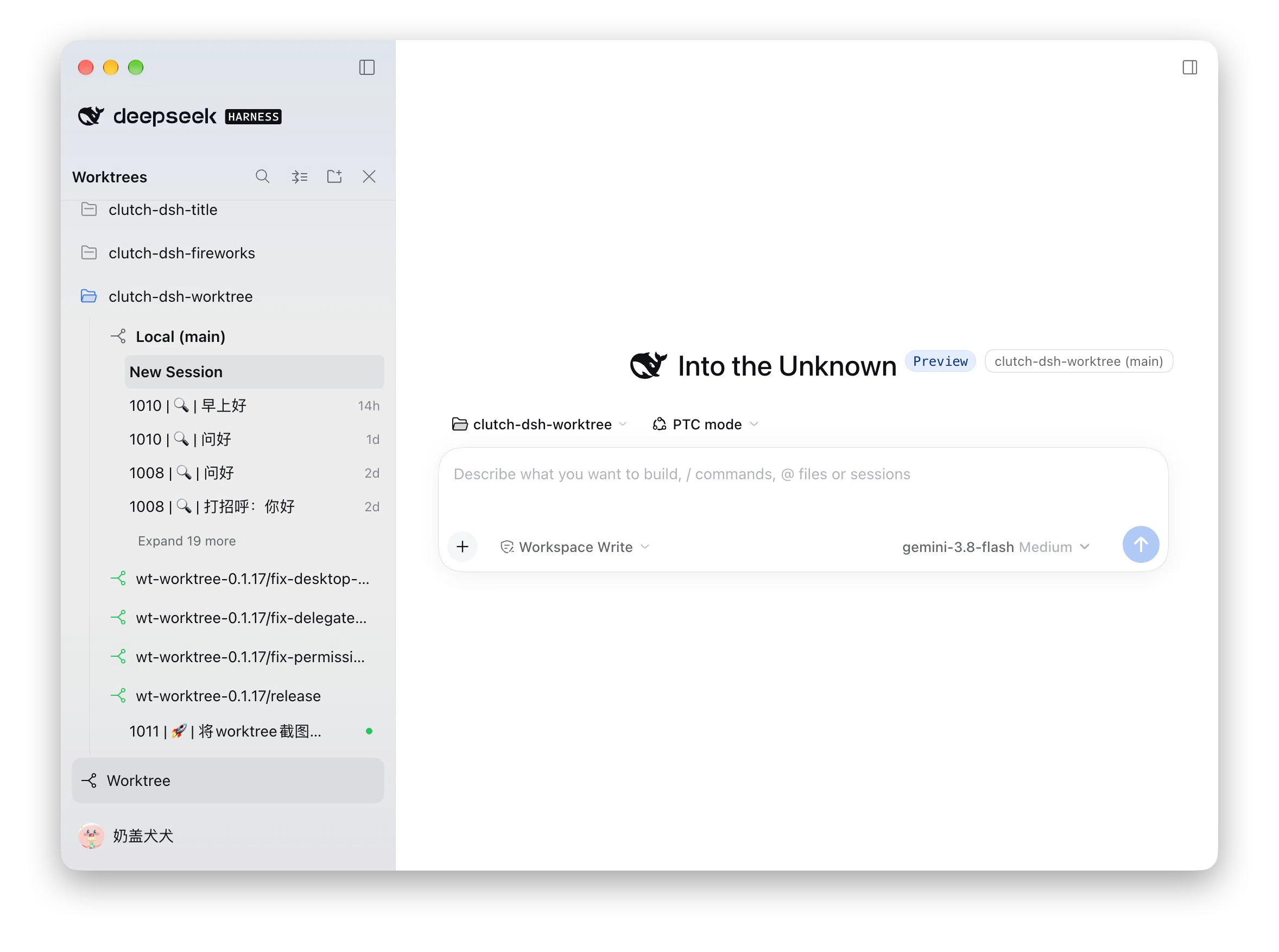
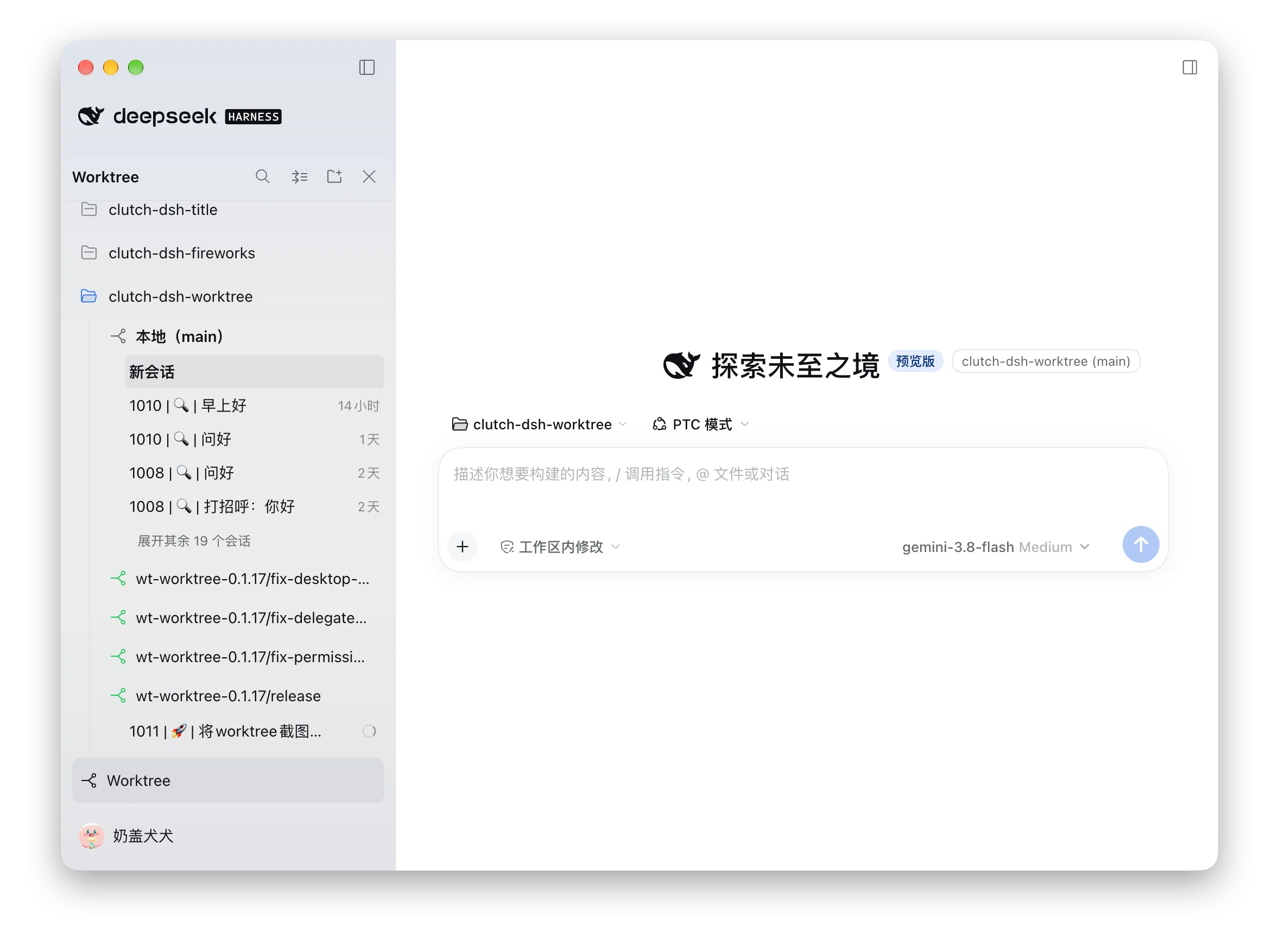
| Worktree navigation | Adds a Worktree mode to the native DSH Sidebar. On macOS desktop, the panel shares DSH's native glass material without a second background layer or duplicate navigation showing through. Other platforms retain the theme fill; reduced transparency uses a stronger fill. Workspace expansion and new Session rows use native-style fades and movement. Browse each Workspace through Local/Main and Git Worktree rows, then open the Sessions bound to each row. | |
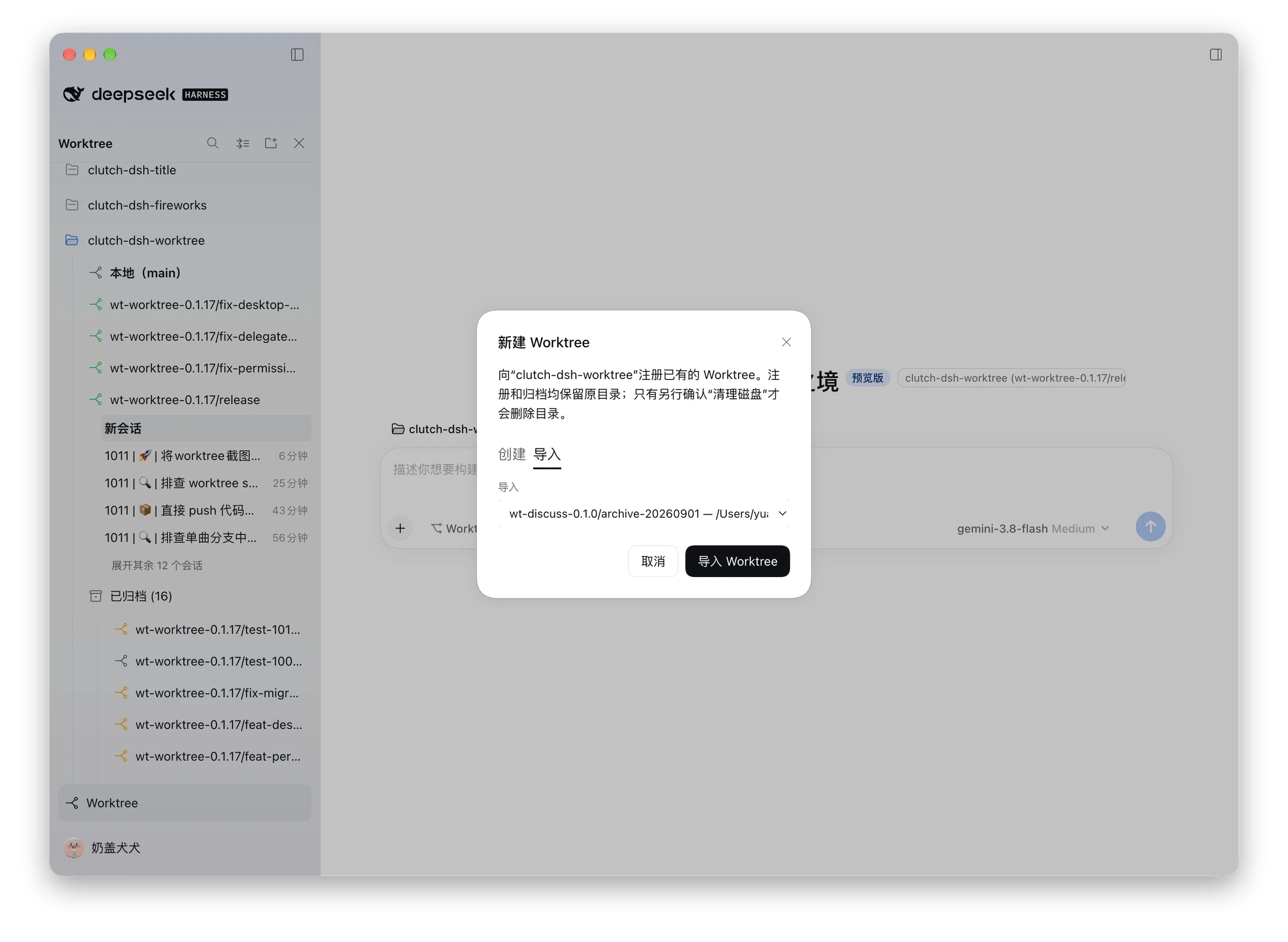
| Create and import Worktrees | Create a Worktree from a local branch, or register an existing branch-attached Worktree in place. Import does not move, copy, or edit the existing directory. | |
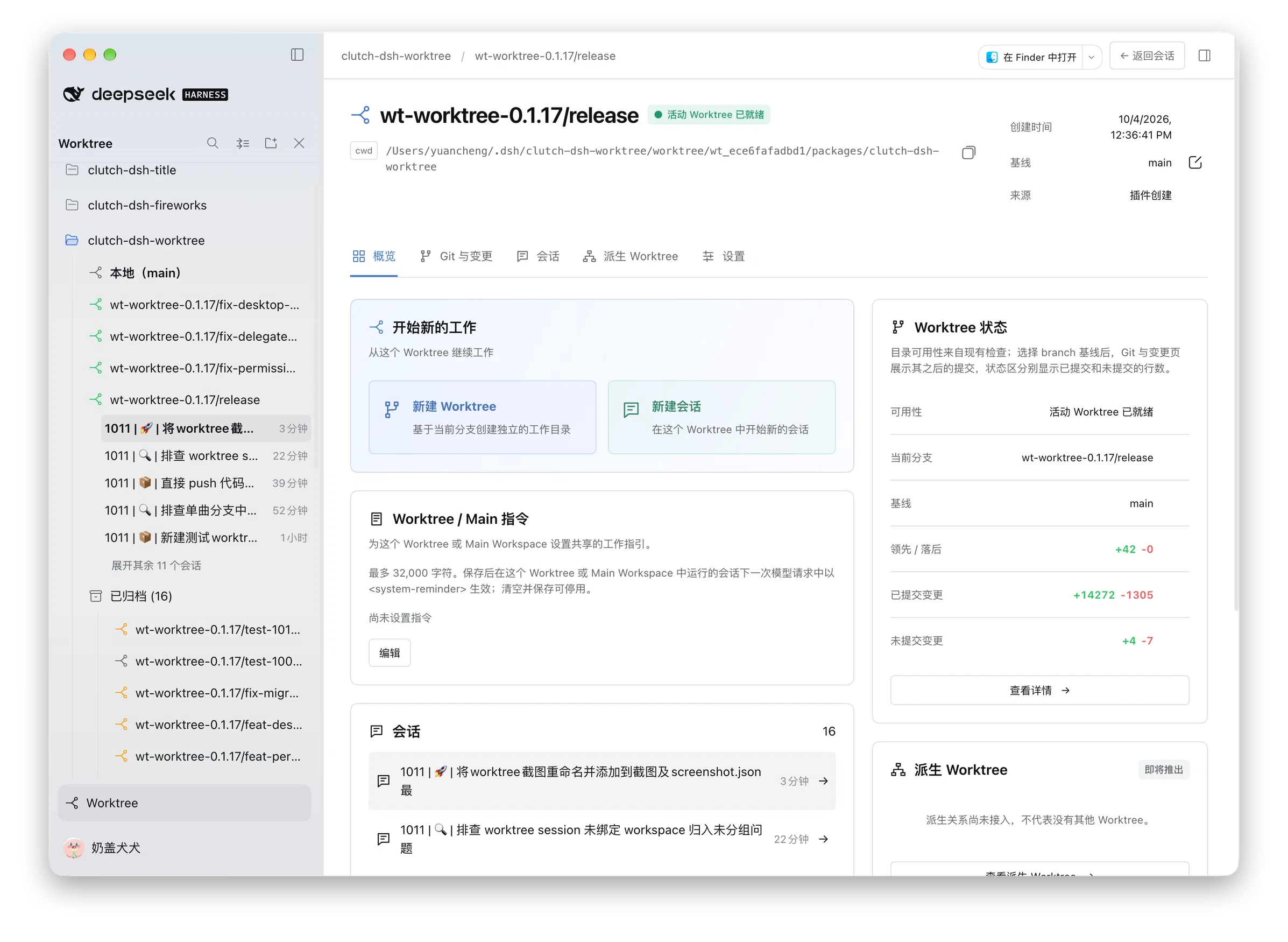
| Worktree Dashboard | The preview Dashboard shows Worktree identity, path, Sessions, Worktree/Main instructions, connected actions, the host-provided Open In action, and the read-only Git & Changes view for managed Worktrees or Main. Derived Worktrees and other unfinished cards remain Coming soon. | |
| Agent tool settings (Experimental) | Choose capabilities for /cluworktree in General, and independently configure automatic injection in Local/Main and managed Worktree Dashboards. Delegated Sessions receive result reporting only by default. |
Usage
Open Worktree mode
The Sidebar scrollbar floats over the edge without shifting row spacing. Workspace folders and rotating disclosure triangles match native DSH. An expanded Workspace containing the current Session uses the native blue folder; other Workspace folders use the native gray. Hover over a long Session title or Worktree name to reveal its tail at native speed; leaving restores the start. Reduced motion reveals the tail immediately.
- Start DSH Web and select Worktree from the DSH Sidebar footer.
- Search or expand a Workspace in the Worktree tree.
- Select Local/Main or a Worktree to browse its Sessions. The view is additive; DSH's native Workspace and Session navigation remains available. Each group initially shows five rows; use Expand more and Collapse for additional rows.
- Use Collapse All in the header to collapse other unrelated Workspaces and Worktrees; the Workspace and Worktree containing the current Session remain expanded.
Collapsing the native Sidebar also hides the Worktree panel on Web and desktop. macOS desktop keeps no collapsed rail; use the native titlebar control to reopen it. Row animation respects reduced motion and settles immediately during search, drag, and initial loading. On Web, Worktree navigation starts below the native DSH brand row, leaving its Sidebar toggle visible and clickable even when the New Session action displays keyboard shortcuts. If the native Sidebar layout cannot be safely recognized, the plugin leaves native navigation visible rather than covering its controls. It retries when the layout changes. Worktree navigation and Dashboard support AppFrame layouts with extra titlebar or shell controls before, between, or after the native columns, while keeping those controls accessible.
Create a Worktree
You can also enable Agent tools with /cluworktree; see the next section.
New Worktree actions use the same branch icon as Worktree rows. The Workspace row button appears on hover, keyboard focus, or while its options menu is open, matching the menu button.
- Open the options menu for Local/Main or an active Worktree and choose Create Worktree.
- Choose the local base branch. You can also provide a new branch name.
- Confirm the dialog. The plugin creates the Git Worktree, records its acquisition facts, and continues through the normal Session and binding flow when you open a Session from that Worktree.
Git must have a usable repository, local branch, and initial commit. If setup is incomplete, DSH shows the relevant readiness message and copyable setup guidance.
When the Workspace is a repository subdirectory, its Worktrees preserve that relative directory.
For example, a Workspace at /repo/packages/app uses <worktree-root>/packages/app for new
Sessions, the Dashboard path, Copy Path, and Open In. Git operations still use the entire checkout.
If that directory is missing or resolves outside the checkout, the Worktree needs repair; it does
not fall back to the Git root or create the missing directory.
Already-bound Sessions with a legacy Git-root cwd remain usable after a subdirectory upgrade, including automatic tool injection, Session discovery, follow-ups, result reports and default Worktree creation from their own checkout's HEAD. Their original cwd and history remain unchanged; new Session bindings still require the Workspace directory inside the checkout. Git file previews use relative addresses inside the current Session cwd and absolute addresses for other checkout files, subject to DSH's native file-access checks.
Enable Agent Worktree tools
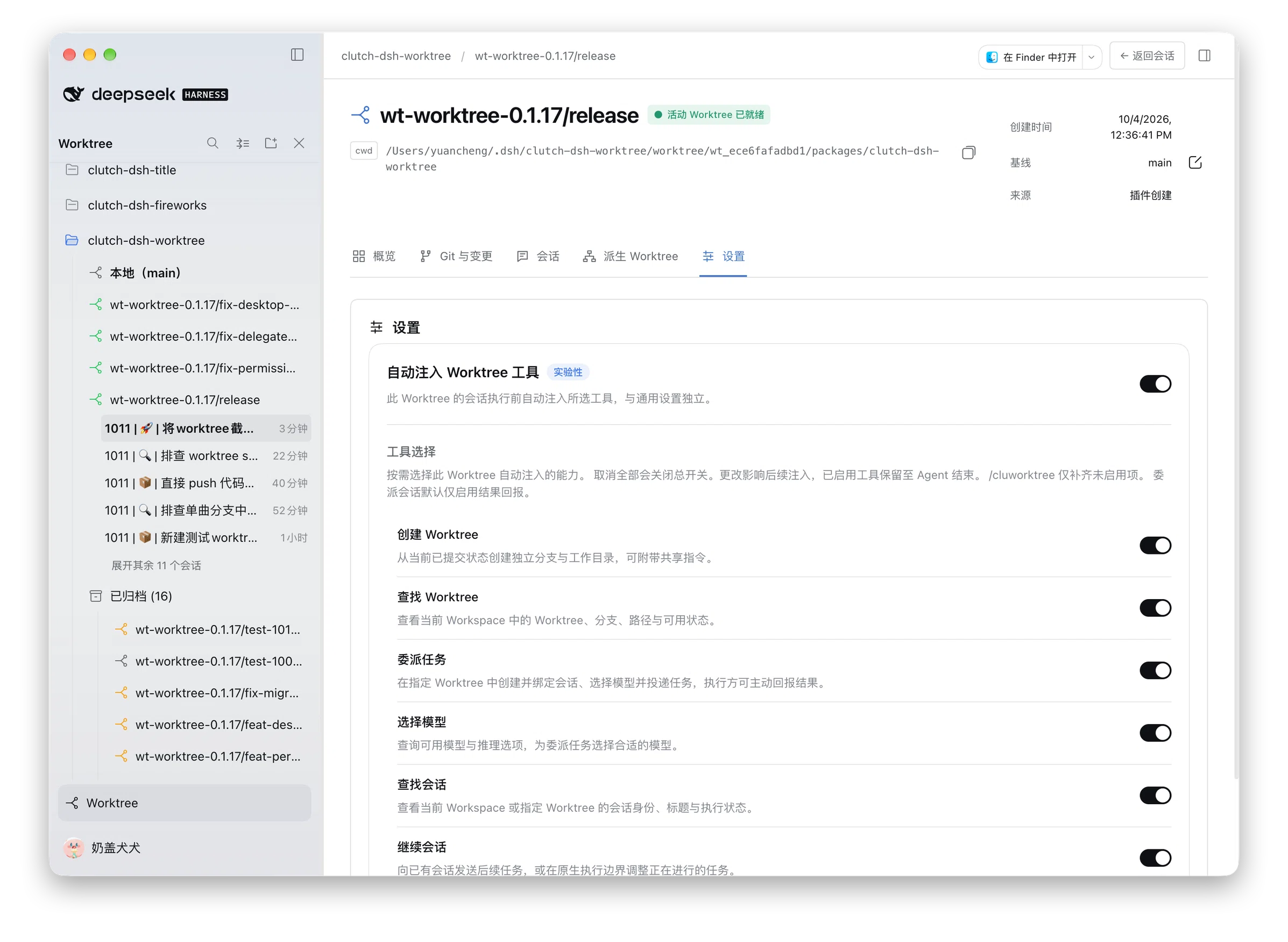
Open Settings → Worktree → General and turn on Worktree tools, then select the
capabilities you want. Both tool switches start off. Run /cluworktree in a Session belonging to a
Workspace or an active managed Worktree to enable your selected capabilities. Turning the general
switch off removes the command; deselecting every capability turns the switch off automatically.
For automatic injection, open Dashboard → Settings for Local/Main or a managed Worktree and select
capabilities under Automatically inject Worktree tools. Local/Main settings apply only to unbound
Sessions in that Workspace root; Worktree settings apply only to Sessions bound to that Worktree.
Each configuration is stored separately. Selected tools are assembled before the first model request,
including after an Agent restart; ordinary prompt presets also include delegation guidance and,
in PTC mode, their SDK.
These selections are independent of General:
if General selects capabilities 1, 2, 3 and automatic injection selects 2, 3, 4, running
/cluworktree adds only capability 1. Already enabled tools remain until that Agent ends; changing
preferences affects future injection.
The Worktree entry in Settings uses the same branch icon as the sidebar.
Both settings use a card with the main switch at the top. Turning it on reveals tool selections
and their descriptions below a divider; turning it off collapses them and retains your selection.
Injection and reporting notes sit directly under the tool-selection explanation.
The command and automatic-injection settings carry DSH's native Experimental badge.
The settings explain each capability in plain language. Command results use DSH's native command
presentation and report how many capabilities were added or already available.
In a new Session, running /cluworktree immediately opens the conversation page and shows
the command outcome, without first sending a message to the model.
With delegation enabled, a request to create a feature Worktree and implement or fix something defaults to creating the Worktree and assigning the work to its own Session. That Session handles code edits, dependency setup and verification; creating the directory alone does not start the task. Guidance prefers the enabled plugin tools over other Worktree/Session tools, while respecting explicit requests to only create a Worktree, work in the current Session or use a different tool.
The six selectable capabilities correspond to these tools:
| Tool | Parameters | Behavior |
|---|---|---|
clutch_new_worktree |
name, optional baseBranch, instructions |
Creates a new branch from the calling Session's healthy Worktree branch; Local/Main uses the root checkout's current branch. An explicit local baseBranch overrides this. Returns the acquisition baseBranch and baseCommit. |
clutch_list_worktrees |
optional workspaceId |
Lists managed Worktree ids, branches, paths, lifecycle and health, plus available local base branches. Defaults to the calling Workspace. |
clutch_span_worktree |
worktreeId or legacy name, prompt, optional model, title |
Creates a fresh native Session, binds it, configures its initial model and submits the prompt. Returns its sessionId and admission status. |
clutch_list_models |
optional provider |
Lists native provider/model routes, reasoning efforts and provider failures, alongside the current Session model and deployment default. |
clutch_list_sessions |
optional workspaceId, worktreeId |
Finds existing Sessions, binding state, status and title. Unavailable relations return a diagnostic without reading their history. |
clutch_send_message |
sessionId, prompt, optional mode, requestId |
Continues an existing Session. queue is the default; steer corrects at a native step boundary. Returns admission, not a reply. |
For example, ask the Agent to call clutch_new_worktree({ name: "feature/demo", instructions: "Run tests before finishing." }),
then clutch_span_worktree({ worktreeId: created.worktreeId, prompt: "Implement the feature and report the result." }) using the returned Worktree id.
The tool name is intentionally clutch_span_worktree. Worktree names are exact Git branch names
within the calling Workspace; prefer stable worktreeId for dispatch. Creating a Worktree alone does not create a Session.
Only committed state is inherited; staged, unstaged and untracked files are not copied.
An unhealthy binding never silently falls back to Main. The default captures the calling checkout's
committed HEAD, including a detached root HEAD. Detached sources return baseCommit without inventing
a baseBranch; an explicit local baseBranch remains available as an override.
Newly delegated Sessions automatically receive only
clutch_report_result({ status, summary, evidence?, requestId? }). The Host fixes the destination
to the delegating Session. status is completed, blocked, or failed; summary and evidence
are each limited to 2,000 characters. The other six capabilities require /cluworktree or the
Worktree's explicit automatic-injection selection. Reports arrive as ordinary queued native messages;
verify their claims and evidence before accepting completion. Reports are model-driven:
a crash, stopped Agent or unanswered human approval may prevent reporting. idle is not success.
Reporting is limited to the active delegated task. One successfully admitted completed, blocked,
or failed report consumes and clears its in-memory token. The reporting tool, SDK and guidance
stay stable; calls without a token are rejected. Later user input clears any remaining token;
it does not report to the former parent. An explicit new clutch_send_message
dispatch from that parent opens reporting again after its prompt is consumed. Uncertain report
admission permits only an identical retry with the returned requestId.
Tokens are never persisted and are lost on Agent/plugin restart. Dispatch retry identities are
retained in a bounded in-memory cache; expired retries fail explicitly instead of reopening reporting.
The plugin rejects self/ancestor messages and blocks further message/task dispatch from turns
triggered solely by reports or ordinary plugin messages. New human input permits dispatch again;
these guards apply to this plugin's tools in both native and PTC modes.
clutch_read_session and clutch_wait_sessions are removed from the model catalog. Do not
poll lists or read raw Session logs for progress. After successful dispatch or follow-up admission,
acknowledge dispatch and end the turn, waiting for the executing Session's pushed report.
Continue only separate independent work already requested by the user. Do not check the delegated
task through agent lists, terminal commands, Git, files or tests, and do not edit or commit it yourself.
An explicit user progress/investigation request or a concrete admission failure permits a targeted action.
Evaluate a report's supplied evidence rather than automatically rerunning checks; investigate only
when requested or when the evidence has a concrete gap or inconsistency.
Complete prompt presets such as minimal omit extra prompt sections; critical handoff and
model-selection rules also appear in native tool descriptions, preserving that preset's complete prompt.
Activation adds Agent-scoped guidance for choosing delegation from ordinary task descriptions,
so users need not specify tool names. Schemas describe exact ids, defaults and target alternatives
without $schema; errors explain the cause, correction and a valid invocation. A bad Session
history returns one unavailable diagnostic while keeping healthy list entries available.
In PTC mode, the generated SDK exposes concrete argument types, including required report
status and summary. Length limits remain in field descriptions and are enforced at execution;
mutually exclusive dispatch targets use oneOf compatible with DSH's schema subset.
model is { provider, model, reasoningEffort? }. Omission inherits the calling Session's
effective selection, including reasoning effort; no catalog lookup is required for that default.
When the user specifies a different model or asks to choose one for the task, discover supported
routes with clutch_list_models if enabled and pass the selected object explicitly.
Unknown routes require discovery or user clarification, never invented ids or a deployment-default fallback.
An unavailable model or effort fails before creating a Session. Initial
model routing does not save the deployment default. It is runtime-only until DSH records the
first request header; after that, DSH restores the model from its own history. Restarting before
that first request discards the initial routing override. Native Session model changes take precedence.
Tool changes refresh the owning Workspace's Worktree list and bindings while preserving ready
content. Dispatch keeps the current conversation open and uses DSH's normal new-Session
preset and permission defaults; it does not automatically grant Worktree Full Access. Run /cluworktree again after the Agent or plugin restarts for capabilities not automatically injected.
No extra command arguments are accepted. All discovery, reports and follow-ups are restricted
to the calling Workspace; passing another workspaceId grants no additional access. Sessions
are ordinary native Sessions, not native subagent children or a persistent delegation catalog.
Detached bindings must be repaired before sending or reporting through these tools.
Healthy archived Worktrees retain their active bindings and allow Session follow-ups;
a missing Workspace root still blocks message admission.
If saving instructions, binding, or prompt admission fails after creation, the tool returns the
created identity and an error (instructionsSaved: false, binding-failed, model-failed,
title-failed, reporting-failed, or prompt-failed).
The Worktree and native Session are retained. Repair or open the returned Session before retrying;
another dispatch creates another Session. After a successful binding/model setup, retry a failed
prompt with clutch_send_message and the returned requestId. Reuse a request id only for the
same message retry; new follow-ups get fresh ids. clutch_send_message also returns prompt-failed
with that id when native admission throws, including when acceptance is uncertain.
Reporting destinations and activation are runtime-only. Restart discards the destination;
a resumed Session can enable /cluworktree and use clutch_send_message with a known delegator id. There are no automatic merge, publish or disk-cleanup tools.
Import an existing Worktree
- Select a Workspace, open its branch-icon New Worktree action, and switch to Import.
- Choose a candidate from the branch-and-path list.
- Select Import Worktree. The plugin registers the existing directory without moving, copying, or changing its files, then uses the same Session flow as a created Worktree.
The first version lists only ready, branch-attached, non-root Git Worktrees that are not already managed by the plugin. Detached, bare, prunable, missing, and invalid entries are omitted. Imported Worktrees can still use Git & Changes after you choose a local baseline branch.
Import uses the same Workspace-relative directory rule and offers only candidates where that directory is available. Existing records are projected with the corrected path when the original Workspace is available. Existing DSH Sessions keep their original metadata; create a new Session to run from the corrected directory.
Create and open Sessions
The new Session buttons on Local/Main and Worktree rows use DSH's native chat-bubble-plus icon.
- Use + on Local/Main for a normal DSH Session whose runtime directory is the Workspace root.
- Use + on a Worktree for a Session whose runtime directory is that Worktree.
- When possible, the plugin reuses an unarchived blank Session with the exact target directory.
- Use native DSH fork actions from a Session list, Worktree Session menu, or conversation. A child of a Worktree-bound Session is bound to the same Worktree and opens in that view.
If DSH creates a Session but binding fails, the Session is kept. The Worktree view exposes retry or open recovery actions; the plugin does not delete or rewrite the DSH Session.
Open the Worktree Dashboard
Open Dashboard from a Local/Main or Worktree row menu, its hover action, or the Dashboard icon beside the native Session-header actions. The header icon opens it in one click even when the Sidebar is collapsed, without expanding the Sidebar. If the target is still loading, the request stays open and shows loading in the center area, with failures announced by toast and retries available in Worktree settings. The Dashboard is a peer page to the native Session content: it occupies the center area beside the Sidebar while leaving an already-open right sidebar visible for a session-bound target. When the target Worktree has Sessions, opening its Dashboard waits for an initial pending Session list to become ready, then keeps the current Session if it belongs to that Worktree; otherwise it switches to the retained head Session so both views stay aligned. A ready empty Session list opens a page-level Dashboard without changing the current Session, collapses any currently open native right sidebar because there is no target Session, and does not create a Session automatically. The Dashboard header keeps the native right-sidebar button available whenever a current Session can host it and the sidebar is collapsed; once opened, the button is hidden following native behavior.
The top bar shows {workspace}/{worktreeName} and groups Open in ..., Back to session (or New Session) and the right-sidebar control. It stays visible while the page scrolls. On macOS desktop, its blank space drags the window, and a collapsed left Sidebar exposes DSH's native reopen button beside the traffic lights. Windows retains its native caption bar.
Use Back to session, Escape, a Sidebar Session, or Worktree mode exit to close it. For a Worktree with no Sessions, the top-right action becomes New Session and starts one in that Worktree. The connected MVP surface can show Overview and Sessions, create a Session or Worktree, archive a Worktree, edit instructions, copy a path, open the recorded directory in VS Code, and inspect Git & Changes. Derived Worktrees and other marked quick actions remain placeholders. VS Code must be installed on the browser's machine and able to access the recorded path; the link does not verify launch success.
Open the recorded directory in an app
The Dashboard Open in ... split button is plugin UI backed by DSH's official Host routes:
GET /open-in-app/appsdetects the available applications;GET /open-in-app/icon/<appId>supplies each application icon; andPOST /open-in-app/openlaunches{ "app": string, "path": absoluteDirectoryPath }.
The button sends relative requests to the current DSH host and uses the Dashboard record's
absolutePath; it does not probe the operating system or persist an application choice. The selected
application is remembered only in the current page's memory. After a refresh, the first available
application is used. If no application is available or the Host request fails, the button keeps the
existing VS Code protocol-link fallback.
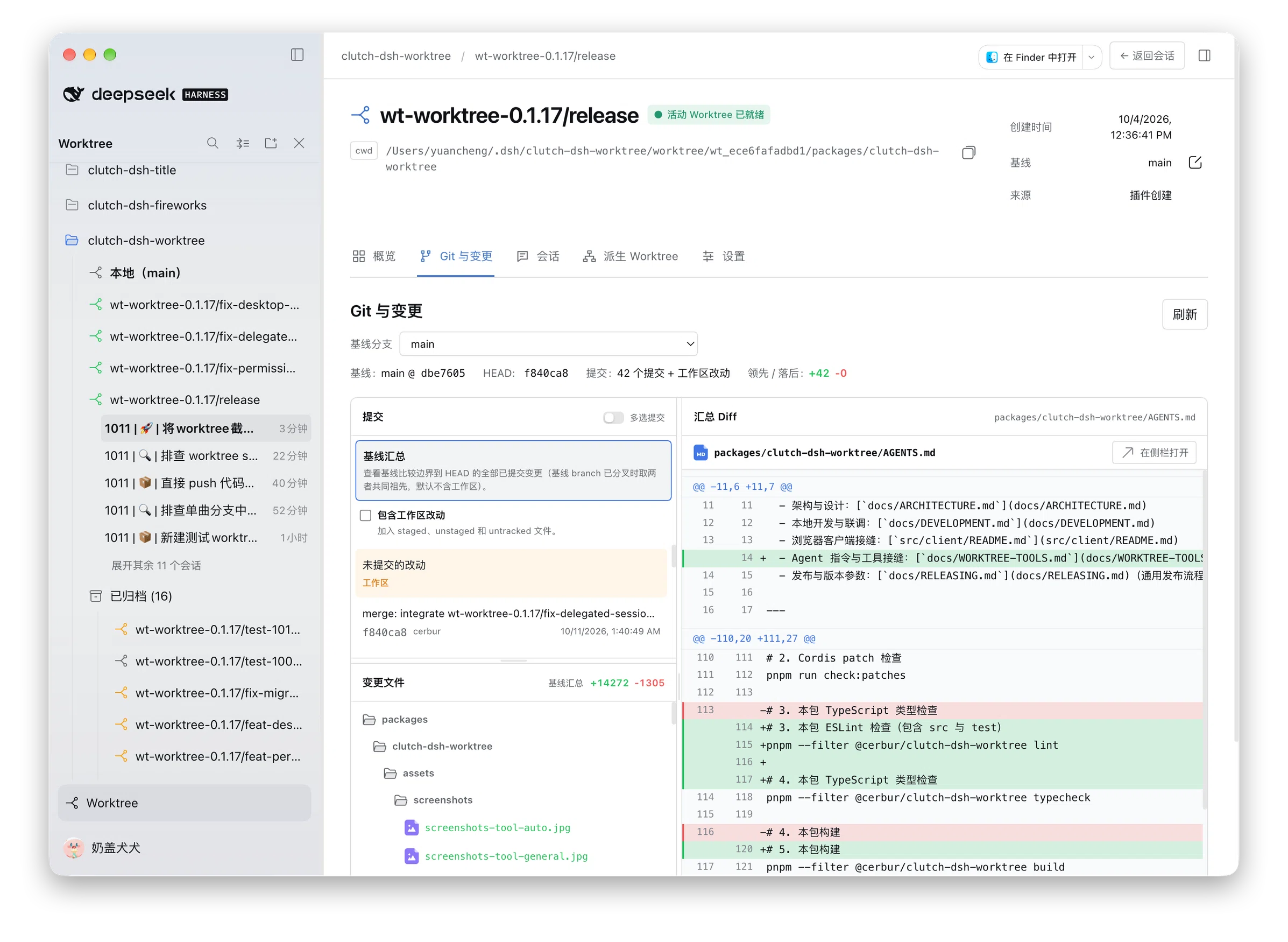
Use Git & Changes
Open the Git & Changes tab from a managed Worktree or Main Dashboard. Main reads the current Workspace-root
commit history directly and prepends an Uncommitted changes entry when the root has tracked, staged, unstaged, or
untracked changes. It shows at most the first 200 committed commits, selects the first visible target, and uses the same
changed-file and diff panes for either a live working-tree target or a committed history entry. For a managed Worktree with a
persisted baseBranch that differs from the current branch, or with a captured acquisition commit that
supplies the implicit baseline, the Overview performs one compact, on-demand Git status read through the
existing /api Connection. It shows ahead/behind commit counts plus separate
committed (baseline-to-HEAD) and uncommitted (live working-tree) line totals; this is an ephemeral
projection, not a watcher or a Worktree-record field. Main has no Worktree baseline comparison, so Overview remains
Not connected for ahead/behind facts while its Git tab still exposes Main history. Unavailable or baseline-unselected
managed views honestly remain Not connected. Opening Overview does not load the branch list; the first Git tab
activation loads local branches and, once a baseline is resolved, managed Worktree commit history. To replace that baseline, click the pencil icon beside the Base fact to open the branch
picker: its search field sits permanently above a bounded branch list that shows roughly seven rows and
scrolls internally, so the dialog keeps one size while you filter. Choose any local branch except the
current Worktree branch and save.
The save replaces the persisted baseBranch in the plugin sidecar; the saved value becomes the default for
the Git selector. Once the Git tab is open, changing its selector remains a transient view choice and reloads
history, changed files, and diffs without another Worktree-record write. If no usable saved baseline exists
(absent or equal to the current Worktree branch), the Git tab and the Overview read against the Worktree's
immutable captured acquisition commit and show that resolved commit as the Base fact; only a Worktree with
neither a usable saved baseline nor a captured commit stays baseline-unselected and prompts you to choose
one. When the selected branch has diverged, Git resolves the two heads' common ancestor. The
Git & Changes view reports Worktree commits after that ancestor as +N ahead and base-branch commits after it
as -N behind; history and file reads remain available. If the two heads have no common ancestor, the
committed summary falls back to the full tree diff between the base branch tip and Worktree HEAD, while
history uses the Worktree commits not reachable from that base tip.
With a valid managed Worktree baseline loaded, the Git & Changes tab initially selects Baseline summary rather than the
first commit; changing the baseline branch also returns to that summary. Choose a commit or Uncommitted
changes when you need a narrower target. Main skips this comparison-only summary but presents the same committed history and multi-commit selection behavior, plus a live working-tree target when the
Workspace root has changes. Selecting Uncommitted changes compares the current Workspace root with HEAD; it does not
create a baseline or write any Git state.
The selected local branch is resolved again for each read. The browser can choose only a plain local branch
name, not a raw commit SHA or arbitrary Git ref: a full ref path, tag, or remote-tracking ref is rejected
outright, while a selected branch that no longer exists shows the honest unavailable state instead of a
generic Git failure. baseCommit is immutable acquisition metadata, is never user-selectable directly, and
is the implicit baseline whenever no saved branch baseline is usable; creation recovery never overwrites
it. When a managed Worktree or Main Workspace root has staged, unstaged, or untracked files, the list prepends an
Uncommitted changes entry; selecting it compares that live working tree with HEAD and uses the same changed-file
and diff views.
The Baseline summary is a separate target that shows the net committed tree diff from the resolved
common ancestor to the request's captured HEAD (or the two branch tips when no common ancestor exists);
it excludes working-tree changes by default. Turn on Include working tree to replace that target with
one net diff from the same comparison boundary to the current working tree, including committed, staged,
unstaged, untracked, deleted, and renamed changes. This is a
fresh on-demand projection rather than a concatenation of two diffs. Clicking a commit shows that
commit's own diff. For managed Worktrees and Main, turn on Multi-select commits in the commits header to pick several committed rows
and view the exact union of their first-parent deltas; Main has no baseline-summary or working-tree-inclusion controls, and the switch is off by default; turning it off
collapses the selection back to the focused commit. The changed-file list
records the contributing commits, and each selected commit is rendered as its own diff segment; this is
not an implicit range and does not include unselected commits. The changed-files column header shows the
aggregate green +N and red -N totals for the current target, including the Baseline summary, selected
commits, or Uncommitted changes; binary-only totals show Unknown. The working-tree entry remains mutually
exclusive with committed multi-selection. The Open in Sidebar action in the summary diff toolbar
reveals the current file in the native right sidebar using the current Session, only when that Session
belongs to the Dashboard Worktree. An empty Worktree
or an unrelated current Session cannot open a file through this action.
Managed Worktree and Main history are each capped at 200 commits and mark longer histories as truncated. A changed-file list larger
than the Git adapter's output bound reports an explicit truncated state instead of a generic error.
Commit details use
first-parent comparisons; root commits compare against the empty tree; rename and copy rows retain
both paths; binary or oversized diffs show an explicit display-safe state. Changed-file rows show text
line counts as green +N additions and red -N deletions; binary files omit those counts. File names use
green for additions, red for deletions, and blue for other changes, and each row's title and accessible
label spells the status out. Folder icons indicate whether each folder is
expanded or collapsed. The Uncommitted changes entry is an on-demand snapshot, is not persisted, and is not a
Git watcher; refresh it to see later edits.
Git & Changes uses a viewport-bounded, fixed-size surface. Wide layouts show two columns: commits and changed files stack in the narrower left column around a draggable divider, while the diff keeps the full height on the right. Narrow layouts keep two rows: commits and changed files side by side on the first row, with the summary diff underneath. Both dividers stay draggable in either layout — the vertical one trades width between the columns, or between commits and changed files inside the first row, and the horizontal one trades height between the commits and changed-file panes, or between the first row and the diff. Drag a divider, or focus it and press the arrow keys, to move it, and double-click it to restore the default split. Long commit and changed-file lists scroll inside their panes instead of expanding the Dashboard. The changed-file pane also scrolls horizontally when paths are wider than the pane, keeping file and folder names untruncated. Changed files are grouped by folders; folders start expanded and can be opened or collapsed independently. Diff content also scrolls inside its bounded pane, while the read-only selection and refresh behavior remains unchanged.
The view is read-only and does not provide commit or staging controls. For managed Worktrees, the plugin validates committed
entries against the selected branch-to-HEAD projection and re-reads working-tree paths against a fresh status projection;
Main validates committed entries against its bounded HEAD-history projection. These endpoints are not generic Git object or file readers. Refresh keeps ready
content visible while replacement data loads, and late responses for an older commit or file selection
are ignored.
Add Worktree or Main instructions
In the Dashboard, use Edit on the instructions card to save or clear shared guidance for the selected Worktree or
Main Workspace, up to 32,000 UTF-16 code units. The next model request receives the text as a separate
<system-reminder> context entry through DSH's pre-step hook, including unbound Sessions running at Main.
Instructions stay in the plugin's own data. They are not written to the project directory or an
AGENTS.md file. Clearing, detaching, cleaning, or forgetting a Worktree stops future injection; archiving
keeps an active binding and therefore keeps its Worktree instruction effective. Unchanged instruction text is not repeatedly added while its message remains visible.
Resolve errors
Failures in the Worktree list, dialogs, and Dashboard appear as native toasts in the current DSH language (English or Chinese). Each message explains the problem and how to recover. The list keeps its existing content and has no error banner or diagnostics drawer at the top.
Use Errors & recovery in the toast, or open Settings → Worktree → Errors & recovery, to read each failure and expand its original diagnostics (including Git stderr). Retry reads, recover interrupted Worktree operations, retry Session bindings, or open retained Sessions from the same tab. Records remain after the toast fades; the list and Git panels have no inline error or retry controls. Closed operation views disable their recovery actions; reopen the corresponding view to load its current state. Records stay in page memory and clear on reload. Clear history keeps active recoveries. Dialogs keep input; failed instruction and baseline saves retain drafts. Git setup guidance stays in the creation dialog. Matching Git failures share one toast while keeping separate records.
The Worktree settings section uses DSH's native tabs, status tags and compact controls. Its text, actions and diagnostic details follow the font size selected in Settings → General.
Archive or remove a Worktree
- Archive Worktree is non-destructive. It keeps the directory, bindings, instructions, and runtime Worktree context. An archived Worktree can be unarchived while its Git registration is intact.
- Clean Up Disk is a separate action. It requires a second confirmation and runs the normal
non-forced
git worktree remove. The plugin does not check whether Sessions or subagents are still using the directory; stop those tasks before confirming. Successful cleanup detaches the bindings while keeping the recorded history until it is forgotten. - Remove from Management deletes only the plugin's Worktree and binding records. It preserves the disk files and native DSH Sessions, and does not require a Session activity check.
Requirements
| Component | Requirement |
|---|---|
| DSH Client | >=0.2.0-rc.1, including the Session and Workspace Controllers and Client Store |
| DSH Host | >=0.2.0-rc.1, including the Typert Gateway /api connection and subprocess capability |
| Git | >=2.20.0, installed and available on PATH |
| Node.js | >=20.0.0 for the plugin; DSH dsh-v0.2.0-rc.1 requires `^22.19.0 |
| Host filesystem | Normal Windows and macOS local paths are supported for sidecar and Git Worktree data; network, special, or alias-heavy filesystems may not support durable sync or identity checks. |
Behavior and limitations
- DSH owns Workspace identity and root paths, Session identity and metadata, native lists, messages, prompts, transcripts, and history. The plugin never copies or rewrites those values.
- The plugin's external index stores Worktree paths, branches, sources, lifecycle state, bindings,
ordering, instructions, acquisition facts, and related metadata. For managed Worktrees, the
Dashboard Base fact is the persisted
baseBranch; users can replace it with a local branch other than the current Worktree branch, and the saved value becomes the Git-tab selector default. The immutable acquisitionbaseCommitremains separate and is not rewritten by that edit. The index is kept in the DSH host plugin data directory, not in a project directory or DSH's raw data store. It does not store Session content or a copy of the Workspace root. - Runtime
cwdis derived for each execution. No binding, Main, or detached binding uses the Workspace root; an active Worktree binding uses that Worktree path. The cwd is never persisted into DSH Session metadata. - One Session can have at most one active Worktree binding, while a Worktree can have many Sessions. Removing or cleaning a Worktree never deletes a DSH Session. A broken active binding reports a repair state instead of silently falling back to another Worktree.
- Git is read on relevant refreshes, when relevant menus open, and on Git Dashboard activation; the plugin does not watch Git continuously. An external branch change is shown as branch drift and requires explicit Adopt current branch before disk cleanup. Detached HEAD and recovery-needed states remain visible and retryable.
- Worktree health is shown by tinting the branch icon: ready uses the success (green) color, branch drift uses the warning color, and repair/recovery-needed uses the error color. The localized health label remains available to assistive technology even when hover replaces the icon with the disclosure control.
- Newly created or imported Worktrees are inserted at the head of their Workspace's Worktree list; existing Worktree order is preserved and Main remains fixed first.
- Persist Workspace, Main, and Worktree expansion choices in browser-local storage; the five-row Session overflow state remains transient and resets after refresh or parent collapse. Collapse All collapses unrelated nodes while keeping the current Session's Workspace and Worktree expanded.
- When the current Session is outside the visible tree, the matching row is highlighted and temporarily revealed; positioning keeps the navigation scroll unchanged when the row is already visible and moves only enough to expose it otherwise. This does not change persisted expansion choices.
- Git Dashboard reads run on the Host through the existing DSH
/apitransport. The browser does not execute Git, read sidecar files or.git, or expose working-tree mutation controls. File diffs disable external diff and text conversion and are bounded for safe display. - The Dashboard Open In action uses only the official relative DSH Host open-in-app routes for application discovery, icons, and launching. It keeps the application choice in current-page memory; refreshes use the first available application, and an empty or failed Host response falls back to the encoded VS Code protocol link.
- The Git Dashboard is intentionally limited to committed history, a read-only Baseline summary (optionally including one fresh baseline-to-working-tree projection), one Uncommitted changes snapshot, changed files, and one unified diff at a time. These projections combine staged, unstaged, and untracked files when requested but are never written back to Git. The Dashboard does not provide commit, staging, reset, revert, cherry-pick, fetch, push, pull, pull requests, graph lanes, pagination, or syntax highlighting.
- Session rows and Dashboard cards use DSH's native status and relative-time presentation. The green
completion dot is DSH's unread reminder for a Session that stops outside the current main view;
opening that Session or running it again clears the reminder. A cold-start idle Session does not
count as completed. The reminder remains DSH-owned and is not persisted by this plugin.
Collapsed Workspace, Main,
and Worktree groups derive one aggregate
StateDotfrom their complete eligible membership (after native blank/archive filtering): waiting approval (and other pending-interaction warnings) takes priority over running, and running takes priority over completed. Idle Sessions do not contribute a group dot; Worktree health remains a separate leading indicator. Visual Session ordering initially follows the newestupdatedAtvalues and remains browser-local; Main remains fixed first, Worktree drag updates only this local order projection, and Main drag updates native Workspace order only after DSH accepts it. - Active Worktree Sessions may request the named
worktree-full-accesspreset after an explicit confirmation. The plugin appends this preset while preserving DSH's existing presets, default selection, and official Auto review integration. It combines DSHdanger-full-accesswithask, keeps approval prompts enabled, and does not change network or process policy. If unavailable, the plugin falls back toworkspace-write + askwhen possible or reports an unverified, retryable state. Permission services may mount late or be replaced: retry uses the currently available capabilities without restarting the Worktree Host. A temporarily missing service never grants Full Access, and an explicit user restriction is preserved. It cannot exceed the sandbox imposed by the host running DSH. - Session-to-Worktree bindings and permission checks compare physical filesystem identity on the Host (
stat/realpath) rather than relying on lexical path equality. This ensures robust compatibility across Windows and macOS path variations (including drive-letter casing, forward/backward slashes, UNC paths, and extended-length prefixes like\\?\\). On Windows, sidecar atomic persistence uses file-handle synchronization with best-effort directory sync, and Git CLI integration cleanly handlesNULnull-device paths and CRLF line endings. - Git must be installed and available on
PATH. A missing Git executable shows install guidance and no command block; the plugin does not run setup or installation commands. - If a Workspace root directory is missing, the Worktree view still renders the indexed Worktrees, Session bindings, and recorded instructions, and reports a localized missing-directory state instead of failing the whole view. Git-backed reads, Worktree creation and import, and cleanup actions remain rejected for that Workspace until its directory returns.
- If the plugin's external index is unavailable or corrupt, native DSH Workspace and Session views remain readable and the plugin enters a degraded read-only state. It never replaces native data with an empty index.
Language behavior
Worktree mode follows DSH's current interface language. The entry point, tree, menus, dialogs, statuses, Dashboard labels, and retry messages are localized in English and Chinese. Workspace names, Session titles, branch names, and paths keep their original values. Errors use localized problem and recovery guidance; unknown errors include a support code. Original diagnostics are available in Worktree settings. The plugin does not write them to DSH logs.
Development
For architecture, local DSH integration, testing, and contribution details, see:
The focused package commands are:
pnpm --filter @cerbur/clutch-dsh-worktree lint
pnpm --filter @cerbur/clutch-dsh-worktree typecheck
pnpm --filter @cerbur/clutch-dsh-worktree build
pnpm --filter @cerbur/clutch-dsh-worktree test
Lint checks both source and test files. Resolve ESLint errors before committing.
The bilingual README structure is checked with:
node --test test/readme-parity.test.mjs
Uninstall
With the DSH CLI:
dsh plugin --profile web remove @cerbur/clutch-dsh-worktree
From a DeepSeek Harness checkout, use pnpm dsh plugin --profile web remove with the same package
name.
Friendly Links
- LINUX DO — A new ideal community.
Comments
Comments live in GitHub Discussions. Sign in with GitHub to post or react.