
Install
Inside DeepSeek Harness, with dsh-market
dsh plugin --profile web add dshmarket
Or from the command line
dsh plugin --profile web add dsh-ocr-local
Installing runs third-party code with your own permissions — it can read your files, use your credentials and reach the network. Review the source first, and pin a commit (github:owner/repo#sha) when you can.
Screenshots
README
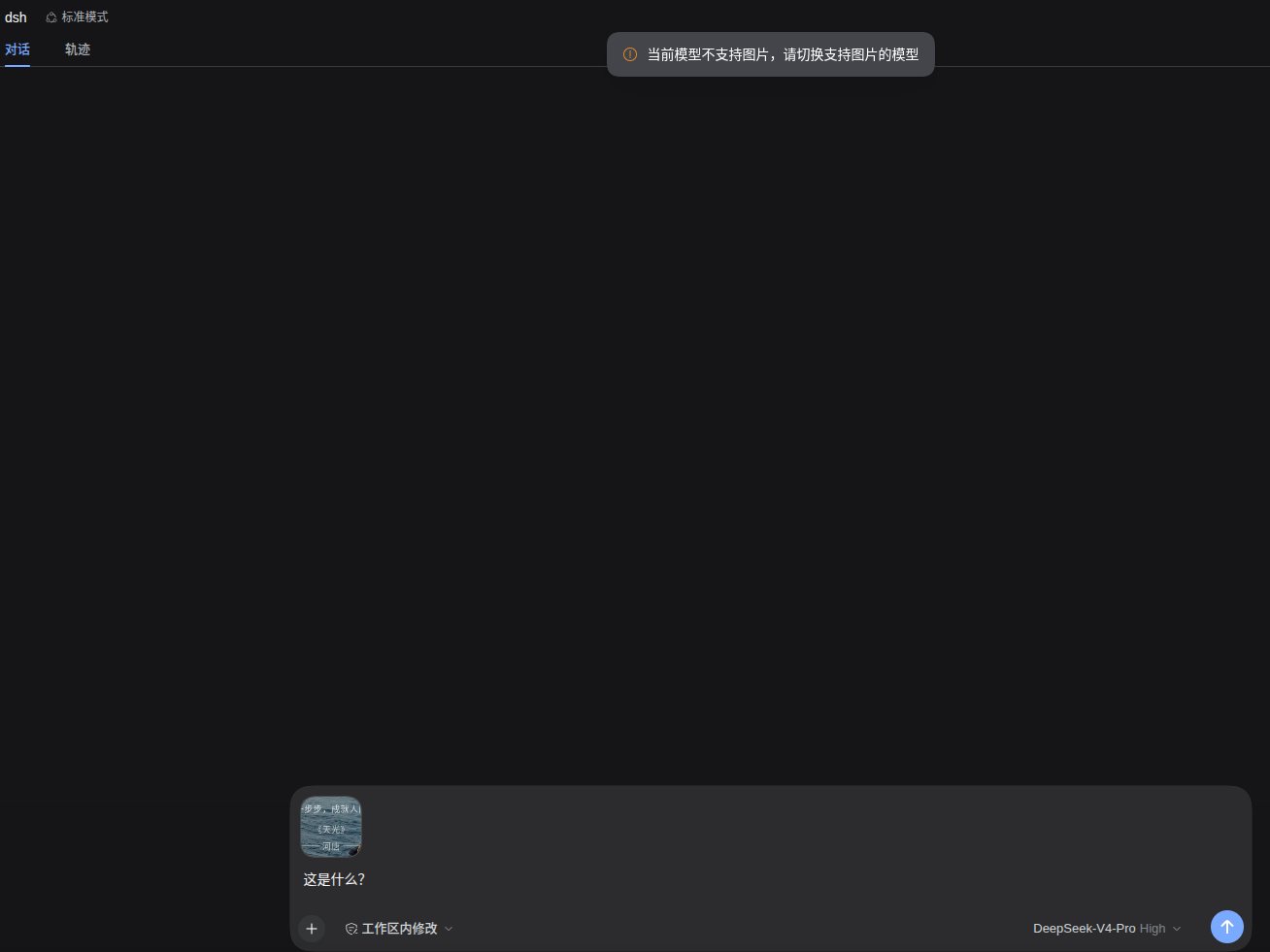
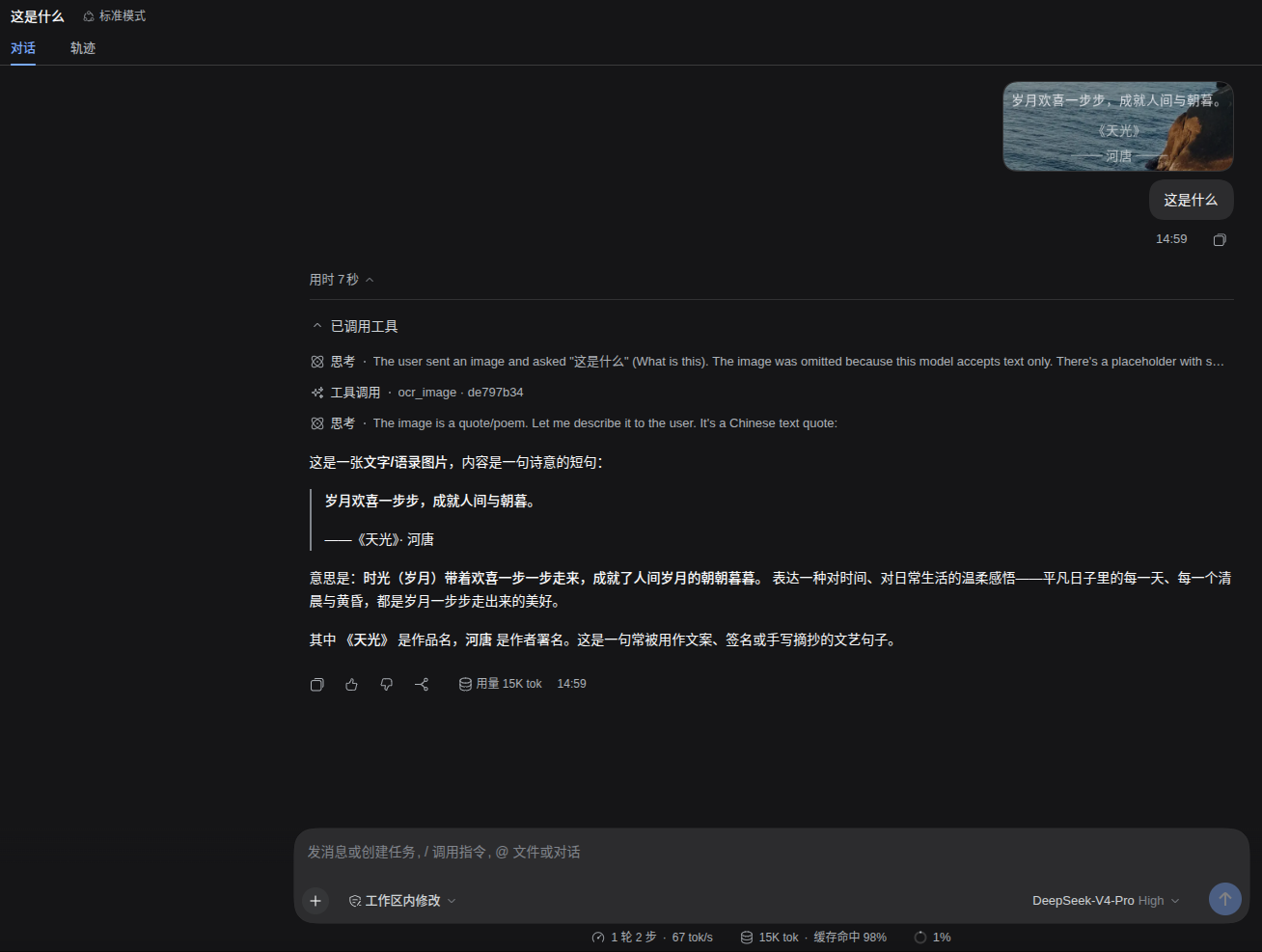
A local OCR fallback for DeepSeek Harness (Web): when the model a session is routed to cannot accept image input, this plugin reads the text out of a pasted image for it. When the model can see images, the plugin stays completely silent.
The engine is PP-OCRv5 + ONNX Runtime — CPU-only, fully offline, and your images never leave your machine.
When the plugin acts, and when it stays silent
This is the most important table here. The decision is based on the input
capabilities the session's actually routed model declares
(inputModalities) — it is not a guess:
| Model routed by the session | Plugin behaviour | What the model actually receives |
|---|---|---|
| Explicitly cannot accept images (e.g. a text-only model) | ✅ Acts: the image is saved to a local cache and its path is injected, so the model calls ocr_image |
Text. For these models the harness substitutes only [image omitted because this model accepts text only; …] — no path at all, so without this plugin the model cannot read the image |
| Explicitly accepts images (multimodal model) | 🔇 Silent: no cache write, no hint injected | The image itself. The harness also prefixes a read-only copy path, so the model can call ocr_image on that path when it needs verbatim characters |
| Cannot be determined (provider not registered / lookup failed / no modalities declared) | 🔇 Silent | Handled by the harness as usual. Better not to intrude than to add an OCR hint to a model that may well see images |
"Silent when undetermined" is deliberate. If you genuinely want unconditional
intervention, set autoOcr: 'always' (see Configuration below).
On unlisted model ids: the DeepSeek adapter explicitly returns
inputModalities: ["text"]for ids that are not in the model catalog, so those text-only routes are covered by row 1. Other providers that report no modality information for undeclared models fall through to row 3 (silent).
Why the plugin touches the model's "capability declaration"
The harness reads the model's declared image capability at the moment you press
send (prompt admission). If the declaration has no image, it rejects the prompt
before the message ever reaches the session, with "the current model does not
support images; switch to a model that does". The image never enters the session,
so the plugin never sees a user/message event — which would make the local OCR
fallback dead code on exactly the path it exists for.
So the plugin widens image into the declaration on that one method
(llm.resolveModelInfo), and admission lets the prompt through. This does not
send the image to a text-only model: requests are assembled from the adapter's own
model catalog, and the image is still projected into
[image omitted because this model accepts text only; attachment sha256:…] text
before it reaches the wire. The plugin widens admission, not capability.
Set autoOcr: false to opt out entirely — then not even that wrapper is installed.
⚠️ A model configured in the Web settings page may declare no capability at all
The plugin judges entirely from the declared inputModalities, not from what the
model can actually do. The Web settings page does not expose that field, which is
the easiest way to get surprised — so here it is in full.
The declaration lives in ~/.dsh/settings.yaml, under llm-deepseek.models[]:
llm-deepseek:
  models:
    - id: deepseek-v4-pro
      name: DeepSeek-V4-Pro
      contextWindow: 1000000
      inputModalities:        # this one decides whether the plugin steps in
        - text
The Web model editor exposes only four fields: id, name, contextWindow,
maxTokens. inputModalities is not among them, so a model added in the page is
written back without it, and the config schema falls back to ['text'].
| What you do in the Web page | Effect on the model's capability declaration |
|---|---|
| Add a model | No inputModalities in the entry → treated as text-only |
| Edit an existing model's name / window / tokens | The declaration is preserved (the page's patch spreads over the stored object, so fields it does not know about survive) |
What the text-only fallback means:
- The model really does not accept images → exactly the case the plugin is for. Nothing to do.
- The model actually does accept images (a self-hosted vision endpoint, or a
multimodal model you brought in) → the plugin steps in needlessly, the image is
projected into an
[image omitted …]placeholder, and you lose the image you could have seen. Declare it by hand:
      inputModalities:
        - text
        - image
No restart needed: settings.yaml hot-reloads (file watcher with debounce);
saving is enough.
Constraints the declaration must satisfy (violations fail loudly at load, they are never ignored):
- Must be a non-empty array of
text/image, with no duplicates. - Only a model declaring
imagemay setimagePixelBudget(lowor a positive integer) andimageMaxBytes. A text-only model that sets either one is rejected:text-only catalog model "xxx" cannot declare image request limits.
Provider cards other than DeepSeek have their own field sets; the capability field name there follows that adapter's config schema.
One related semantic worth knowing:
modelsinsettings.yamlreplaces the built-in catalog wholesale, and the model selector lists exactly that array (the adapter'slistModelsmaps it directly). So once you touch the model list in the Web page, whatever is selectable is entirely up to that array — deletedeepseek-v4-flash-vision-expand there is no multimodal model left to switch to (the default keeps it).
Relationship to vision models
The two paths do not interfere, because they operate at different layers:
- This plugin only does local OCR: it caches the image and asks the model to
call
ocr_image. - Whether the image is sent to the model is decided by model capability and client configuration; the plugin does not interfere.
So with a multimodal model you do not need to do anything: the plugin withdraws on its own. If you want the text read anyway, just tell the agent "read this image with ocr_image".
Quick start
Step 1: Install the plugin
DSH profiles are isolated, so install the plugin into the profile you use
(the Web profile is usually called web).
First make sure you can invoke the dsh CLI. There are several equivalent entry
points — pick whichever matches what you have (the commands below assume one of them):
| Your situation | How to invoke |
|---|---|
dsh is on your PATH |
dsh plugin … |
Inside the harness source repo (pnpm dsh is a repo script) |
cd <repo> && pnpm dsh plugin … |
| Same, but prefer the built output over tsx | cd <repo> && node apps/cli/lib/bin.js plugin … |
| Use the CLI package published on npm | npx -y @deepseek-ai/dsh@alpha plugin … |
⚠️ Two things that commonly get you stuck:
npx -y @deepseek-ai/dshwithout a version tag may fail to launch — the npm package'slatesttag sits on the prerelease0.1.5-rc.1, while the source repo is already0.1.6-alpha.1. Either pass@alphaexplicitly or use the source-repo entry point; keep the version aligned with your profile.dsh pluginforwards throughpnpm, sopnpmmust be on your PATH (otherwise it reportspnpm not found on PATH).
Install the published version:
dsh plugin --profile web add dsh-ocr-local
Or straight from GitHub (to track the latest commits, or when npm is unreachable):
dsh plugin --profile web add github:grelvan/dsh-ocr-local
Or from a local clone:
git clone https://github.com/grelvan/dsh-ocr-local.git
dsh plugin --profile web add ./dsh-ocr-local
When you are hacking on the code, install with
link:instead —dsh plugin --profile web add link:./dsh-ocr-local— and every edit in the repo takes effect on restart, with no reinstall.
Restart dsh after installing, or the plugin will not take effect.
Step 2: Prepare the recognition engine (once)
Run this in your own terminal (replace web with your profile name; pointing at a
local clone works too):
python3 ~/.dsh/profiles/web/node_modules/dsh-ocr-local/ocr/setup.py
It does three things. The models ship inside the plugin package, so nothing is downloaded
for them — all that remains is the Python dependencies (onnxruntime / numpy / opencv,
about 85MB; 1-3 minutes via a nearby mirror), with live progress at every step: a
1/3 → 2/3 → 3/3 banner and pip's own output.
(Note: the script's own messages are in Chinese. The progress bar, pip output, and the
final {"ok": true, …} JSON are language-neutral.)
It prints a self-check command when done. After that every recognition runs locally in seconds, with no network at all.
If the network is bad (the script rescues itself; these are the remaining knobs):
| Situation | What to do |
|---|---|
| GitHub loads but is very slow | It switches on speed, not just on failure: sustained below 200KB/s and it moves on, saying which source it dropped and how slow it was |
| GitHub will not load | It falls back automatically: direct → ghproxy → gh-proxy → ghfast. Pin one with DSH_OCR_MODELS_MIRROR=https://ghproxy.com/ |
| Everything is slow | A proxy helps most: https_proxy=http://127.0.0.1:7892 http_proxy=http://127.0.0.1:7892 python3 …/ocr/setup.py |
| PyPI is slow | Dependencies already default to the Tsinghua mirror; override with DSH_OCR_PIP_INDEX=<index-url> (empty = official) |
| Tune the threshold | DSH_OCR_MIN_SPEED_KBPS=500 (default 200) |
If every source is slow, the last round stops switching and just finishes the download — it will never spin in a switching loop. Interrupted halfway? Just re-run; files already downloaded and sha256-verified are skipped.
⚠️ Why not just tell the agent to "install the OCR environment with ocr_setup"? The plugin's Bash runs inside a possibly restricted sandbox (tight network and writable paths), while installing needs to download dependencies and write the venv and model directory. Measured behaviour: it gets stuck on things like "uv cache directory is read-only", and the model retries for minutes without necessarily succeeding. Run it in your own shell and it goes through first try. The
ocr_setuptool still exists (it calls the same script) — it is just less reliable under a restricted sandbox.
Then send any image to the agent and say "read the text in this image".
Step 3: Use it
Option A: paste a screenshot (most common)
Press Ctrl+V / Cmd+V in the Web composer. The image enters the session through the browser's native attachment flow, and then splits according to the table above: text-only model → this plugin covers it; multimodal model → the model looks at the image directly.
Option B: give the agent a path
Send the agent the absolute path (or a ~/… path) of an image file and say "read this image".
Option C: use the attachment sha256 (what the model does on its own)
An image sent to a text-only model is replaced by the harness with a placeholder:
[image omitted because this model accepts text only; attachment sha256:2cd17c8d…]
That sha256 is the trail — ocr_image's ref parameter accepts it (the 8-character
prefix is enough, e.g. 2cd17c8d), and the plugin pulls the image back out of its local
cache. The tool description says so, and the model normally gets it right on the first
call instead of running find or digging through ~/.dsh/attachments/.
What it handles / limits
| ✅ Good at | ⚠️ Mediocre |
|---|---|
| Screenshots, error dialogs, chat logs | Very small text (e.g. 4px) may have a few wrong characters |
| Mixed Chinese + English, long paragraphs | Complex backgrounds, stylized fonts, handwriting |
| Dark-theme screenshots (auto-inverted) | Blurry or heavily compressed images |
In the output, lines that are too small or low-confidence are flagged ⚠, so you can tell which characters are not fully trustworthy.
Why local OCR is still worth it for verbatim fidelity
A multimodal model looking at an image and local OCR reading it do not get the same amount of information:
| Multimodal model looking directly | Local OCR | |
|---|---|---|
| Resolution reaching the model | Bounded by the harness per-image pixel budget (640,000 px by default). A 1920×1080 screenshot is downscaled to about 1066×600 | Detection runs at a 736px longest side, but recognition crops from the original image, enlarging small text first (glyph height floor 20px, up to 6×) |
| Output | A paraphrase by the model, with no signal about what it is unsure of | Per-line text plus confidence / glyph height / box coordinates, with low-confidence lines flagged ⚠ |
| Best for | Understanding what is happening in the screenshot | Copying code, checking error messages, verifying hashes, reading table numbers |
An honest boundary note: the detection stage's 736px longest side is more conservative than the multimodal path's ~1066px, so very small text in a full-screen 4K screenshot can be missed here too. The accurate claim is "lines it does detect are transcribed more precisely", not "unlimited resolution".
Configuration (optional; defaults are fine)
Config file: ~/.dsh/profiles/web/cordis.patch.yml
- insert:
    - id: ocr
      name: 'dsh-ocr-local'
      config:
        autoOcr: true                                   # see the table below
        pythonPath: ~/miniconda3/envs/ocr/bin/python   # optional: pick a Python
        modelDir: ~/.dsh-ocr/models                     # optional: model directory
        cacheDir: ~/.dsh/ocr/cache                      # optional: image cache dir
        maxCacheFiles: 300                              # optional: cache file cap
        maxCacheAgeDays: 30                             # optional: cache retention
autoOcr has three states:
| Value | Behaviour |
|---|---|
true (default) |
Automatic: acts only when the model explicitly cannot accept images |
false |
No automatic intervention at all. The model can still call ocr_image on request |
'always' |
Unconditional intervention (a hint is injected even for vision-capable models). The old 0.3.x behaviour; useful for troubleshooting |
Environment variables:
| Variable | Purpose |
|---|---|
DSH_OCR_MODELS_MIRROR |
Mirror prefix for model downloads (e.g. https://ghproxy.com/) |
DSH_OCR_PYTHON |
Which Python the OCR engine uses (auto-detected by default) |
DSH_OCR_MODELS |
Model directory (defaults to ~/.dsh-ocr/models) |
FAQ
Q: I pasted an image but the model says it cannot see it. First check whether the current model is text-only (the only case this plugin is meant to cover). If it is, verify the engine is ready ("check the OCR environment with ocr_setup"). With a multimodal model the model simply looks at the image, and this plugin is silent by design.
Q: Sending pops up "the current model does not support images; switch to a model that does"?
That comes from the harness prompt admission, which runs before the plugin can see
the message at all. Since 0.4.3 the plugin widens that gate for you (see "Why the
plugin touches the model's capability declaration" above). On an older version, or
with autoOcr set to false, you will still see it — install 0.4.3+ and keep
autoOcr on.
Q: I would rather just look at the image, without local OCR.
The harness ships a multimodal model (e.g. DeepSeek-V4-Flash-Vision-Exp); switch to
it in the model selector and this plugin steps aside on its own.
Q: I added a model in the Web settings page that does support images, yet the plugin still steps in.
A model added in the page has no inputModalities, so the schema falls back to
['text'] and the plugin treats it as text-only — which projects the image into a
placeholder and loses it. Add inputModalities: [text, image] by hand, following
"A model configured in the Web settings page" above. It hot-reloads on save; no
restart.
Q: Will editing a model in the page drop an inputModalities I wrote by hand?
No. The page's field patch spreads over the stored object, so fields it does not know
about survive. Only newly added entries miss it.
Q: "Environment not ready" / "missing dependencies"?
Tell the agent "install the OCR environment with ocr_setup", or run
python3 ~/.dsh/profiles/web/node_modules/dsh-ocr-local/ocr/setup.py manually.
Q: Model download is slow, or keeps failing? The script handles it, and it switches on slowness too, not only on failure: sustained below 200KB/s and it moves on, logging which source it dropped and how slow it was. Order is direct → ghproxy → gh-proxy → ghfast. If all of them stall, it is usually your route to GitHub, and a proxy helps most:
https_proxy=http://127.0.0.1:7892 http_proxy=http://127.0.0.1:7892 \
    python3 ~/dsh/dsh-ocr-local/ocr/setup.py
You can also pin one mirror (pinning disables the fallback):
DSH_OCR_MODELS_MIRROR=https://ghproxy.com/ python3 …/ocr/setup.py.
Files already downloaded and sha256-verified are skipped, so re-running is cheap.
Q: Cannot install the latest version (No matching version found)?
Your npm/pnpm is pointed at a regional mirror (e.g. registry.npmmirror.com), which syncs
with a delay — the version is already on the official registry, the mirror is just catching
up. Three options:
- Point at the official registry for this one install (does not change global config):
pnpm dsh plugin --profile web add dsh-ocr-local@<version> --registry=https://registry.npmjs.org/ - Check how far the mirror has synced (curl ships with Windows 10+):
curl -s https://registry.npmmirror.com/-/package/dsh-ocr-local/dist-tags - Wait for it to catch up (usually within tens of minutes), then a plain
addworks. - Don't want to wait: open
https://npmmirror.com/package/dsh-ocr-localand hit the SYNC button in the top-right corner to trigger a manual sync — it lands within seconds to a couple of minutes (verified to work).
If the mirror has synced,
@<version>installs fine, but a bareadd dsh-ocr-localstill resolves to the old one — that's the package manager's local metadata cache (both npm and pnpm keep one). Fastest bypass: install once from the official registry with--registry=https://registry.npmjs.org/, or install straight from the tarball URL (see below).
Cause 2: this machine installed an old version before, and pnpm cached the old
packument (the mirror has synced, pinning works, but a bare add dsh-ocr-local keeps
resolving to the old one — that's this). pnpm's HTTP cache lives in
~/.cache/pnpm/_cacache (not the metadata/ subdirectory — on v10+ the packument
cache goes through make-fetch-happen, so clearing metadata/ does nothing). Two fixes:
rm -rf ~/.cache/pnpm/_cacache
pnpm dsh plugin --profile web add dsh-ocr-local
Or go straight to the official registry for this profile (a different URL means a different cache key, so fresh data is guaranteed):
echo "registry=https://registry.npmjs.org/" > ~/.dsh/profiles/web/.npmrc
pnpm dsh plugin --profile web add dsh-ocr-local
One-time fix; a bare add works normally afterwards. This is an npm-ecosystem-wide
behaviour (true for any package), not specific to this plugin — fresh machines never hit it.
Q: The install looks frozen / nothing happens?
Since 0.4.3 every step reports progress — dependency install shows pip's own output, and
model download shows a bar like 47% (2MB/4MB) [direct] plus which source it is using.
If there is genuinely no new line for a long time, it really is waiting on the network:
add a proxy as above. A dead source is abandoned within 30 seconds and the next one tried.
Q: pip reports externally-managed-environment (PEP 668)?
Do not add --break-system-packages. Use ocr/setup.py — it creates a
virtualenv automatically and sidesteps the system Python restriction.
Q: Setup fails with No module named 'pip', or the venv cannot be created at all?
The system is missing python3-venv (Deepin / Debian / some Ubuntu builds strip
ensurepip). In that case python3 -m venv fails but still leaves behind a broken
directory with no pip. Since 0.4.3 setup.py probes import pip for real, detects
that half-built venv, rebuilds it, and falls back to uv venv --seed (uv brings its
own pip and does not need the system ensurepip). Just re-run
python3 ~/dsh/dsh-ocr-local/ocr/setup.py.
Q: No permission for sudo apt install python3-venv?
You do not need sudo — install uv instead:
curl -LsSf https://astral.sh/uv/install.sh | sh
python3 ~/dsh/dsh-ocr-local/ocr/setup.py    # re-run; it will use uv
uv lands in ~/.local/bin, and setup.py looks there even when that directory is not
on PATH.
Q: The recognition has wrong characters. Check the ⚠ flags in the output. For very small text the engine does misread: scale the original image up and retry, or ask the agent to double-check that line.
Q: Why does the plugin no longer intercept my paste?
As of 0.4.0 it does not. The Web composer already intakes pasted images through
its native attachment flow; intercepting only prevented vision-capable models
from seeing the image. The old pasteToPath config key is gone — you can delete it.
How it works (one sentence)
A pasted image enters the session as an attachment through the native flow →
the plugin listens for user/message events → it queries the routed model's
inputModalities → only when the model explicitly cannot accept images does
it save the image to ~/.dsh/ocr/cache and inject its path → the model calls
ocr_image → local PP-OCRv5 models (ONNX Runtime, CPU-only) → text. Models are
downloaded to ~/.dsh-ocr/models on first use and everything is offline
afterwards. More detail in docs/usage.md.
Upgrading
dsh plugin --profile web update dsh-ocr-local
dsh accepts any of the entry points from the Step 1 table (inside the source repo
that is pnpm dsh plugin --profile web update dsh-ocr-local).
If you installed from a local directory, git pull and re-run add in the plugin
directory. With a link: install you can skip even that — restart dsh and the
working tree is live.
License
MIT (code). The recognition models are Apache-2.0 (PaddleOCR) and are downloaded during setup. See LICENSE.
Comments
Comments live in GitHub Discussions. Sign in with GitHub to post or react.