
Install
Inside DeepSeek Harness, with dsh-market
dsh plugin --profile web add dshmarket
Or from the command line
dsh plugin --profile web add dsh-mini-remote
Installing runs third-party code with your own permissions — it can read your files, use your credentials and reach the network. Review the source first, and pin a commit (github:owner/repo#sha) when you can.
README
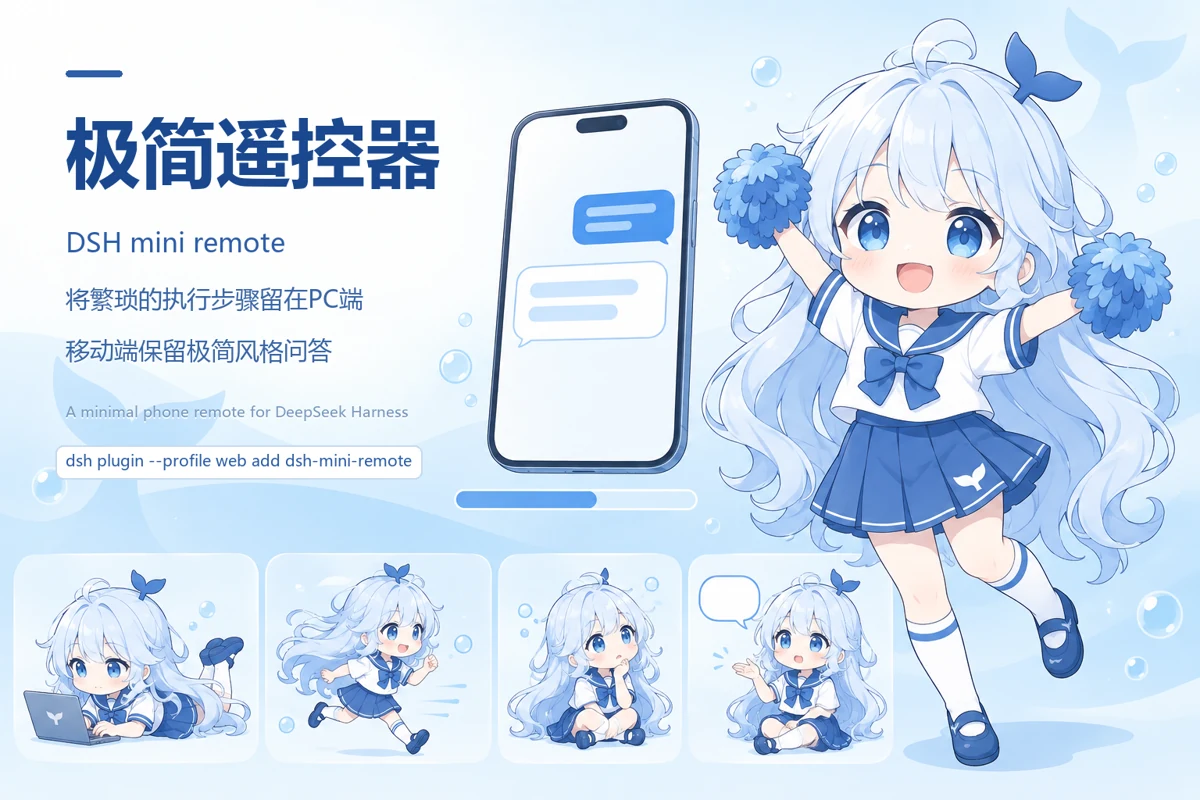
You send one line; the phone gets one conclusion.
Tool calls, file reads and writes, sub-agent dispatch, and the body of the reasoning trace never reach the phone. This plugin exists for one situation: you're out, and all you want to do is send an instruction and read the result — a phone, one input box, the latest reply.
What it is ・ When you'd use it ・ Install ・ Connecting your phone ・ What the phone can do ・ Remote control from Feishu ・ FAQ ・ Security ・ Why I built this
What it is
A plugin for DeepSeek Harness (DSH, a plugin-extensible AI agent framework). Once installed:
- a web page opens on your phone with exactly one input box and the latest reply;
- instructions you send from the phone go straight to the session already running on your computer;
- everything in between — tool calls, files read and written, sub-agents, the reasoning trace itself — is never pushed to the phone;
- the only thing that "talks" is the whale girl: the line the model mutters between steps, spoken in her speech bubble.
Here is what the interface looks like — dark and light, switchable in settings (rendered at a phone size of 390×844):
It is not a second screen for the desktop interface. Approval dialogs, file diffs and tool-call chains exist on the computer and nowhere on the phone — deliberately. It does very little.
Other phone clients copy the computer's execution process over to the phone in full. This one does the opposite: it sends only the two lines you asked for. That is the single biggest difference between it and them.
When you'd use it
- You're out and a task is still running. The computer is at your desk mid-round; you just want to glance at the phone to see whether it finished, and hand it the next line while you're at it.
- You're with your kid, eating, or out for a walk. You don't want to touch the computer, but an idea shows up and you'd like it working on that already.
- The computer is in the study and you're in the living room. Not worth walking back, and not worth pulling that whole screen of process onto the phone.
Install
dsh plugin --profile web add dsh-mini-remote
You must restart DSH once after installing (close the dsh web window and start it again), or "Phone Remote" will not appear in the left column. The startup log then prints the phone URL and password.
The web in that command is a DSH profile name — the folder under ~/.dsh/profiles/. Most people's default profile is called web; if yours isn't, use your own name instead.
Or straight from GitHub, if you would rather pin the source:
dsh plugin --profile web add github:xingzhen199186/dsh-mini-remote
If you already have the source on disk, you can point it at the folder:
dsh plugin --profile web add <the folder you put the source in>
Which DSH versions it fits. This plugin was developed on DSH 0.1.5-rc.2 and re-checked item by item on 0.1.7-rc.2 (every interface it uses was unchanged); versions below 0.1.5 have not been tried. rc is the tag the project puts on preview builds, and DSH as a whole is still a developer preview — minor versions may break things, so versions newer than 0.1.7 are not guaranteed either. If it ever does hit an incompatibility, the usual symptom is one entry point going missing (the model line at the top, say) while everything else keeps working: the plugin is written so that a missing service switches off that one feature rather than the whole thing.
Settings follow the same rule: the settings are declared the standard DSH way, and on the 0.1.5-era library that ability does not exist yet — the plugin still installs and works exactly as before, it just loses the "applies immediately" behaviour mentioned below. On the 0.1.7 generation that ability is fully there.
Connecting your phone: three routes, pick one
All three connection methods exist at the same time. Pick one, or leave several on.
| Route | When to use it | What you install | What it costs |
|---|---|---|---|
| LAN | Phone and computer on the same Wi-Fi — at home only | Nothing at all | It stops the moment you leave the house |
| Tailscale | You need it outside, and you want the address to stay fixed | Tailscale on the computer and on the phone | An app on both sides |
| Public tunnel | Nothing installed, reachable on any network | Nothing at all | The address changes on every restart; the first run downloads a ~50 MB component |
There is one more route, and it isn't the phone: Feishu (see Remote control from Feishu). It never touches the browser, and none of the three routes above need to be on.
Open DSH settings (bottom of the sidebar) → "Phone Remote" in the left column. Every route on that page has a QR code and a link, and the small text under each QR code says when to use that route. That's all you need to read.
The plugin's own settings (default mode, external notifications, port, password and so on) also have a standard declaration, so writing them in DSH's standard configuration works too. If the same item is set in both places, the standard configuration wins. One difference worth knowing: "default mode" and "external notifications" apply immediately, with no plugin restart; port, bind address, tunnel, password and history length make the plugin restart and the phone reconnect once — those genuinely need to re-bind or rebuild, and the plugin says so instead of pretending they can be changed live.
1. LAN: at home only
When the phone and the computer are on the same Wi-Fi, scan the "LAN" code and you're in. Nothing extra to install — the least fuss of the three. The cost is that it stops working the moment you leave: the phone switches to mobile data and this route is gone.
2. Tailscale: works outside, and the address stays fixed
Install Tailscale on both the computer and the phone, sign in to the same account, and this route appears on the pairing page by itself. The address is fixed — set it up once and forget it. The cost is an app on each side; if you don't mind installing it, this is the steadiest route when you're out.
There's a switch on the pairing page that gets you an encrypted address as well (shaped like https://your-machine.your-tailnet.ts.net/). It is the same computer over the same tunnel as the entry above; the only difference is that the connection is encrypted. It is not a fourth route — the plain http:// entry keeps working and keeps showing.
The first time, you have to confirm it in Tailscale's admin console: it is a tailnet-wide switch, and the plugin cannot click it for you. So the pairing page puts the exact link Tailscale hands out right in front of you — one click and you're there. If this computer isn't signed in to Tailscale yet, it says so and gives you a sign-in link instead.
3. Public tunnel: nothing to install
There's a switch at the bottom of the pairing page. Turn it on and Cloudflare hands you a public URL (shaped like https://random-words.trycloudflare.com/). The phone can reach it on any network, with nothing installed.
Two costs, worth knowing before you decide:
- The address changes every time you restart DSH. When it does, come back and scan the new code.
- The first time is slow — it's downloading a component of about 50 MB, and only that once. While it does, the status line reads "opening…", which is normal, not a hang. Registration occasionally fails; the plugin retries three times on its own.
Once it's on, wait half a minute before scanning. Cloudflare needs a moment to publish the address. Scanning too early reports that it can't be opened — that's not breakage, it's just too soon.
About that "encrypted address"
Two of the routes above can hand you an https:// address, and what encryption covers is the connection itself: the address bar shows the https padlock, and what travels the wire is encrypted. That does not depend on which route you pick — both give the same thing.
The difference is who can resolve the name. The Tailscale one uses a name shaped like your-machine.your-tailnet.ts.net, and that name only resolves inside your Tailscale network, via MagicDNS on the phone's client. But some clients don't have that capability — MeshArc, the third-party client for HarmonyOS, states in its own README that you should use Tailscale IP addresses instead; on such a phone this encrypted route simply won't work, and it isn't a matter of a setting being switched off. The tunnel route uses a Cloudflare name that resolves for anyone and doesn't care about the phone; its cost is that the address changes on every restart.
What the phone can do
Open the link and that's the whole interface: one input box, and the latest reply.
Send instructions. Type and send; the AI starts working on the computer.
Wait for the conclusion. While it runs, the page shows "running…". You can keep sending during that time — instructions queue up. When the task ends, the conclusion appears on the page, and the phone chimes and buzzes.
She speaks up while she works. On the computer, the model often mutters a line between steps ("let me look at this file first"). That line is now spoken by the whale girl through her speech bubble — the talking pose is a newly drawn sprite, the rotation pauses for it, and afterwards picks up from where it stopped. It stays in the bubble and never bleeds into the answer area below. Only the line it deliberately writes for a human reader is spoken; its own working thoughts — often English, often a whole paragraph — never reach the phone at all. Should that one narration line itself be in English, it is shown as-is, untranslated (translating would mean putting words in its mouth).
Two appearances, switchable anytime. Settings has an "Appearance" row: Dark (the default), Light, and Follow system. Dark is deep-sea navy; the light palette is taken from the promo artwork — near-white ice blue for the ground, deep royal blue for the text, and the same royal blue on primary buttons. Your choice is stored on the phone, so it is still there next time you open the page.
The screen while a task is running. She is mid-stride, the progress bar is moving, and the queue lists what goes next once this round ends. No tool calls and no file diffs on this screen — only the fact that something is running.
Both are phone photographs (the browser's own chrome is in frame, so they sit slightly taller than a render would).
Two display modes. Tap the ⚙ in the top right to switch. "Single frame" (the default) keeps only the newest reply on screen — good for "I just want to see how this one turned out". "Chat" is a back-and-forth bubble list — good for several rounds of follow-up questions. Use it for a while and you'll know which you prefer.
Open a session and you see what was said in it before. Switch to a session that has existed for a while and Chat mode lists every earlier round (the instructions you sent, the conclusion of each round); Single frame shows only the last conclusion. Very large sessions show only the most recent stretch: reading one of those in full — tens of thousands of events — would drag the DSH process on your computer down, so the plugin reads just the tail and says so at the top ("this is not everything, only the most recent stretch"). That line is not boilerplate; it is the truth.
Slash commands work from the phone too. Type a / in the input box and the commands available in this session appear above it; keep typing to filter by name, tap one to run it, and commands that take arguments get filled in for you along with a note on what they expect. The list is DSH's own on your computer (whatever plugins are installed), and a command's result gets its own row in the chat, visually distinct from what the AI said. A mistyped or unknown command is refused with an explanation — it is not sent as a message. When the session is not running there are no commands to list, and the page says so. Commands cannot carry attachments in this version: files you have attached stay put and go out with your next ordinary message.
Answer questions from the phone. When the AI asks you to pick something (choose one of several plans, say), the question is pushed to the phone and a tap answers it — one at a time, revisable if you change your mind, and you can type your own answer when none of the options fit. If nobody is at the phone (locked, page closed, network gone), the question goes straight back to the computer and the dialog pops up there as usual.
Three things you can change in passing. Tap the line at the top to switch the current session's model and reasoning effort; switch the permission preset (View Only / Workspace Write / Full Access); browse the computer's folders to register a new workspace and start a session in it.
You're reading conclusions, not the process. There's no tool-call chain and no file diff on the page. The one exception is the line the whale girl says out loud — it goes into her bubble, never into the answer area (see above). System-level confirmation dialogs cannot be answered from the phone (approving a dangerous command, for instance) — those still need the computer. What the phone can answer is the multiple-choice question the AI puts to you; the two are not the same thing. It's a remote control: the TV still has to be on for the remote to be any use.
Remote control from Feishu
Talk to the session on your computer from inside Feishu. You send a line, the session runs a round, and the answer comes back under your message — with one more line underneath saying which session it came from (会话:deploy script, and 未命名会话 when the session has no name yet). Those two labels are Chinese and stay as they are.
It runs over Feishu's long connection: the plugin dials out to Feishu and keeps the line open, so there is no public address and no domain to arrange. It shares one session binding with the phone page.
Setup
Create an app in the Feishu open platform — the "custom app" type, which is also what you would use for yourself alone. Copy the App ID and App Secret from Credentials & Basic Info. Then add a Bot capability and publish a version — skip that step and the bot will not show up in Feishu search. Set the event subscription mode to "receive events over a long connection", and add the event im.message.receive_v1. Under permissions, search for just im.message (typing the rest of the name returns nothing) and tick three: receive messages, send messages as the app, get and send single-chat and group messages — the count going from 0 to 3 is your proof you got it. Any change to the capability, the permissions or the events needs another published version. Then back in DSH settings, fill the App ID and App Secret into "Phone Remote" → "Feishu" and turn the switch on.
Every menu and the sign of a successful publish are in the "配置指引(飞书后台六步)" guide inside that settings block. It is collapsed by default. The paragraph above only tells you how many things there are to do; it does not repeat the guide.
The first message is refused, and that's expected
Both allow-lists start empty, and with both empty nobody is recognised. So your first message to the bot does nothing. The plugin answers you inside Feishu instead: it hands you your own id (open_id, the internal number Feishu knows you by) and tells you which field it goes in. Paste it into "允许的 open_id", save, and send again — that one works.
Only direct messages are handled (you and the bot, one to one). Group messages are not read in this version.
What you can do from Feishu
Plain text is you talking to the current session — the same as sending it from the phone.
When the session stops to ask you something, an ordinary text message arrives in Feishu. A multiple-choice question lists its options as 1. 2.; an approval spells out which tool and which command it wants to run. Reply with a number, or with 「同意」 (agree) or 「拒绝」 (refuse) — y, yes and ok count as agree, n and no as refuse. Reply 「取消」 to decline to decide: the question goes back to the computer. That word has to be 「取消」; the English "cancel" is not read.
/会话 lists the sessions you can switch to, marking the current one 「(当前)」. /会话 3 switches to the third, and the phone page follows — the two sides share one binding. Anything starting with / is treated as a command and never as an answer to a pending question. It is the only command here, and it is Chinese; send those characters as they are.
Not there yet. Cards with buttons; images and files; group chats; streaming — the answer arrives in one piece, after a wait; one round at a time.
FAQ
The QR code scans but the page won't open. First check that the phone and the computer are on the same Wi-Fi.
Scanning the "public" route from outside won't open. Wait half a minute and try again. If it still won't, the pairing page shows the reason directly. The most common one is a proxy or VPN running on the computer — the "TUN mode" in tools like Clash cuts the tunnel's connections; the process looks fine while not a single connection has actually been established. Turn it off and try again. Another possibility: that network simply can't reach Cloudflare (it's intermittent in mainland China, and not something you misconfigured). If so, don't burn time on the public route — switch to the Tailscale route.
It says "disconnected". This happens often after the phone has been in the background. The page reconnects by itself; give it a few seconds. If that doesn't work, open settings and tap "Reconnect".
The reply arrives but there's no sound. Audio only plays after you've touched the page once. Tap it.
The phone keeps asking for a password. That means the link you opened didn't carry one — for example, you typed the address by hand. Go back to the computer and scan the QR code again.
I want a password I can remember. Change it in the password section of "Settings → Phone Remote". At least 12 characters. A DSH restart is required afterwards, and the phone has to scan a new code.
Security
The pairing page carries the password — don't screenshot it and send it around. The password is encoded straight into the QR code so you never have to type it. That's convenient, and the price is that whoever holds that image can get in.
Beyond that: every endpoint requires the password; password comparison is constant-time; five wrong attempts from one source blocks that source for a minute; pairing information is readable only from the local machine, so other devices on the same Wi-Fi can't get it; the public tunnel is off by default and you have to turn it on yourself in the settings page; the phone sees no file contents — when you pick a workspace it lists folder names only, and never lists or reads files. The one exception is images: when something the AI wants to show you includes a picture (an interface screenshot, say), that image is placed under the plugin's lib/art/ directory with a name starting with out-, and the page fetches it over the same password-protected image route the sprites use. Only that one class of file — an image, with that prefix — can be fetched; message bodies, configuration files and everything else stay unreadable, and directories still cannot be listed. One thing worth stating plainly: the phone can switch the agent's permission preset. On Full Access, the agent can then modify any file on this computer. That path is open.
Why I built this plugin
The idea came from this: an agent task often takes a long time to finish, and if you step out, you need the phone to drive it remotely.
But the phone clients that exist show the PC's execution steps in faithful detail. You send one instruction; it may think for several minutes, read dozens of files, call tools a few times, and only then give you a conclusion. If you're out, or busy away from the computer, you simply don't have the time to watch the phone that closely.
I don't think that approach is bad. It's complete and controllable, and if you're going to do serious work, it's the right one.
But when I'm out, what I want is something else — a lighter way to interact that asks less of my attention. The phone screen is small, and so is the attention I have to spare when I'm out. Most of the time I only need one thing: this round is done, time to send the next instruction. And even at my desk, I rarely read the AI's running commentary while it works.
So the interface here is deliberately crude: it drops the PC's execution steps entirely and puts only the AI's final conclusion in front of you.
In a sense, it exists so that you look at it less.
So you can spend your time more freely — instead of being stuck in that small screen while you're playing with your daughter or out on a trip.
Credits
This plugin's design draws on dsh-pocket by shaobeichen — in particular the shape of the configuration page, where each connection route gets its own link, its own QR code, and its own password.
License
MIT
Comments
Comments live in GitHub Discussions. Sign in with GitHub to post or react.