
Install
Inside DeepSeek Harness, with dsh-market
dsh plugin --profile web add dshmarket
Or from the command line
dsh plugin --profile web add github:leavestring/awesome-dsh-background-plugin
Installing runs third-party code with your own permissions — it can read your files, use your credentials and reach the network. Review the source first, and pin a commit (github:owner/repo#sha) when you can.
README
DSH Background
A DSH Cordis plugin that gives your DSH Desktop and DSH Web workspace a customizable background — atmosphere presets or your own image, persisted across restarts.
简体中文 | English
⚠️ Match the version first
DSH plugins are isolated per profile: a plugin installed into web will not appear in the desktop app, and vice versa. The two DSH lines also differ in their internal APIs, so this plugin ships two version lines:
| You are on | DSH version | Install this plugin | Target profile |
|---|---|---|---|
| DSH Desktop (Windows / macOS app) | 0.2.x |
0.2.1 |
desktop |
dsh web (new runtime) |
0.2.x |
0.2.1 |
web |
dsh web (old runtime) |
0.1.x |
0.1.9 |
web |
- How to check your DSH version: run
dsh --version(on the desktop, use the CLI bundled with the app — see Option B below; it reports the same runtime version). - The desktop plugin manager also enforces peer versions and rolls back an install it deems incompatible, e.g.
Plugin awesome-dsh-background-plugin@0.1.9 is incompatible with dsh 0.2.0-rc.2. If you see that, you picked the wrong line — use0.2.1. 0.2.1is a port rewritten for 0.2.x (host exportsConfigwithvolatile()fields; the browser half usesctx.configForms). It is not backwards compatible with0.1.x—0.1.xusers should stay onv0.1.9(see the Web section below).
Why this plugin?
DSH ships with a single theme-colored background. If — like us — you want your workspace to feel yours instead of looking like everyone else's, you've probably already tried:
- Editing theme files / CSS directly — doesn't survive updates. DSH is plugin-architecture driven and its theme is built on CSS variables; any update overwrites your edits.
- Userscripts or browser extensions — invasive, selector-heavy, and needs to track every DSH release.
- Just living with it — staring at a flat monochrome surface all day is tiring and impersonal.
This plugin turns "background" into a first-class setting item using DSH's official Cordis plugin mechanism — and solves the three hardest problems along the way:
- The value must be readable, not just writable — saving is only half the job; the browser half must actually read it back. On
0.1.xthe host gates settings namespaces behind an allowlist (the bundledexpose-namespace.mjsadds the entry); on0.2.xthe profile entry id is the namespace anddsh-api-settings-controllerexposes every registered namespace — so the desktop app needs no allowlist step at all. - Page containers hide the background — the conversation pane, details panel and layout frame all paint opaque backgrounds. The desktop adds one more trap: on Windows the desktop shell paints the layout frame with a different token (
--dsw-specific-sidebar-fill), and DSH wraps the frame in a slot-root element so a child combinator from#rootmatches nothing. While a background is active the plugin clears each page-level container while the sidebar, message bubbles and composer keep their own surfaces. - Images vanishing after restart — large images are slow to write and are lost. The plugin compresses images to ≤1600px WEBP in-browser, then persists them the moment they are uploaded, so they survive restarts untouched.
Screenshots
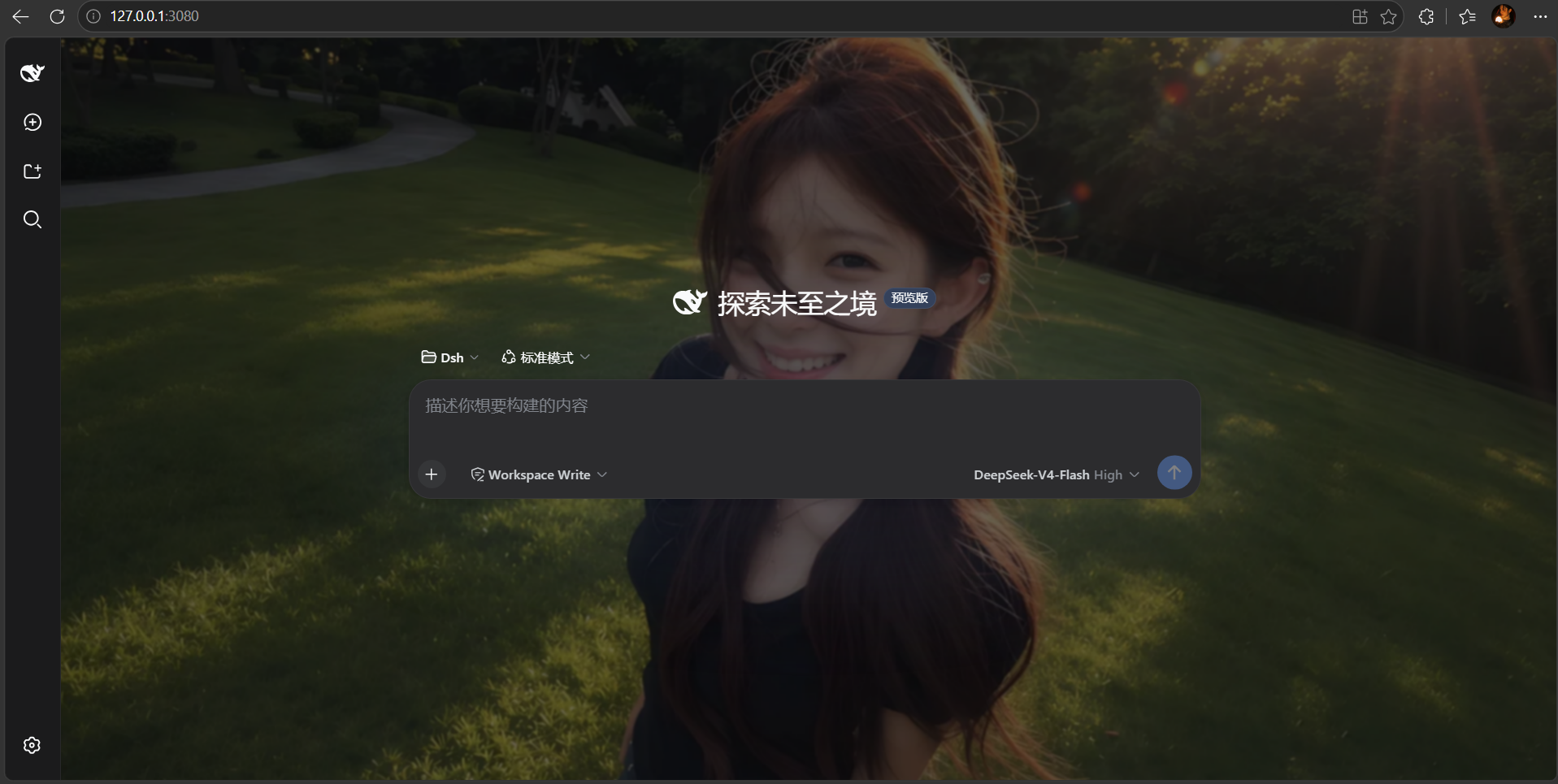
Dark mode with a custom image background:
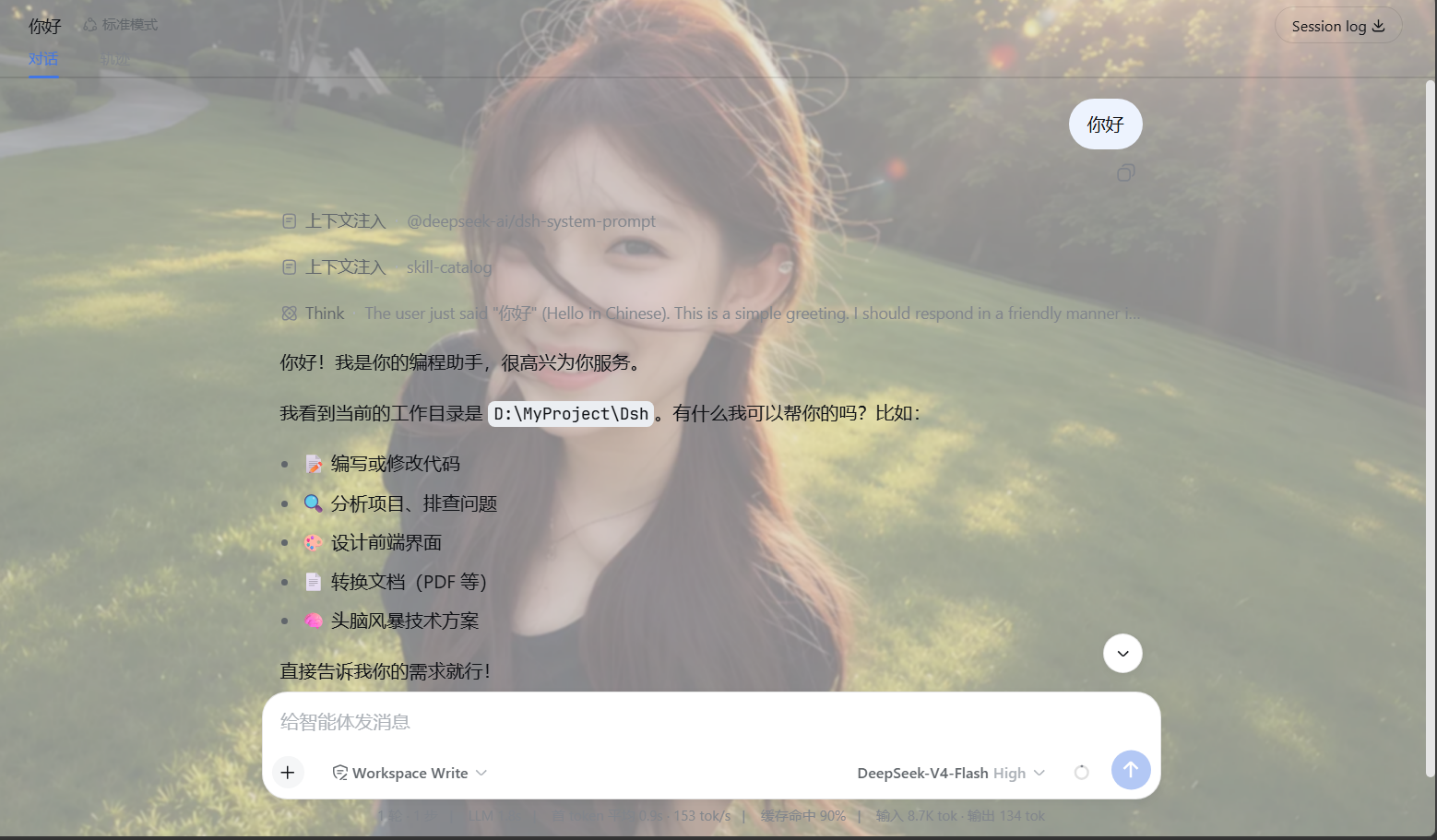
Light mode with a custom image background:
Features
- 🖥️ Desktop and Web — one UI and one persistence model, supported on both runtimes (two version lines; see the version table above).
- 🖼️ Upload your own image — JPG / PNG / WEBP / GIF, compressed locally with Canvas (max edge 1600px, WEBP output — a good balance of quality and size). Persisted immediately on upload, no separate save step, restored automatically after restarts.
- 🎨 Three atmosphere presets — Aurora, Ember, Paper; one click to switch, takes effect instantly. No image hunting required for a quick mood change.
- 🎚️ Five fine-tuning knobs — image presence (opacity), dark overlay (keeps foreground readable), soft focus (blur), fit mode (fill / contain / stretch) and focal position (center / top / bottom / left / right).
- 🔄 Live preview — what you see in the settings panel is what you get; drag a slider and watch the conversation area update in real time. Discard anytime before saving.
- 🔒 Privacy-friendly — the image is processed only in your browser and written to your local settings document; nothing is uploaded to any server.
- 🌐 Bilingual UI — 中文 / English.
- 🧩 Non-invasive, fully removable — the background is a fixed page layer; conversation content is never modified or covered. Turn off the Enabled switch or click Restore default to remove it completely.
- 🌗 Theme agnostic — works in both light and dark themes (the dark-mode screenshot below is the real effect).
Installation
🖥️ DSH Desktop (0.2.x)
The desktop app runs the desktop profile:
| Platform | Profile directory |
|---|---|
| Windows | C:\Users\<you>\.dsh\profiles\desktop |
| macOS / Linux | ~/.dsh/profiles/desktop |
Option A — install from inside the app (recommended, no terminal)
Open the desktop app and go to Settings → Plugins.
Click Add plugin.
In "Package name or address", enter any one of:
What to enter Example A local directory path your cloned repo, e.g. D:\code\awesome-dsh-background-pluginA tarball path e.g. D:\code\awesome-dsh-background-plugin\awesome-dsh-background-plugin-0.2.1.tgzA Git repository address https://github.com/leavestring/awesome-dsh-background-pluginClick Install.
When it finishes, click Enable now. If it says "Installed; it loads at the next start", restart the desktop app.
Of the three inputs, a local directory or a
.tgzis the most reliable (no network needed). A Git repository address requires this machine to reach GitHub directly — if it cannot, use the "Use mainland China mirror" option in the dialog.The in-app flow shows progress, the exact failure reason and the install location — nicer than the CLI for day-to-day use. Note: plugins do not auto-update yet. To upgrade, uninstall and install the new version.
Option B — use the CLI bundled with the desktop app
The desktop app ships its own dsh CLI, so you do not need Node or pnpm installed:
# Windows (replace <install dir> with your actual DeepSeek Harness location)
& "<install dir>\resources\runtime\cli\bin\dsh.cmd" plugin --profile desktop add <tarball | directory | package name>
# macOS
/Applications/DeepSeek\ Harness.app/Contents/Resources/runtime/cli/bin/dsh plugin --profile desktop add <tarball | directory | package name>
For example:
& "E:\Deepseek Harness\resources\runtime\cli\bin\dsh.cmd" plugin --profile desktop add "D:\code\awesome-dsh-background-plugin\awesome-dsh-background-plugin-0.2.1.tgz"
Verify afterwards:
& "<install dir>\resources\runtime\cli\bin\dsh.cmd" plugin --profile desktop list
Option C — install from this repository's source
git clone https://github.com/leavestring/awesome-dsh-background-plugin.git
cd awesome-dsh-background-plugin
pnpm pack --pack-destination .          # produces awesome-dsh-background-plugin-0.2.1.tgz
Then install the resulting .tgz with Option A or B.
After installing
Restart the desktop app (or click Enable now), then go to Settings → General → Background and pick a preset or upload an image.
The desktop app needs no allowlist step.
scripts/expose-namespace.mjsonly serves0.1.x(WEB_SETTINGS_NAMESPACES). On0.2.x,dsh-api-settings-controllerexposes every registered namespace.
🌐 DSH Web
# DSH 0.2.x (new runtime)
dsh plugin --profile web add ./awesome-dsh-background-plugin-0.2.1.tgz

# DSH 0.1.x (old runtime) — use 0.1.9 and run the allowlist helper too
dsh plugin --profile web add ./awesome-dsh-background-plugin-0.1.9.tgz
node scripts/expose-namespace.mjs
Restart dsh web, open http://127.0.0.1:3080 (Ctrl+F5 to bypass the browser cache) and go to
Settings → General → Background.
⚡ One-command install script
scripts/install.mjs does everything — build → install → allowlist (0.1.x only):
# defaults to the desktop profile
node scripts/install.mjs

# install into another profile
node scripts/install.mjs --profile web
It runs pnpm pack, then dsh plugin --profile <name> add <tgz>, then tries to expose the namespace
(on 0.2.x it reports that this is unnecessary and skips — that is not a failure).
Requires Node.js (≥ 18), pnpm and a working
dshcommand. If it says thedshcommand is missing (you launch DSH via npx), setDSH_CMDand re-run:
- Windows PowerShell:
$env:DSH_CMD = "npx @deepseek-ai/dsh"- macOS / Linux:
export DSH_CMD='npx @deepseek-ai/dsh'Desktop users do not need this script — "Add plugin" inside the app is simpler.
🤖 Let a DSH agent install it (desktop)
If you are talking to an agent inside the desktop app, paste this prompt:
Please install the DSH Background plugin (desktop).
Repository:
https://github.com/leavestring/awesome-dsh-background-plugin.gitRequirements:
- Determine the running DSH version and the profile directory the desktop app actually uses.
- Match the lines: DSH
0.2.x→ plugin0.2.1into thedesktopprofile; DSH0.1.x→ plugin0.1.9into thewebprofile plus the allowlist step.- Clone the repo,
pnpm packif needed, and install into the target profile.- Verify the plugin landed in both that profile's
dependenciesand itsdsh.profile.bundles.0.2.xneeds no allowlist — do not runexpose-namespace.mjsthere;0.1.xdoes.- Only touch the profile / installation copy this DSH actually uses; leave other profiles and caches alone.
- Do not start a second DSH server during the install.
- If restarting this DSH would interrupt your session, do not close or restart it for me — just tell me how to restart.
- If any step fails, stop and report the exact error instead of retrying or making destructive changes.
[!IMPORTANT] If the installing agent runs inside the current DSH, restarting DSH kills its session, so it will normally not restart for you. After it reports success, restart the desktop app yourself (or reload the window).
🧑🔧 Manual install (understand each step)
Step 1 — build the plugin
pnpm pack --pack-destination .
Step 2 — install into a DSH profile
# Desktop (DSH 0.2.x)
dsh plugin --profile desktop add ./awesome-dsh-background-plugin-0.2.1.tgz

# Web (DSH 0.2.x)
dsh plugin --profile web add ./awesome-dsh-background-plugin-0.2.1.tgz
On the desktop, use the CLI bundled with the app (full path in Option B above).
Step 3 — expose the namespace (0.1.x only)
DSH 0.1.x's dsh-host-apiproxy only allows allowlisted settings namespaces to be read and written by the browser. If the namespace is missing, saves are silently rejected (settings-not-exposed) — you see the toggle flip back to "disabled" right after saving.
node scripts/expose-namespace.mjs
# if it cannot locate your dsh installation, pass the file path explicitly:
node scripts/expose-namespace.mjs <path-to>/@deepseek-ai/dsh-host-apiproxy/lib/index.js
Manual alternative: add
"ui-background"toWEB_SETTINGS_NAMESPACES(right after"ui-theme") inside that file.0.2.x(including the desktop app) has no such allowlist — skip this step.
Step 4 — restart and open
- Desktop: restart the app (or reload the window).
- Web: restart
dsh web, openhttp://127.0.0.1:3080(hard-refresh with Ctrl+F5 if needed).
Either way, go to Settings → General → Background.
❓ FAQ
| Symptom | Fix |
|---|---|
Desktop says incompatible with dsh 0.2.x |
Wrong version line: 0.2.x needs 0.2.1, not 0.1.9 |
| No "Background" row in the desktop Settings at all | ① the plugin went into another profile (desktop uses desktop); ② it was not enabled / the app was not restarted; ③ the version was rejected. Check Settings → Plugins |
| Web (0.1.x): the toggle flips back to "disabled" after saving | Allowlist not applied: re-run node scripts/expose-namespace.mjs |
pnpm not found |
Install pnpm: npm install -g pnpm (or corepack enable). Not needed for the in-app installer |
dsh command not found |
Set the DSH_CMD env var and re-run; on desktop use the app's bundled CLI path |
| Web: background not showing / page looks stale | Ctrl+F5 hard refresh (browser cached the old bundle), or restart dsh web |
| Desktop: background not showing | Make sure the Background row's switch is on, then reload the window (Ctrl+R) or restart the app. If it still fails, report your DSH version together with the plugin version |
| Uploaded image lost after restart | Make sure the plugin is 0.1.6+ (uploads auto-save); older versions need "Save background" |
Usage
- Open Settings → General → Background.
- Click a preset, or upload an image (it is persisted immediately — no need to hit Save).
- Drag the Image presence / Dark overlay / Soft focus sliders to preview live, then press Save background to persist the tuning.
- To remove the background: click Restore default, or turn off the Enabled switch and save.
How it works
- Host half (
lib/index.js)0.2.x: DSH serves one settings namespace per profile entry, so the entry id (ui-background) is the namespace. The plugin exports aConfigschema whose fields are all markedvolatile(), and opts out of the auto-generated settings page withsettings.configure({ auto: false })(the background row is rendered by the plugin itself). Values persist with the profile's patch document.0.1.x(v0.1.9): registers the namespace imperatively withsettingsNamespace()+ctx.settings.register()from@deepseek-ai/dsh-settings, writing to~/.dsh/settings.yaml.
- Browser half (
lib/client.js)0.2.xusesctx.configForms.get("ui-background")for the namespace's live snapshot and write queue;0.1.xusesctx.settingsScope.bind({ namespace }). Both share the samegetSnapshot / subscribe / set / unsetsemantics.- Registers the Background row in the
settings.general.itemslot, using the same persistence path as official settings.
- The background layer: a
position: fixed; z-index: 0layer (#dsh-background-layer) prepended to<body>, pinned to the very bottom of the page. While active:--dsw-alias-bg-baseis overridden totransparentso the conversation pane, details panel and layout frame reveal the background;- the layout frame's own fill is cleared as well — on Windows the desktop shell paints it with
--dsw-specific-sidebar-fill, and DSH nests the frame under a slot-root element, so the rule uses a descendant combinator rather than a child combinator; - the sidebar, message bubbles and composer use their own dedicated variables and stay opaque for readability;
- dropdowns rendered via
createPortalinto<body>(e.g. the message "more" menu) keep their original positioning and stacking, so clicks keep working.
- Images are compressed to a data URL by Canvas and written through the local DSH settings API; nothing is uploaded anywhere.
Project structure
awesome-dsh-background-plugin/
├── lib/
│   ├── index.js               # Host plugin: exports the ui-background Config schema (0.2.x)
│   └── client.js              # Browser plugin: background layer, settings row, upload, persistence
├── scripts/
│   ├── install.mjs            # One-command installer (build + install + allowlist when needed)
│   └── expose-namespace.mjs   # Helper (0.1.x only): adds ui-background to the host allowlist
├── screenshots/               # Repo showcase screenshots
├── cordis.patch.yml           # DSH bundle patch: registers the plugin entry
├── package.json               # Plugin metadata (dsh.client injection)
├── CHANGELOG.md
└── LICENSE                    # MIT
Development
node --check lib/client.js && node --check lib/index.js   # syntax check
pnpm pack --pack-destination .                            # build tarball
After editing the plugin, the desktop app's client HMR loads the new browser bundle directly (no restart); host-side changes still need an app restart.
License
Comments
Comments live in GitHub Discussions. Sign in with GitHub to post or react.