
Install
Inside DeepSeek Harness, with dsh-market
dsh plugin --profile web add dshmarket
Or from the command line
dsh plugin --profile web add dsh-harness-one
Installing runs third-party code with your own permissions — it can read your files, use your credentials and reach the network. Review the source first, and pin a commit (github:owner/repo#sha) when you can.
Screenshots
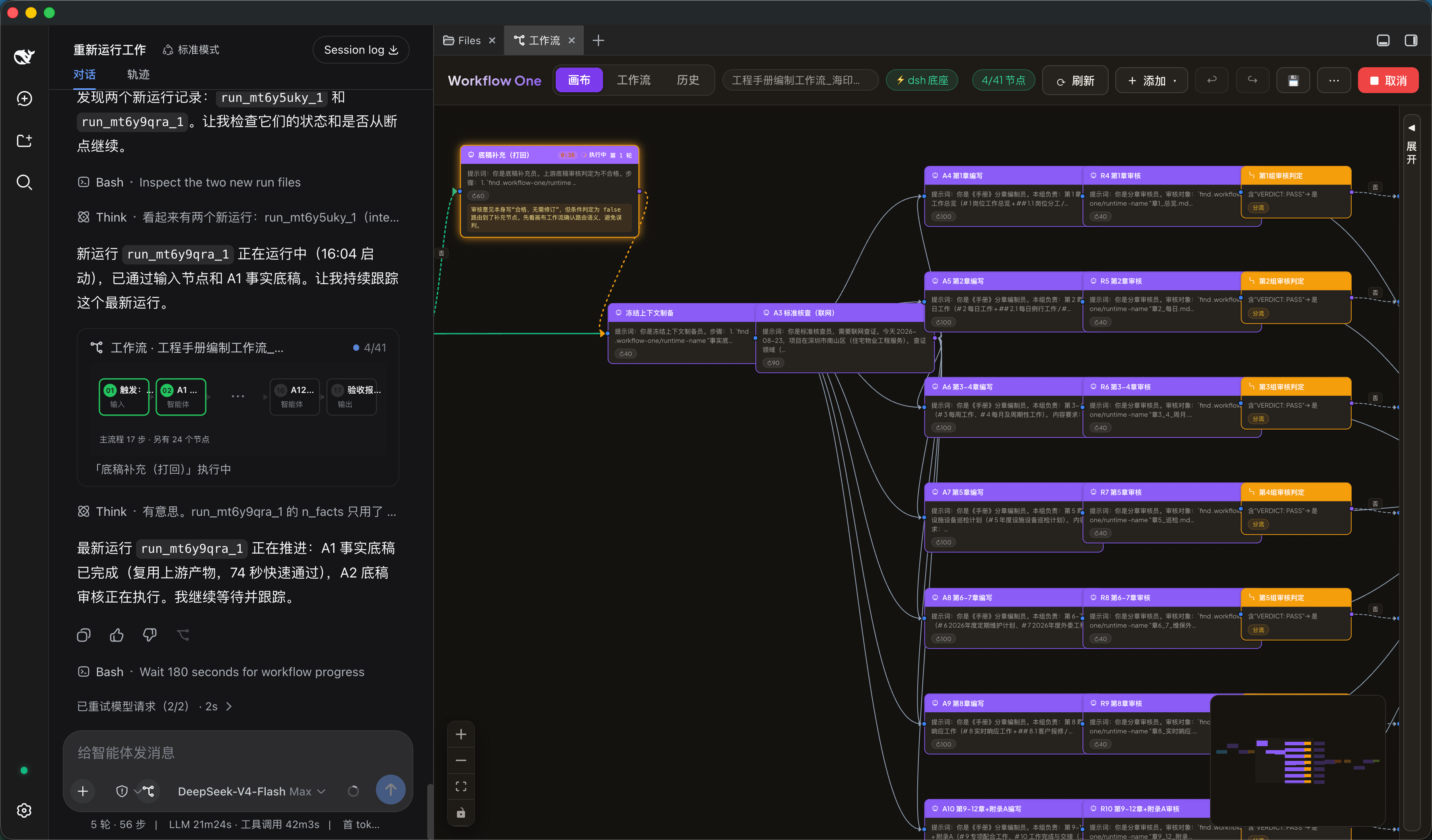
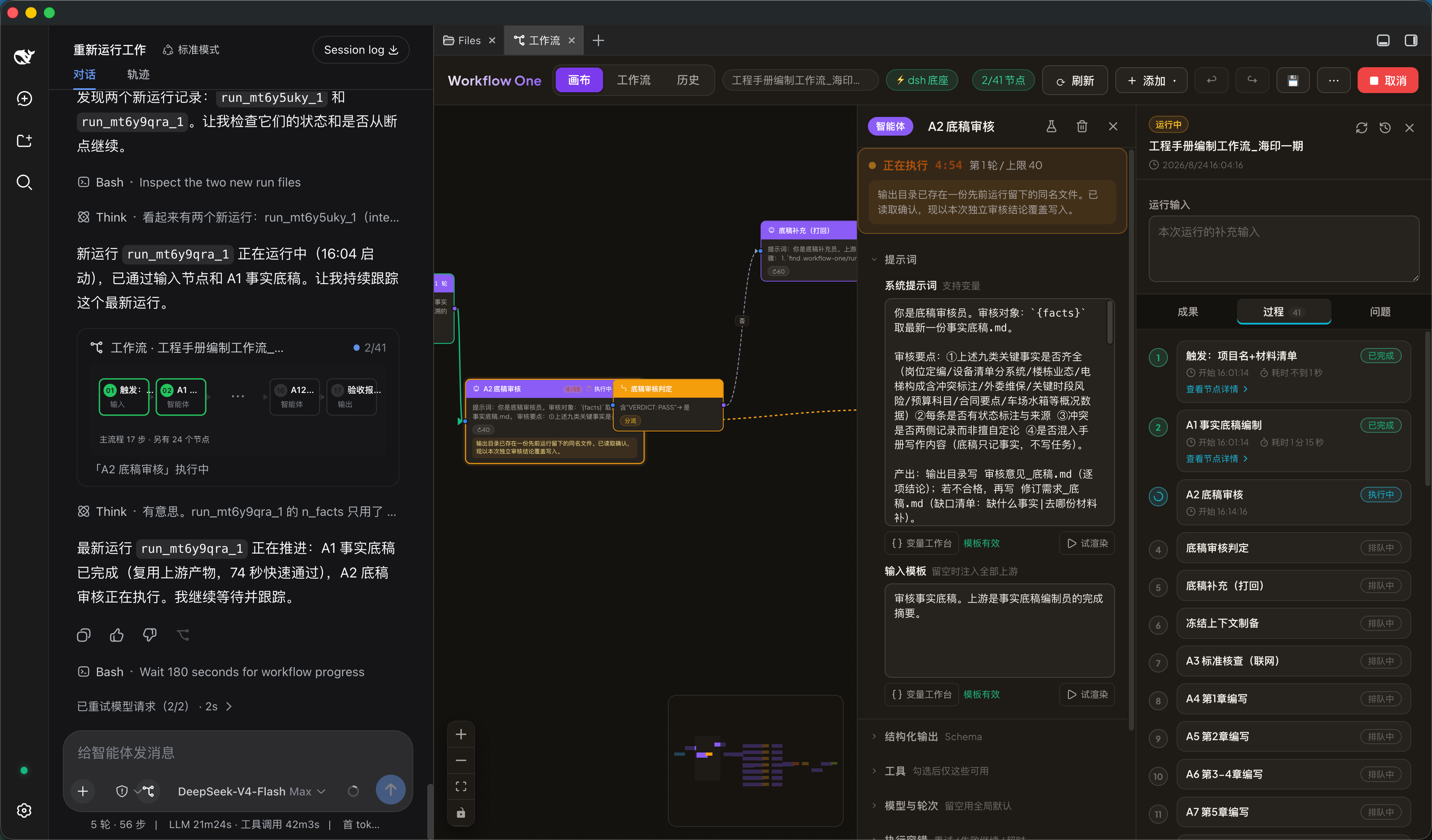
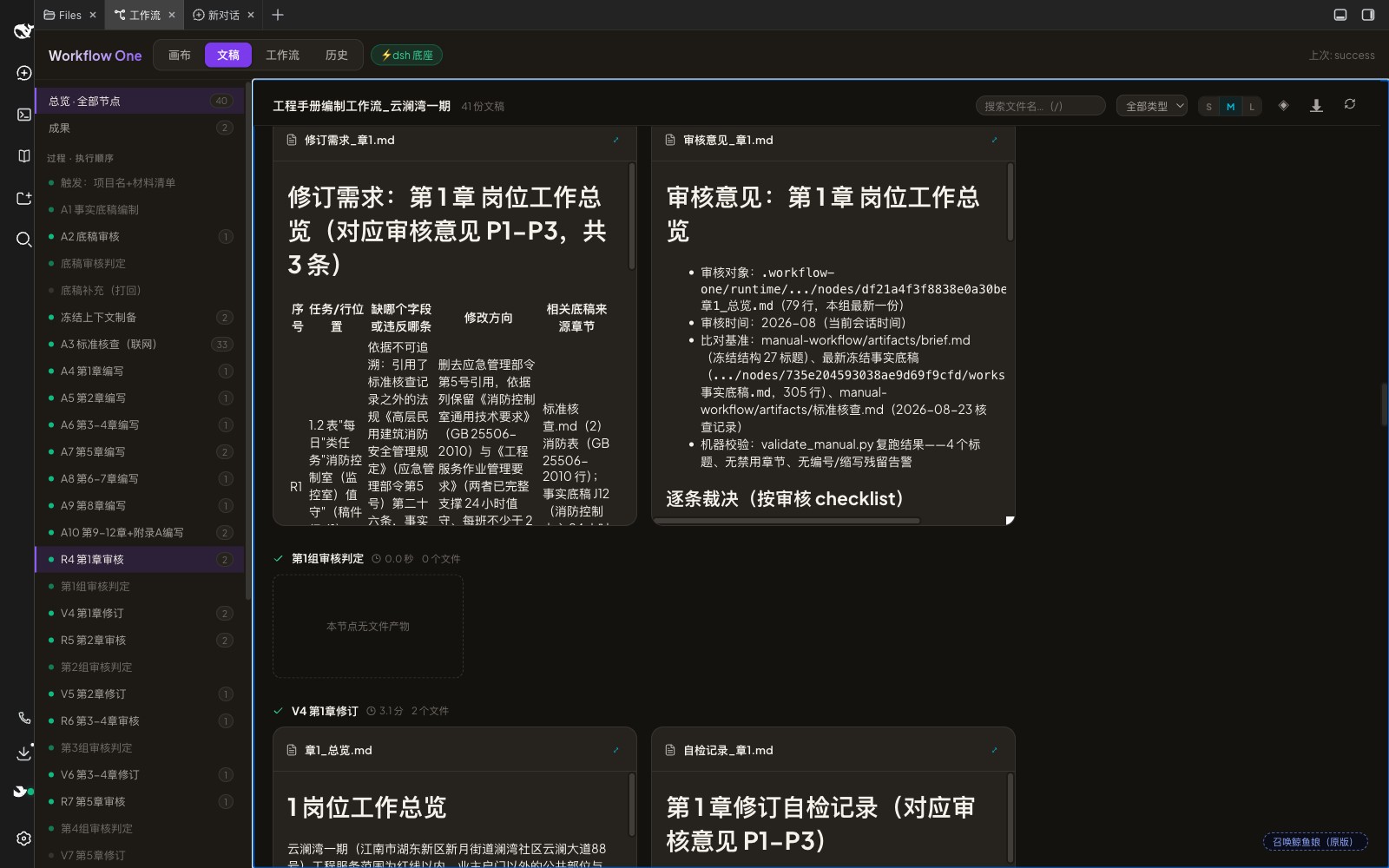
README
Workflow One
Turn real agents into observable workflows
Workflow One is a visual AI workflow orchestrator for DeepSeek Harness (dsh). Describe what you need in natural language and the AI will plan and create a DAG of real dsh agents, scripts, conditions, and HTTP nodes. Fine-tune it on the canvas when needed, then start the flow, inspect every node's input, output, and artifacts, and resume interrupted runs without starting over.
Why Workflow One?
| Capability | What changes |
|---|---|
| Visual orchestration | Express sequential, parallel, and conditional paths as nodes and edges instead of hiding the process in a prompt. |
| Real dsh agents | Each agent node uses dsh models, tools, and Skills, with different models and roles on the same canvas. |
| Observable runs | Inspect live state, actual inputs, outputs, tokens, traces, and artifacts while concurrent runs stay isolated. |
| Recoverable execution | Retry, timeout, continue after failure, or resume from an interruption instead of rerunning the whole workflow. |
| Multiple triggers | Start from the canvas, chat, a webhook, or cron; the AI assistant can also inspect, edit, and run workflows. |
| Deliverable results | Preview or download artifacts and send progress or final results to Feishu groups and users. |
Install
[!NOTE] Requires Node.js >= 22.15.0 (dsh itself uses the zstd API from
node:zlib, available since 22.15) and DeepSeek Harness:npm i -g @deepseek-ai/dsh.
npm
dsh plugin --profile web add dsh-harness-one
dsh plugin --profile web add dsh-better-sidebar   # DSH UI 侧栏宿主(画布 tab)
dsh web
Harness Desktop users should open Open DSH Terminal, run dsh plugin add dsh-harness-one && dsh plugin add dsh-better-sidebar, and restart Desktop. Do not run setup.sh in Desktop; it manages its own profile, Node/pnpm runtime, and loopback port. See Desktop setup and troubleshooting.
UI dependency: Workflow One's embedded canvas is hosted in the official dsh interface by the open-source DSH-better-sidebar project. dsh-harness-one installs and depends on it automatically. If DSH-better-sidebar is missing or disabled, the embedded Workflow entry is unavailable, while the standalone /wf1/ canvas remains accessible.
Offline bundle
Download the prebuilt bundle from GitHub Releases:
curl -LO https://github.com/chumingjun/dsh-harness-one/releases/download/<tag>/dsh-harness-one-plugins-<tag>.tar.gz
tar -xzf dsh-harness-one-plugins-<tag>.tar.gz && cd dsh-plugins
sh setup.sh --one wf1 4021
sh start.sh wf1                         # http://127.0.0.1:4021/
Build from source
git clone https://github.com/chumingjun/dsh-harness-one.git
cd harness-one
npm install
npm --prefix web install
sh dsh-plugins/build-web.sh             # Required for source installs
sh dsh-plugins/setup.sh --one dev 4021
sh dsh-plugins/start.sh dev
Models and API keys are managed entirely by the dsh profile. This repository and its plugins never hard-code or store keys. See dsh-plugins/README.md for complete setup, configuration, and development details.
How it works
Workflow One lives inside the official dsh interface and is designed for creating complex workflows through AI conversation. Describe the goal and needs in natural language on the left, and the generated DAG appears on the canvas. Use the canvas to verify structure, fine-tune settings, and observe execution; manual node editing remains available when needed.
- Describe the workflow you need in natural language. The AI will plan the flow and create the nodes for you.
- When requirements change, describe the update in the conversation and the AI will update the workflow accordingly.
- Confirm the generated graph on the canvas, save it, then start the run from chat or the canvas.
- During a run, the conversation shows each node's progress directly in cards. You can also configure a notification node to sync node status to a Feishu group or direct chat in real time. Canvas nodes expose actual input and execution details, while the result panel provides the timeline, final result, and artifacts.
/workflow-one skill command: type / in the chat input to open the skill menu and pick workflow-one to load the operating guide, then build and steer long-running pipelines in natural language — multi-node chains, scheduled triggers, tens of minutes unattended:
- "Build a workflow that pulls messages from our three Feishu groups every morning, extracts the highlights into a daily report, and posts it back" — describe it and it's created: the AI plans the multi-node chain (fetch → analyze → write → notify), wires the schedule trigger, and it runs automatically every day
- "Where is it now? Which node is stuck?" — ask about progress anytime on a long run: node states and outputs, with error summaries and next-step suggestions for failures
- "Add a human-confirmation branch to the competitor-monitoring workflow for data anomalies" — reads the graph, applies the edits, and lints the result in one pass
- "Delete that throwaway scraper workflow" — deletes after confirmation, refusing (and listing) any runs, schedules, or webhooks still attached
The skill is seeded into the native dsh skill root by the orchestrator on install and is shared by chat and canvas sessions. Canvas-bound sessions additionally get the canvas_* tool family for editing the currently open canvas.
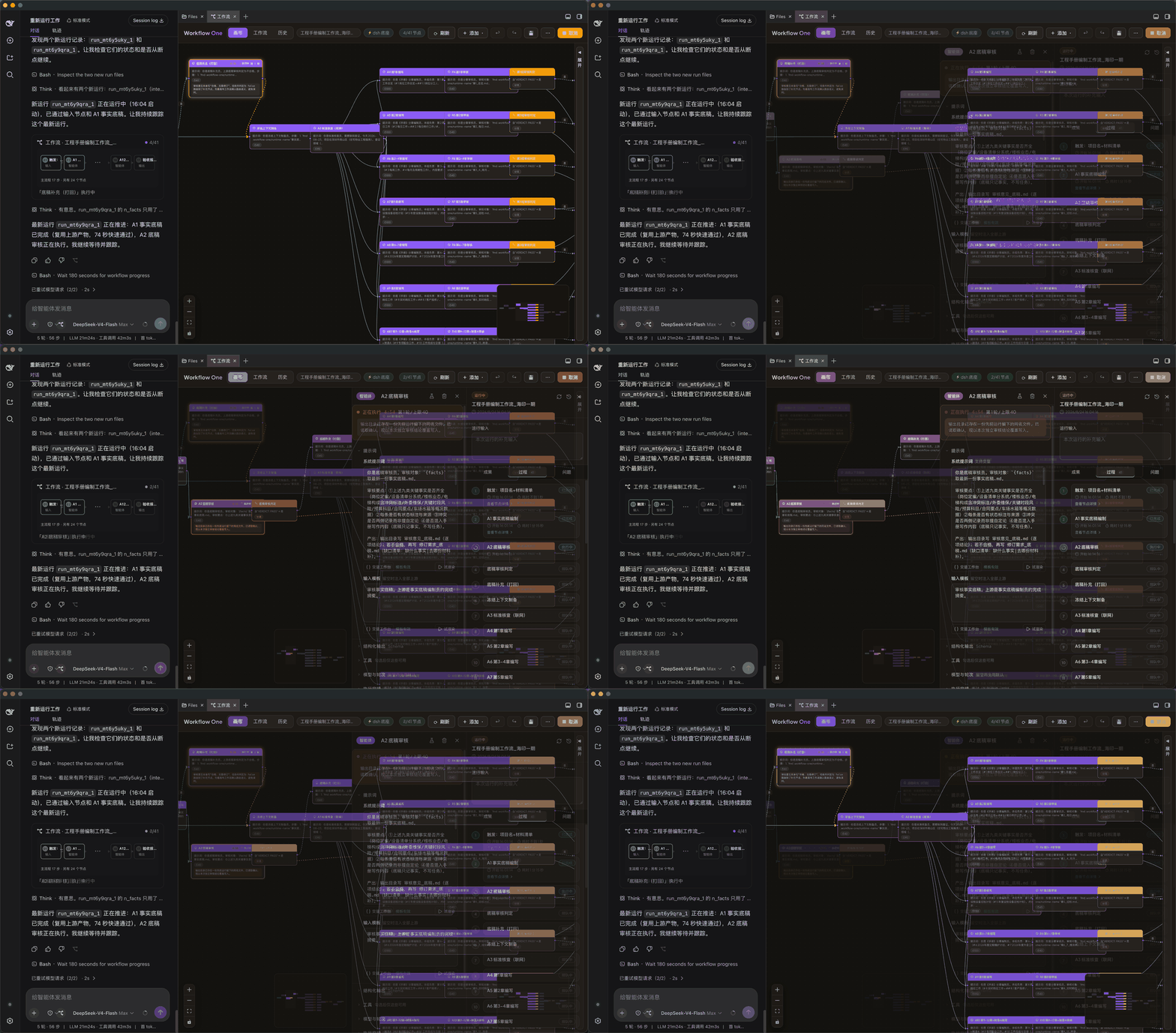
View the full-resolution screenshot

Workflow Notifications
The notification node observes the whole run. It can be connected inline as a pass-through node or left unconnected; both placements behave the same. The initial provider sends Feishu interactive cards, while the channel-neutral event layer is ready for future DingTalk and WeCom providers.
- Run completion sends one result card when the workflow succeeds, fails, or is canceled.
- Every node sends a compact update after each business node succeeds or fails, followed by the final result card.
- Group delivery uses a
chat_idbeginning withoc_; the application bot must be in that group. - Direct delivery uses a user's
open_idbeginning withou_; the application visibility range and bot messaging relationship must include that user.
Cards show progress, duration, node counts, output summaries, and failure or cancellation details. Common secret values are redacted and summaries are truncated. Delivery failures are recorded on the notification node without changing the business workflow status. Configure the self-built Feishu application's App ID and App Secret in the canvas settings; these credentials are separate from the lark-cli user login.
Importable Examples
examples/workflows/ contains three ready-to-import workflows: repair ticket normalization, urgency routing, and parallel review. Open the Workflow list, choose Import, and select a .workflow-one.json file.
Packages
The default bundle contains dsh-ccpg-tools, dsh-ccpg-orchestrator, dsh-ccpg-web, dsh-ccpg-canvasui, dsh-ccpg-document-preview, dsh-ccpg-larkauth, and dsh-ccpg-llm-guard. dsh-ccpg-brand is an optional standalone package.
See dsh-plugins/README.md for installation, packaging, architecture, and storage details.
Architecture
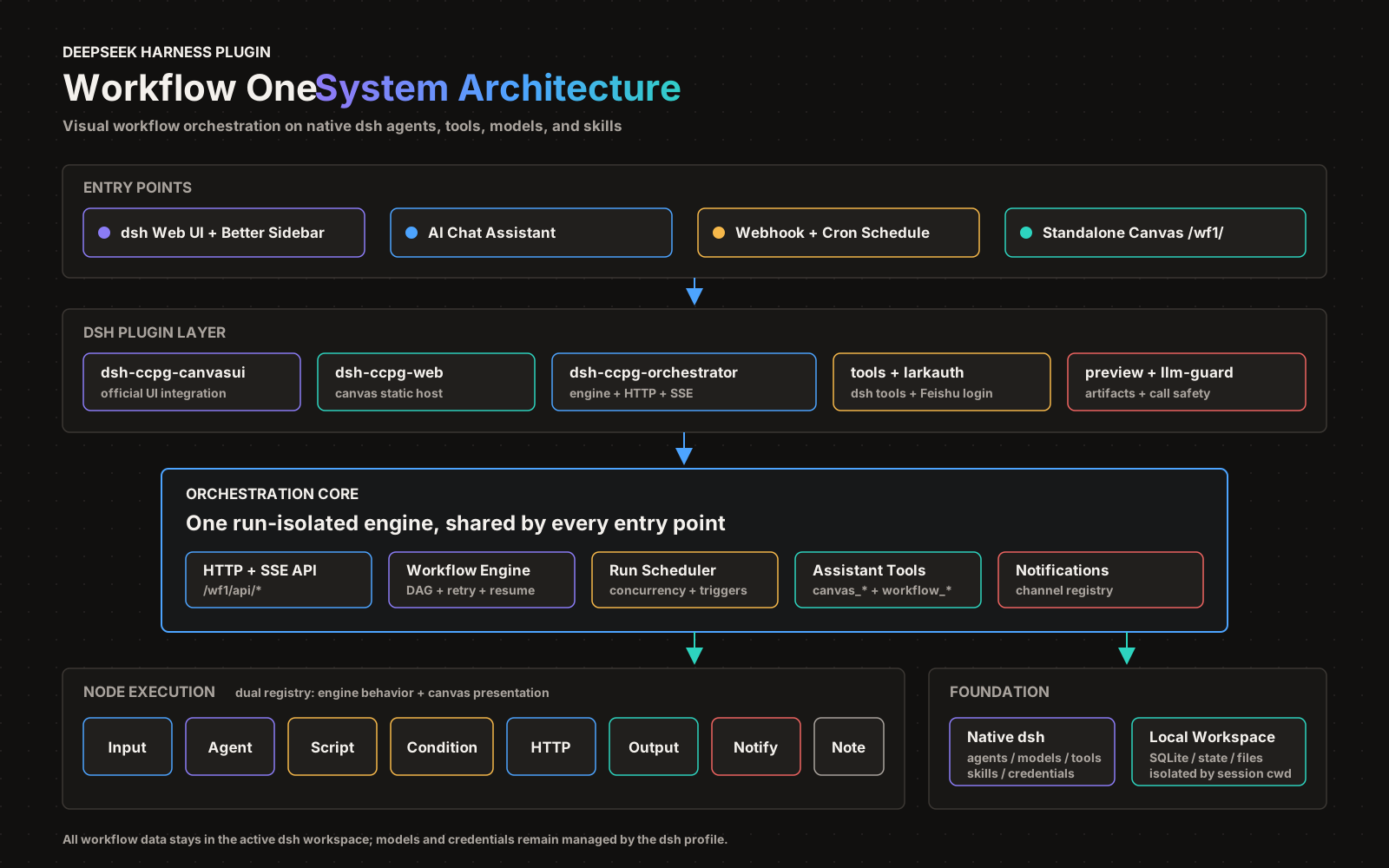
Acknowledgements
More than 90% of this project was developed using ZCode. We thank ZCode for providing the development platform and support.
Contributing and Security
Licensed under the MIT License.
Comments
Comments live in GitHub Discussions. Sign in with GitHub to post or react.