
Install
Inside DeepSeek Harness, with dsh-market
dsh plugin --profile web add dshmarket
Or from the command line
dsh plugin --profile web add dsh-mcp-manager-plus
Installing runs third-party code with your own permissions — it can read your files, use your credentials and reach the network. Review the source first, and pin a commit (github:owner/repo#sha) when you can.
README
An MCP server manager plugin for DeepSeek Harness: it adds an "MCP" page to the settings sidebar, where you can inspect, enable/disable, edit, restart, delete and add MCP servers.
Why this plugin exists:
- To manage MCP servers in DeepSeek Harness without ever opening a config file.
- Most MCP-related plugins on the plugin market target older DSH releases and simply do not work on current ones, so I had to write my own.
If this plugin stops working on a newer DSH release, please open an issue.
Screenshots
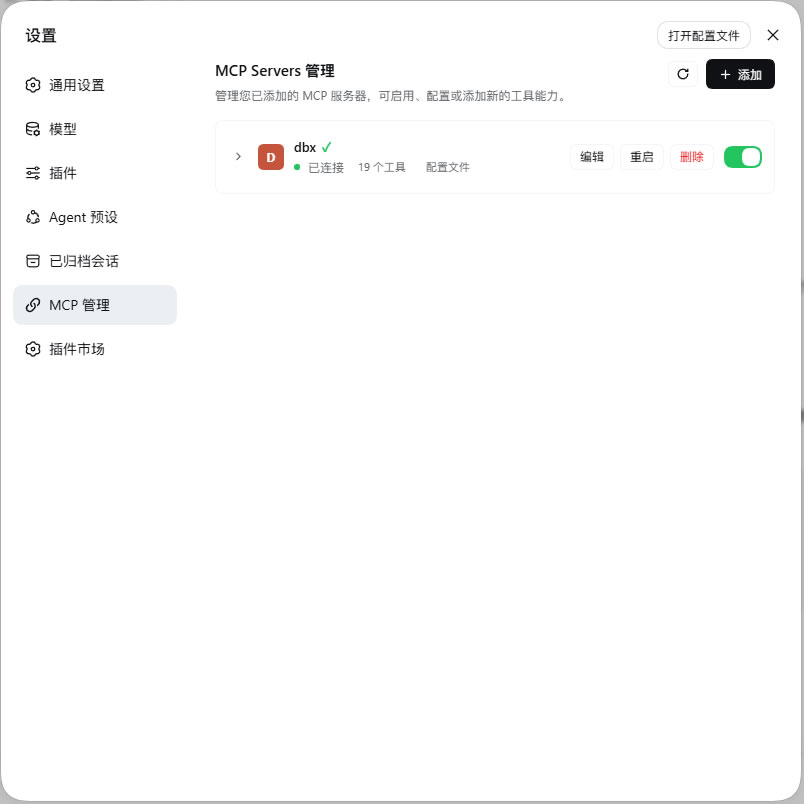
Settings → MCP: the server list, connection state and enable/disable toggles.
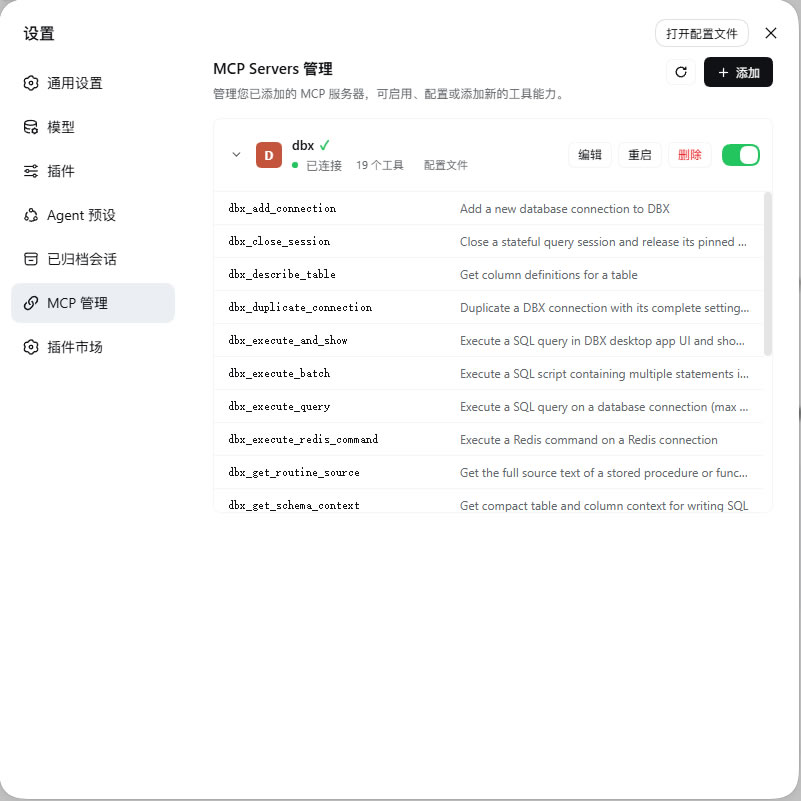
Expand a server: every tool the server currently registers with the model, with descriptions.
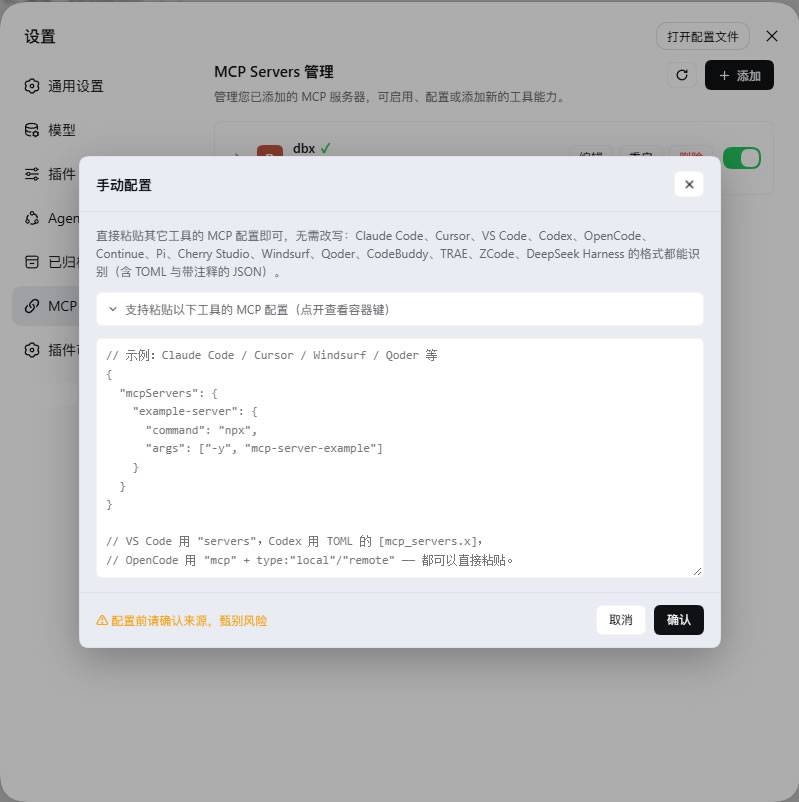
Add: paste an MCP configuration from any tool — the format is detected automatically (Codex's TOML and JSON-with-comments included).
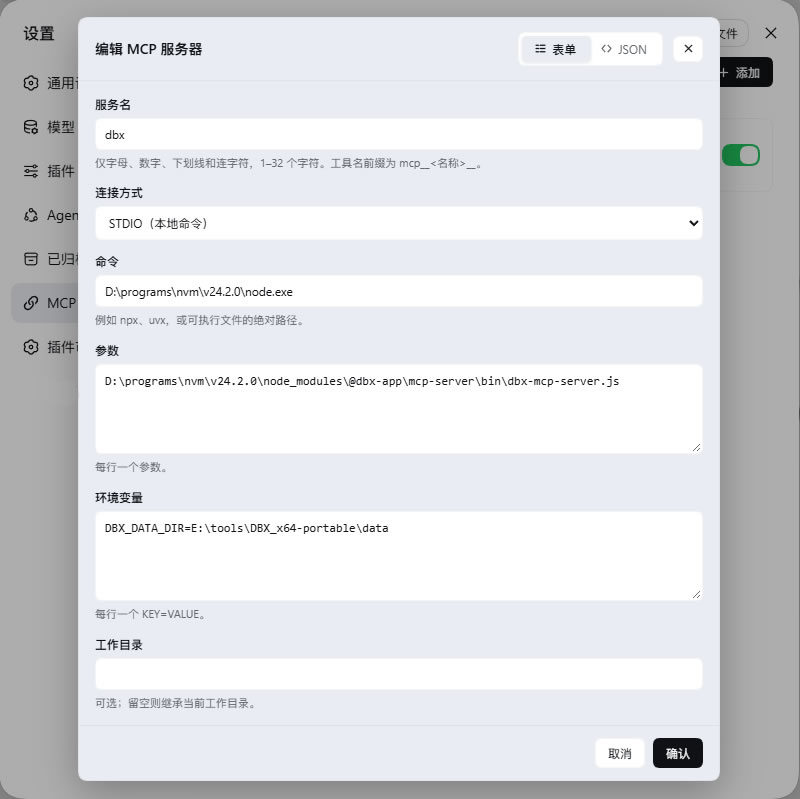
Edit · form mode: edit field by field; switch to JSON mode at any time from the dialog header.
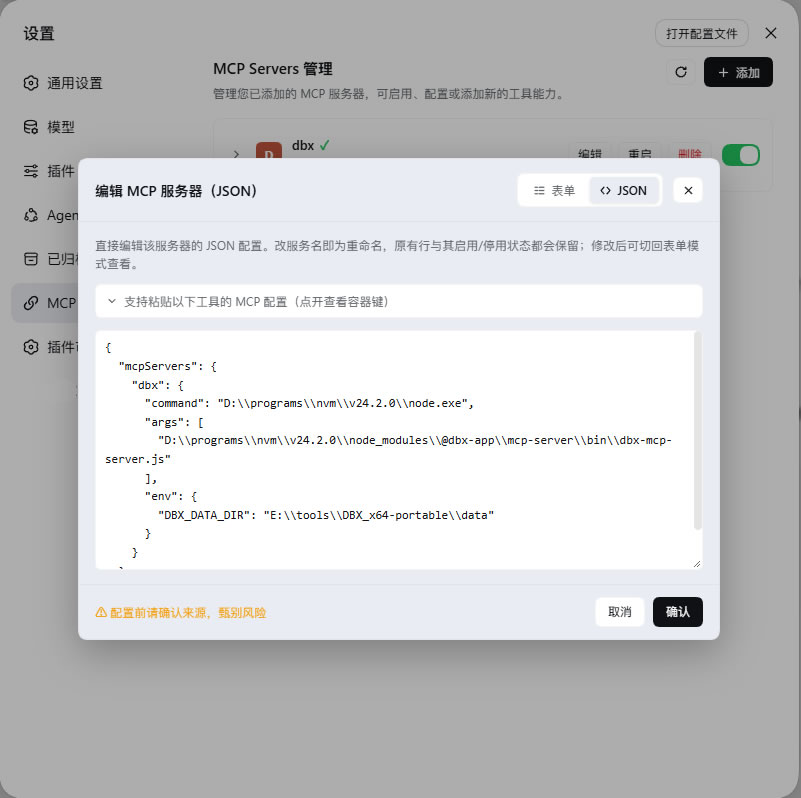
Edit · JSON mode: opens pre-filled with the server's current configuration; paste a whole replacement block, and renaming is just changing the name.
Installation
Requirements: DSH >= 0.1.6-alpha.1 and < 0.3.0 (tested on 0.1.6-alpha.1 and 0.2.0-rc.2). DSH itself needs Node.js >= 24.2.0 and Git >= 2.31.0.
Option 1: one-click install from the plugin market
If you have dshmarket installed,
open Settings → Plugin market, search for dsh-mcp-manager-plus, and click
install.
Option 2: command line
Pick any one of the three sources (--profile web installs into the web
profile; substitute your own profile name as needed):
# npm package (available once published)
dsh plugin --profile web add dsh-mcp-manager-plus

# GitHub repository
dsh plugin --profile web add https://github.com/appthin/dsh-mcp-manager-plus.git

# Local directory (clone this repository first; installed as a link, so edits
# take effect immediately — handy for development)
dsh plugin --profile web add <the cloned repository directory>
Restart dsh (or wait for the profile hot-reload); the page appears under Settings → MCP.
Verify
Open dsh web and go to Settings → MCP (the chain-link icon in the sidebar). If the page does not show up, check in this order:
- Switch to the latest Chrome/Edge — plugin bundles can fail to load on Chromium kernels older than 122;
- Confirm it is installed into the profile you are actually running
(
dsh plugin --profile web lslists the profile contents); - If the browser console shows errors, open an issue with the message attached.
Update & uninstall
dsh plugin --profile web ls                          # list installed plugins
dsh plugin --profile web add dsh-mcp-manager-plus    # update (re-adding installs the latest)
dsh plugin --profile web remove dsh-mcp-manager-plus # uninstall
With the plugin market installed, updates can also be done with one click on its page. Uninstalling keeps the MCP server rows this plugin wrote into the profile patch layer — that is your configuration data and will not be deleted.
Features
| Capability | Description |
|---|---|
| List | Shows the MCP servers from the config file |
| Expand | Open a row to see every tool the server registers with the model, with descriptions |
| Enable / disable | Writes a disabled override into the patch layer; takes effect hot in ~1 s, no dsh restart |
| Edit | Two switchable modes: form (field by field) or JSON (one large textarea), see below |
| Restart | Destroys and re-initializes the server's connection in place (config unchanged); for recovering from dropped connections |
| Delete | Removes the server and all of its override rows from the config file |
| Add | Paste an MCP configuration from any mainstream tool; the format is detected, and multiple servers per paste are supported (see table below) |
| Bilingual | Chinese / English. Defaults to the harness UI language (falling back to the browser's language when unavailable); switch anytime from the page header — the choice is remembered, and host-side messages follow along |
The two edit modes
When editing an existing server, the dialog header carries a segmented
switch (with icons and a sliding indicator, radiogroup semantics, arrow-key
navigable) to flip between modes at any time:
- Form mode: edit field by field (server name, transport, command, args, env, cwd, URL, headers).
- JSON mode: one large textarea that opens pre-filled with the server's current configuration (not an empty box or an example), so you can paste a whole replacement block — especially handy for configs copied from elsewhere. A collapsible format guide above the box lists the supported tools and their container keys, shared with the "Add" dialog.
Both modes write to the same row, therefore:
- Renaming in JSON mode renames the row: it keeps the original
idand its enable/disable overrides instead of creating a duplicate; - JSON mode supports every import format (Codex's TOML included), since format parsing is independent of add-vs-edit;
- A paste containing multiple servers is rejected with their names listed, avoiding the "which one actually got saved?" ambiguity;
- Switching back to form mode reads the row from disk, so half-edited JSON never leaks across modes.
JSON mode exists only for existing servers: saving JSON means "update the named row", which needs a row name. New servers go through "Add", which is already JSON mode.
The container-key table in the format guide (FORMAT_ROWS) must agree with the
parser or the guide would lie — a test in test/client.test.mjs cross-checks
both: every key in the table must actually parse, and all 14 tool names the
parser supports must appear in the table.
Supported import formats
Paste as-is; the plugin recognizes container keys, field names and file syntax:
| Tool | Container key | stdio | Remote | Notes |
|---|---|---|---|---|
| Claude Code · Cursor · Windsurf · Qoder · Cherry Studio · CodeBuddy · TRAE · ZCode | mcpServers |
command/args |
url/headers |
the standard format |
| DeepSeek Harness (this plugin itself) | mcpServers |
command/args |
url/headers |
native format |
| VS Code | servers |
command/args |
type:"http" + url |
different outer key |
| Codex | mcp_servers |
command/args |
url |
TOML, not JSON |
| OpenCode | mcp |
type:"local", command is an array |
type:"remote" + url |
most divergent shape |
| Continue | mcpServers array |
command/args |
— | name lives inside each entry |
| Pi | mcpServers + settings |
command/args |
transport:"streamable-http" |
settings is ignored |
These variations are also handled:
- TOML input: Codex's
config.tomlcan be pasted directly (including nested[….env]tables and inline comments). - JSON comments and trailing commas: docs for several tools carry
//,/* */and trailing commas — all parse fine. type:"sse"maps onto this plugin's streamable-http transport.serverUrl(Windsurf's remote spelling),http_headers(Codex) and command arrays (OpenCode) are all filed correctly.- Unknown fields such as
enabled,lifecycleordescriptionnever fail an import; they are just not written to the config.
The import reports the detected source, e.g. 已识别 Codex 配置;新增 xxx
("Codex configuration detected; added xxx"). A single failing entry is skipped
and listed with its reason, so one bad block does not waste the whole paste.
Where the config lives
The plugin's single source of truth is the current profile's user patch layer:
$DSH_HOME/profiles/<profile>/cordis.patch.yml
Adding an MCP server appends one loader patch entry to that file:
- insert:
    - id: mcp-github
      name: '@deepseek-ai/dsh-mcp-client'
      config:
        serverName: github
        transport: stdio
        command: npx
        args: ["-y", "@modelcontextprotocol/server-github"]
        env:
          GITHUB_TOKEN: "…"
Disabling writes a sibling override row instead:
- id: mcp-github
  disabled: true
Because the profile runs with patchReload: live, the loader re-orchestrates
the plugin tree within about a second of each save, so config changes are both
persistent and hot-effective — the plugin never mutates the running loader
tree; it only writes the file, then the browser briefly polls to observe the
converged state.
Security model
- Loopback only. The API lives on the same loopback web server; non-loopback origins get a 403.
- Validate before writing. Every candidate file is re-parsed as a top-level loader patch array; a parse failure refuses the write, so one bad edit cannot break the next boot.
- Nothing outside its jurisdiction. The file is hand-written by users: comments, unrelated entries and unknown fields survive a rewrite untouched — only the one modified block is rewritten.
- Secrets stay local. Values whose keys look like
KEY|PASSWORD|SECRET|TOKENare masked on read, and unmasked again when the browser echoes them back; real secrets never appear on the page. - Bundle-provided servers are read-only. Rows contributed by the bundle layer can be enabled/disabled but not edited or deleted.
Development
node test/run.mjs # all seven suites (106 assertions)
| Suite | Coverage |
|---|---|
test/patch.test.mjs |
patch-layer segmentation, parsing, validation, generation and byte-exact round-trips |
test/import.test.mjs |
config formats of 14 tools, the TOML subset, JSON comments and trailing commas |
test/editjson.test.mjs |
JSON-mode editing: in-place updates, renames keeping id and overrides, multi-server rejection |
test/host.test.mjs |
every host-side HTTP route, driving the real apply() through a fake Cordis context |
test/client.test.mjs |
whether the shell can load the browser bundle and register the settings page, mode switch included |
test/compose.test.mjs |
composing a real profile from the bundle layer, confirming this plugin's rows mount |
test/live.test.mjs |
read-only run against the real profile, confirming live configs read correctly with secrets masked |
The tests use no test framework — just Node's built-in node:test — and reuse
the js-yaml from the profile (the same parse path as the runtime).
Layout
| File | Purpose |
|---|---|
lib/index.js |
host side: HTTP API, inventory projection, write operations |
lib/import.js |
import parsing: each tool's config format → this plugin's server shape |
lib/patch.js |
patch-layer read/write: segmentation, parsing, validation, generation |
lib/client.js |
browser side: the settings page UI (hand-written lazy-CJS bundle, no build step) |
cordis.patch.yml |
the bundle patch inserting this plugin into the profile's layer stack |
Helper scripts
| Script | Purpose |
|---|---|
node tools/e2e-import.mjs |
boots a real host and POSTs each of the 14 tool formats to /import, then validates the written patch rows |
node tools/roundtrip-json.mjs |
verifies the JSON editor's pre-filled config round-trips byte-for-byte (confirming unchanged content drops no fields) |
node tools/check-client-bundle.mjs |
loads the client bundle the way the shell does and checks the registration result and nav-icon CSS |
node tools/check-segmented.mjs |
checks the segmented switch's slider geometry (inset, half-width, offset) against the track assumptions |
node tools/preview-edit-modes.mjs |
renders both edit-dialog modes with the real components into edit-modes-preview.html |
node tools/check-nav-icon.mjs |
checks that the nav icon's mask payload is a drawable 16×16 template |
node tools/gen-icon-preview.cjs |
extracts icons from the dsh web bundle into the icon-options.html comparison page |
node tools/dump-icon.cjs <IconName> |
prints an icon's SVG path for hand-written overrides |
License
MIT
Comments
Comments live in GitHub Discussions. Sign in with GitHub to post or react.