
Install
Inside DeepSeek Harness, with dsh-market
dsh plugin --profile web add dshmarket
Or from the command line
dsh plugin --profile web add dsh-cron-panel
Installing runs third-party code with your own permissions — it can read your files, use your credentials and reach the network. Review the source first, and pin a commit (github:owner/repo#sha) when you can.
README
A scheduled-tasks panel for the DSH Web GUI: sits between the workspace selector and settings in the sidebar, managing DSH tasks and system tasks (crontab) in separate sections, with natural-language creation, full-screen detail editing, and execution logs.
Features
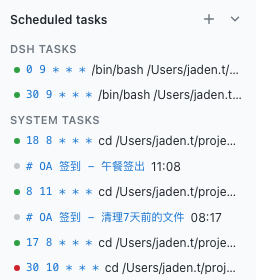
Sidebar panel: below the workspace selector, above settings; ➕ on the header to create, ▾ to collapse (collapses to a slim title bar; state is persisted)
Separate sections & status indicators: DSH tasks and system tasks are shown apart, with status indicator dots (🟢 success / 🔴 failure / ⚪ not run yet)
Execution logs & one-click clear: panel-created tasks log automatically with live refresh and a one-click "Clear logs" button to prevent file bloat
Natural-language creation: type “run backup every day at 9am”, “clean temp files every 30 minutes”, “every Monday at 8pm” and it is parsed into a cron expression automatically; manual expressions also supported
- Instant local parsing: common Chinese/English phrasings resolve with zero latency, and the extracted "what to do" is auto-filled into the Agent Prompt
- LLM fallback refinement (new in v0.1.12): languages and phrasings the local patterns cannot cover (Japanese, Korean, complex sentences) are parsed by your default model; when no model is configured or the call fails it silently falls back to the local result
Full-screen details: click a task to open a full-screen overlay over the conversation, close via the top-right ✕; edit / save / delete / enable-toggle supported
Next-run preview: while editing, the next 5 execution times are shown automatically from the cron expression (avoids typos)
- Fixed in v0.1.12: expressions like
30 13 * * 3(every Wednesday 13:30) used to be previewed as "every day" because of a wrong day-of-month/day-of-week comparison; now corrected per the cron spec, and the scan advances day by day so rare expressions (e.g.0 0 29 2 *) no longer block
- Fixed in v0.1.12: expressions like
Agent Prompt Automation: In addition to standard Shell commands, switch to "🤖 Agent Prompt Automation" mode to run an AI prompt on schedule in the background (e.g. daily code inspection or morning briefing) and push findings directly to WeCom or Telegram
Notify on completion: when editing a task you can configure "notify on completion" — after the task finishes, the result is pushed to the selected platform (Telegram / Discord / WeCom AI bot / Email); requires an installed and connected
dsh-message-gateway(QQ has no active push). Push goes through the gateway's/gateway/push; the cron command gets a push segment appended automatically (exit code + task description), no extra setup needed- Note (v0.1.12): Agent Prompt tasks skip this auto-push. The agent session already emits messages, so re-pushing them through the notify hook produced duplicate noise; ask the agent to call a push tool inside the prompt when you want a reminder
Run now: in task details, click "Run now" to execute the command once immediately (not through cron scheduling) and see the exit code and output — verify a task right after creating it instead of waiting for its schedule
- Note (v0.1.12): currently Shell commands only. Agent Prompt tasks return a notice instead of spawning the session (avoiding a long silent wait); streaming execution for agent tasks is planned for a later release
Auto-retry on failure: configure the number of retries and the delay between attempts (the command runs in a subshell, so a failed exit code triggers a retry)
Auto-backup before write: every crontab rewrite is preceded by a backup of the current content to
~/.local/share/dsh-cron-backups/(keeps the latest 20), so mistakes can always be rolled backMultilingual: follows the DSH Web UI language (Chinese / English); Spanish browsers automatically get Spanish copy; defaults to Simplified Chinese
Cross-Platform & Theme Adaptations:
- Seamless Windows compatibility: avoids
spawn /usr/bin/crontab ENOENTerrors by supporting local persistence fallback. - Enhanced contrast and color variables across light and dark modes to prevent invisible text.
- Seamless Windows compatibility: avoids
Light / dark theme follows the DSH Web GUI
Collapsed sidebar state (new in v0.1.13)
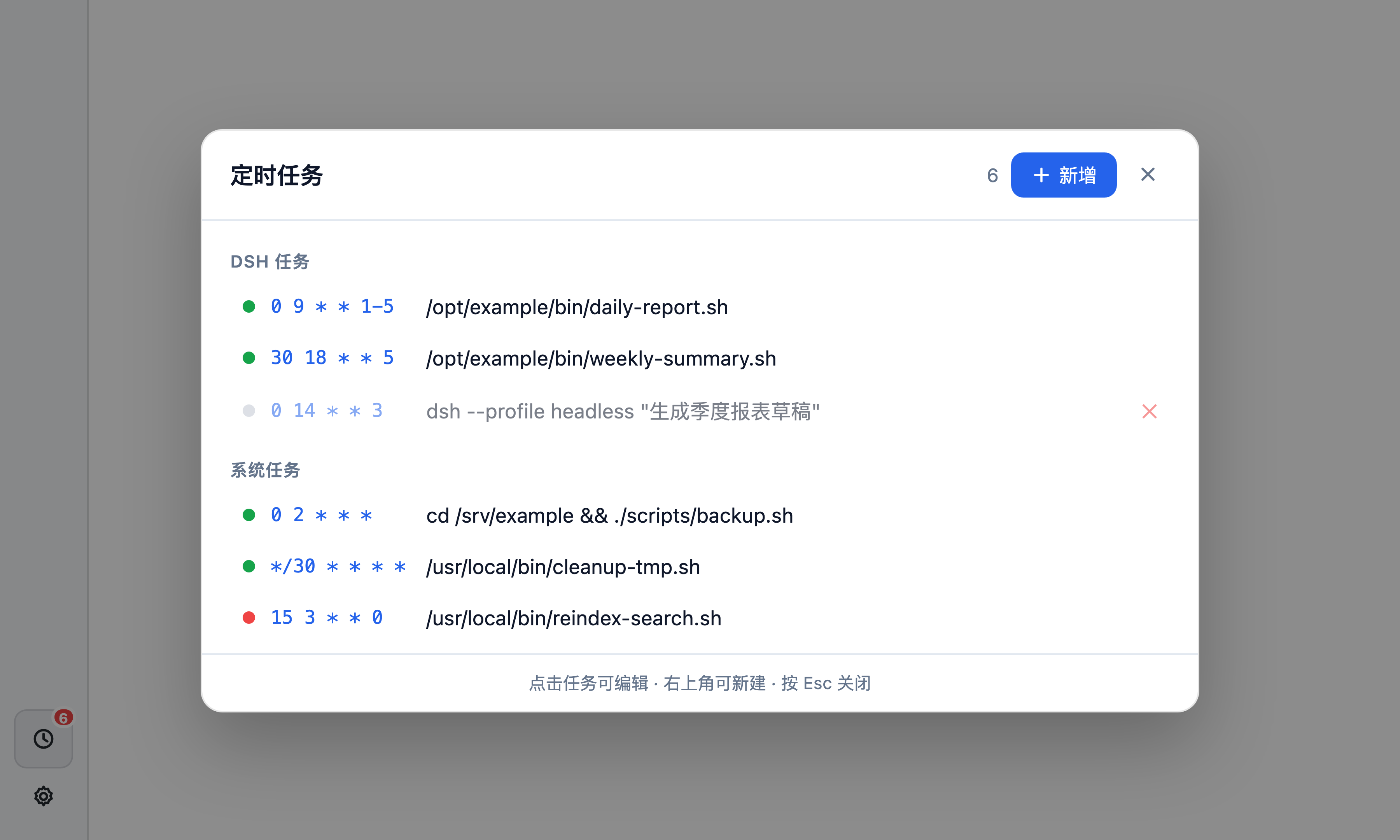
When the user collapses the workbench sidebar, the full panel is replaced with a 36×36 theme-adaptive entry button (at the bottom of the sidebar, just above the Settings button). Clicking it opens a fullscreen task list overlay:
- Header shows the total task count, a '+ New' button, and a close button
- Tasks are grouped into and , each row with a status dot (🟢 ok / 🔴 err / ⚪ none)
- Click any row to open the for editing; press to close
- Data source is the same backend parsing as the expanded state
- Button is theme-adaptive (light: very faint gray bg; dark: semi-transparent white bg)
Screenshots
Sidebar panel (DSH / system sections + add + collapse):
Collapsed sidebar + task list overlay (v0.1.13):
Full-screen details (edit form + execution log, close top-right):

Installation
dsh plugin --profile web add dsh-cron-panel
Restart dsh web, and the “Scheduled tasks” panel appears below the workspace selector in the sidebar.
For local development, install via a link instead:
dsh plugin --profile web add link:/path/to/dsh-cron-panel. After editing source, runnpm run buildand refresh the page to see changes.
Feedback
Found a bug or have a feature request? Open an issue on GitHub Issues — your feedback helps us make the plugin better.
License
MIT
Comments
Comments live in GitHub Discussions. Sign in with GitHub to post or react.