
Install
Inside DeepSeek Harness, with dsh-market
dsh plugin --profile web add dshmarket
Or from the command line
dsh plugin --profile web add dsh-later
Installing runs third-party code with your own permissions — it can read your files, use your credentials and reach the network. Review the source first, and pin a commit (github:owner/repo#sha) when you can.
Screenshots

README
dsh-later — In-Session Scheduled Message Plugin
中文 | English
Set reminders for yourself inside DSH: set by you, delivered into the current conversation, driven server-side, available across devices — on time, even with the browser closed.
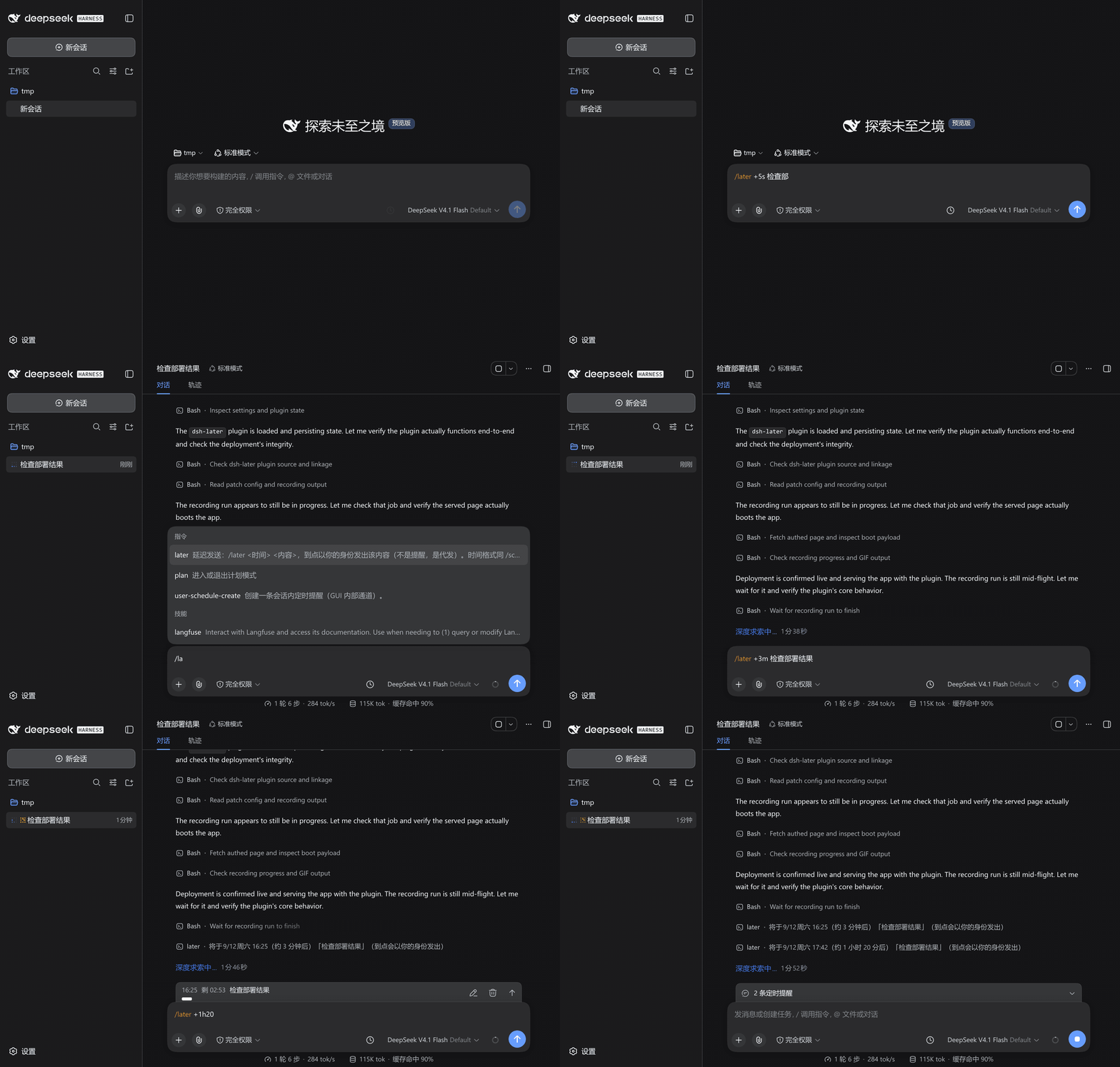
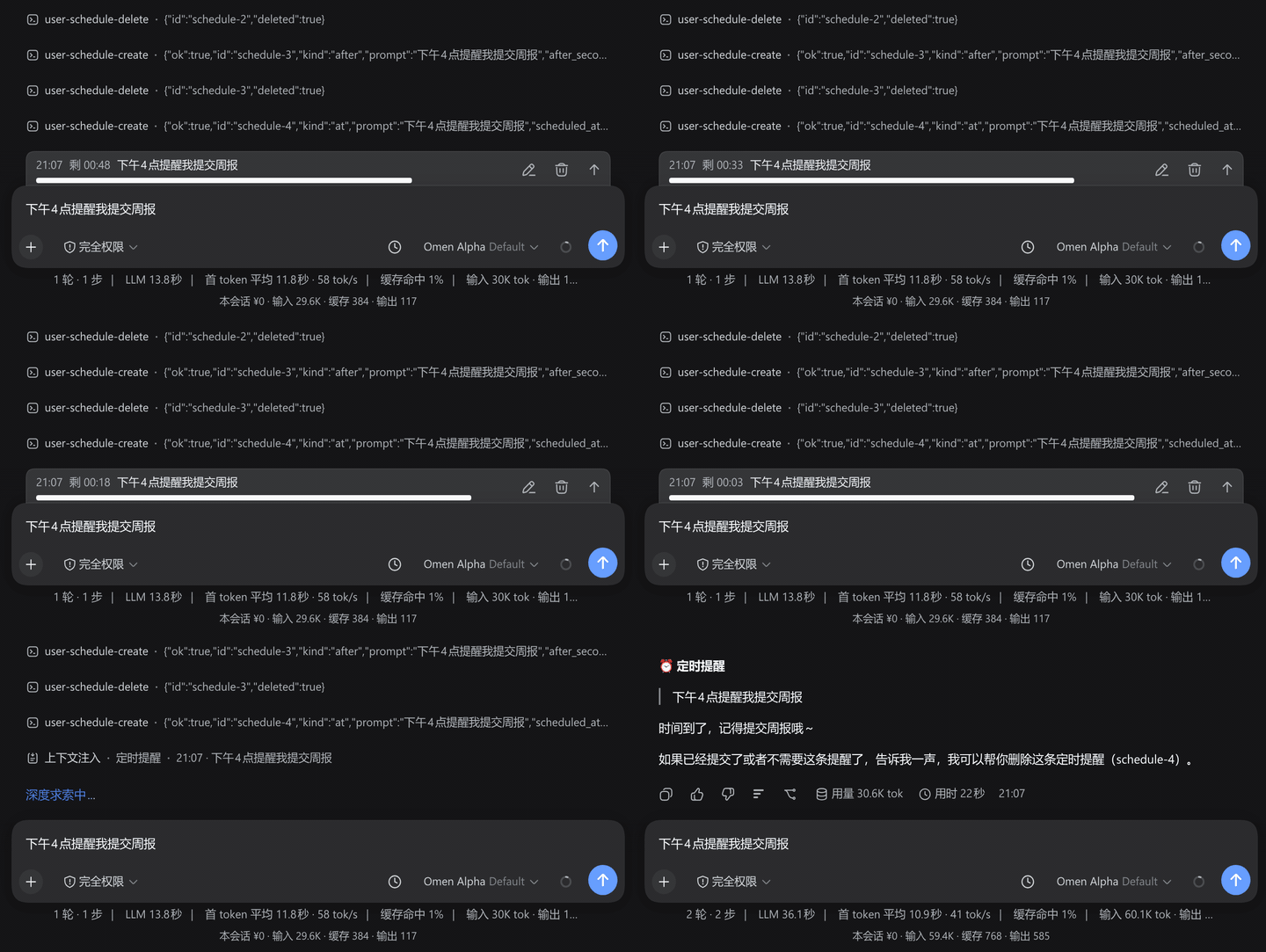
/later delayed send — no panel needed: type one line in the input box and it is sent later as yourself (demo: typing /later +5s, +3m, +1h20m character by character, then Enter to start the countdowns; the +5s one really lands when due):
How to use
Schedule panel
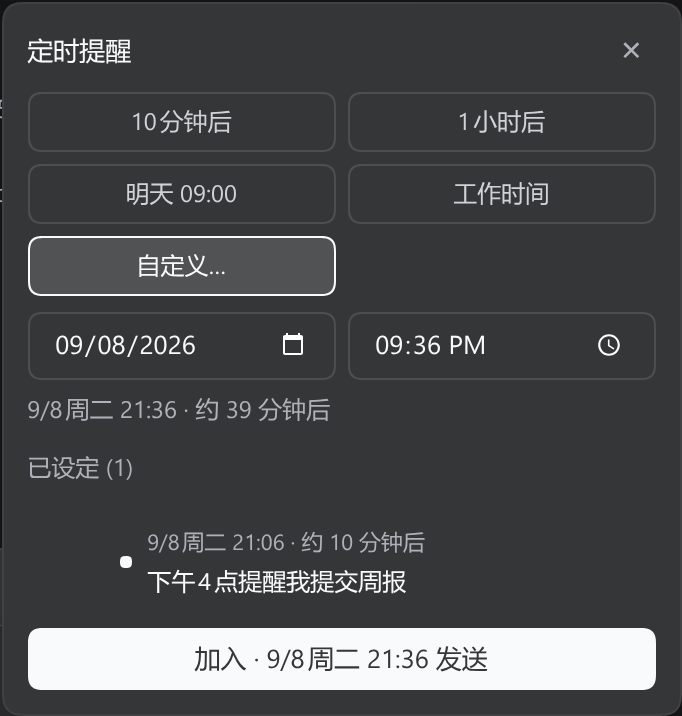
Click the "Schedule send" button to the right of the input box. The panel uses the input box content as the reminder text; pick a time, then click "Add · send at HH:MM" (the button stays disabled until a time is chosen). A countdown row then appears above the input box.
| Capability | Description |
|---|---|
| Quick chips | One-tap in 10 minutes / in 1 hour / work hours (configurable in settings) |
| Custom time | "Custom…" opens date + time inputs |
| Send preview | See the exact due-time form before confirming |
| Task list | All scheduled items, deletable one by one |
| Cancel all | Cancel action on the chip clears every reminder in this conversation |
Time formats
All of these are accepted (/schedule, /later, and the panel's custom time share the same parser):
| Kind | Examples |
|---|---|
| Relative duration | +30m · +1h30m · +90s · +1w · 30分钟后 · 半小时后 |
| Time today | 15:32 · 9点 · 9点半 · 1532 |
| Relative day + time | 明天9点 · 后天 10:00 |
| Date + time | 8月21日 15:32 · 2026-08-21 15:32 · 0821-1532 |
A bare time (like 1532) rolls over to tomorrow if it has already passed today (up to 7 days). Writing 明天/后天 is taken literally — if that time has passed you are told to use a concrete date instead. A month/day only (like 8月21日) rolls over to next year when this year's has passed.
Commands
| Command | Effect |
|---|---|
/schedule <time> <content> |
Create a reminder (shows up in the conversation when due) |
/later <time> <content> |
Delayed send: deliver the content later as yourself |
/schedule every <interval> <content> |
Recurring reminder (interval ≥ 5 min) |
/schedule 明天9点 提交周报
/later 1532 提醒团队同步进度
The model can also call user tools on your behalf to create/inspect/delete/edit reminders (user_schedule_create / user_schedule_list / user_schedule_delete / user_schedule_edit).
Pending dock
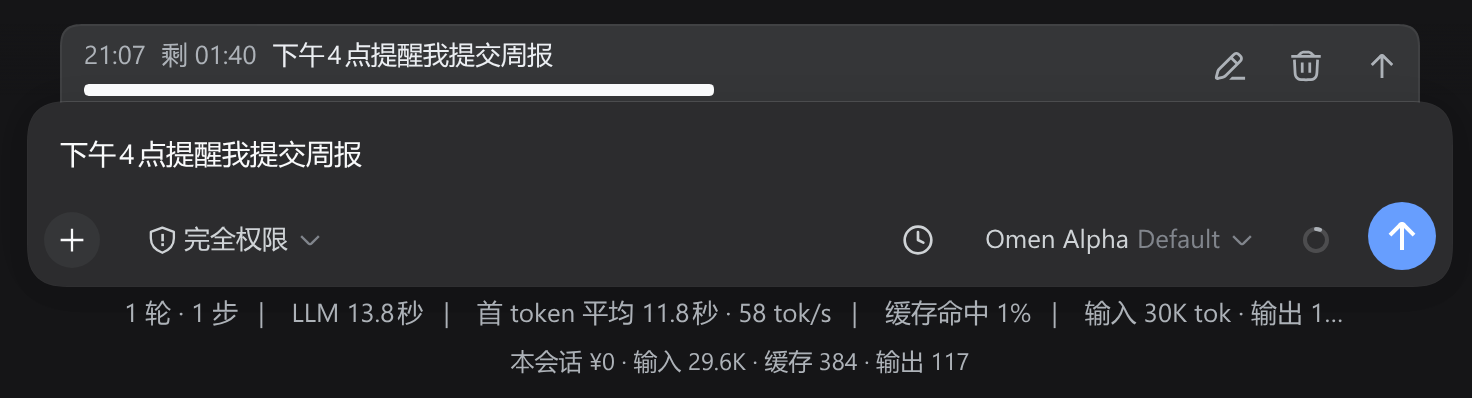
The countdown rows above the input box. Each row ends with three buttons: Edit reminder (change the text inline), Delete reminder (cancel that item), and Send now (push it to the agent immediately, skipping the countdown).
⚠️ "Send now" is not a confirm button — it immediately delivers the reminder text to the agent and wakes the model. To cancel, use Delete.
Sidebar presence indicator
Conversations with active reminders show a pixel clock in their sidebar row (alongside the "active" orb):
| Icon | Meaning |
|---|---|
| Purple · has scheduled reminders | |
| Amber · next fire within 5 minutes | |
| Red · overdue (waiting for the session to become idle) |
Hover shows "Next at 15:32 · 3 task(s)"; when overdue it shows "Due · 3 task(s) (sends when the session is idle)".
Screenshots
Schedule panel — quick slots / custom time / pending list:
Pending dock — countdown rows above the input box (inline edit / cancel):
A real due-time firing — when the time comes, a ⏰ Scheduled reminder message appears in the conversation (fires even with the page closed):
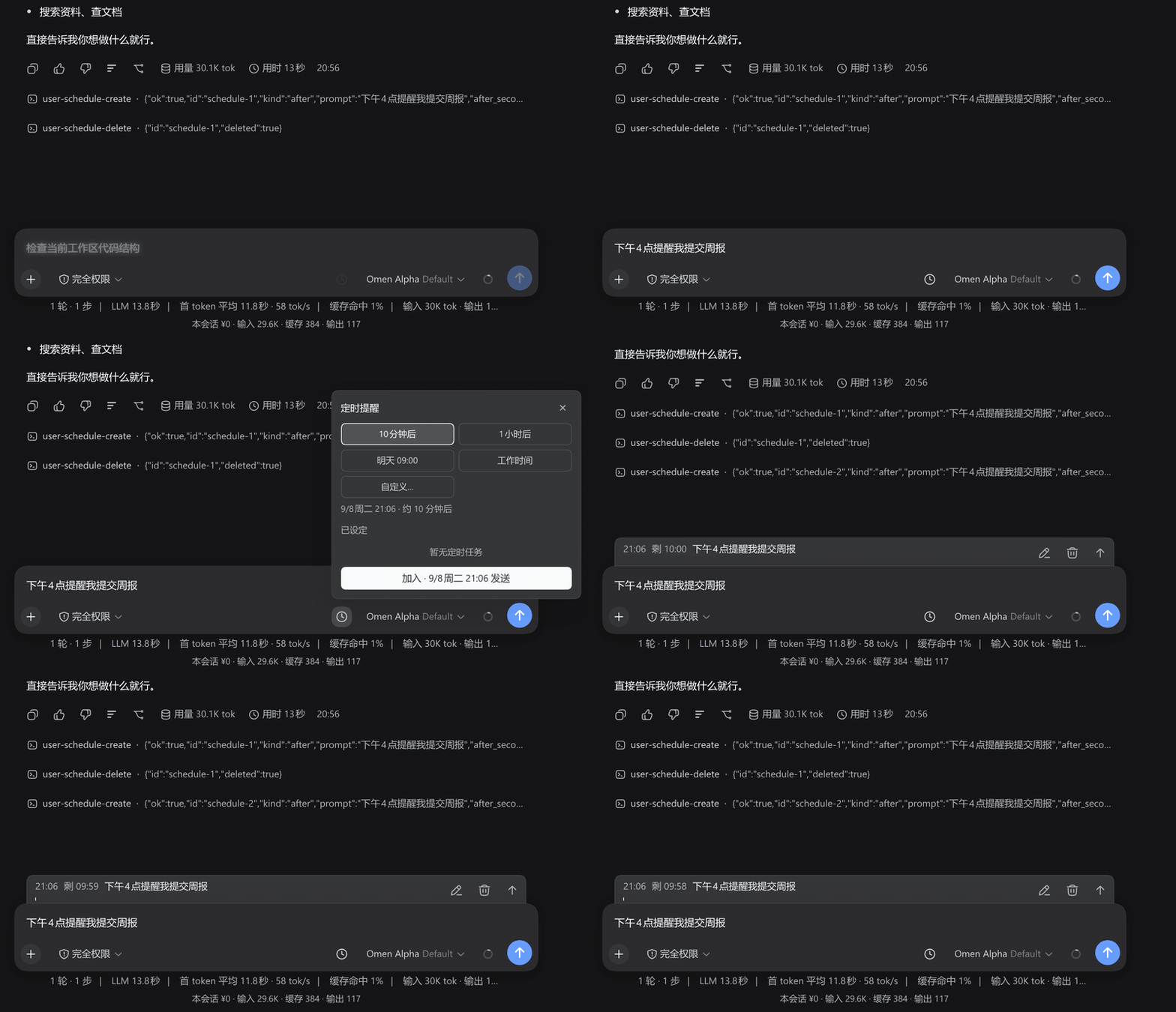
Animated demos:
| Creating a reminder (type → panel → add → dock) | Firing when due (countdown → message arrives) |
|---|---|
/later shortcut — skip the panel and type one line in the composer to send as yourself later:
Feature overview
- Input-bar timer button: one click opens the schedule panel — smart time slots / custom time / send preview / pending list / countdown chip.
- Pending dock: a list above the input box; each item can be cancelled individually or edited inline via its edit icon.
/laterdelayed send: deliver the text you are typing right now later, as yourself (see the difference).- Sidebar presence indicator: conversations with active reminders show a pixel clock in the sidebar (purple = scheduled · amber = fires within 5 min · red = overdue); hover shows count and next fire time.
- Fires with the page closed: reminders persist server-side and arrive on time across devices.
- Never impersonates you: when due, the message appears as a
Reminder— it is never framed as your own words. - Multilingual: follows the DSH UI language (Chinese / English), live without reload.
- Reminders don't carry across sessions: sessions forked from this one never inherit the parent's reminders.
Reminders vs. delayed sends: what's the difference?
| Action | When it takes effect | Who sends it | What you see |
|---|---|---|---|
| Enter in the input box | Immediately | You | Normal user bubble |
Schedule panel / /schedule <time> <content> |
When due | The reminder | Reminder · HH:MM · content row |
/later <time> <content> |
When due | As yourself | Normal user bubble |
/scheduleis not "delayed send": pressing Enter on/schedule …sends it immediately (as a user message); only the reminder itself is deferred. If you want "send the text I'm typing now, later, as if I said it", use/later.
Quick start
Install into DSH
From npm (recommended — prebuilt, no approval needed):
dsh plugin --profile web add dsh-later
# restart dsh web to activate
Or build from source and add it to your DSH Web profile:
cd dsh-later
npm install
npm run build

dsh plugin --profile web add "file:/path/to/dsh-later"
# restart dsh web to activate
Dev tip:
npm run watchrebuilds onsrc/changes and runs shape regression tests.
Your first reminder
- Open any conversation — a "Schedule" button appears right of the input box;
- Click it → pick a smart slot, or enter a custom time and content;
- Confirm → a countdown chip appears next to the button and the dock shows the pending item;
- When due, a
Remindermessage lands in the conversation — it fires even if you close the page.
Long-text reminders
Reminder content is limited to 1000 characters by default. For longer content, enable allowLongPrompts in DSH Settings → Plugins → Session Scheduler and set maxPromptChars.
- Good for: code snippets, meeting notes, long quotes, cross-device notes/todos.
- Not recommended: text that could read as instructions (the longer it is, the bigger the risk); a shared public profile (anyone could raise the limit).
Configuration
Works out of the box. Adjust in DSH Settings → Plugins → Session Scheduler (applies live, no restart):
| Field | Description | Default |
|---|---|---|
| Show schedule button | Whether the timer button shows on the input bar (hiding it never affects existing reminders or the dock) | Shown |
| Max schedules per session | Max reminders allowed in one conversation | 100 |
| Allow long prompts | Lift the 1000-character default cap | Off |
| Custom cap | Character cap when allowLongPrompts is on |
1000 |
| Work hours / lunch / night quiet | Five HH:mm fields driving smart slots and auto-scheduling | See settings page |
Advanced: defaults can also be overridden at startup via
cordis.patch.yml(e.g.maxSchedules) — seedocs/and the schema.
Technical documentation
Developer- and maintainer-oriented content has moved out of this README:
- Architecture & data flow — host/client layering, event flow, layout, scheduler rationale
- Key design decisions —
sourcefield, slash channel, fork isolation, anti-spoofing tradeoffs - Verification & acceptance criteria — tests, live E2E, cross-kernel compatibility, AC table
References
- PRD & design docs:
prd.mdanddocs/in the project root (workspace-level, outside this package) - dsh-schedule source analysis:
../references/dsh-schedule-analysis.md - dsh-sleep-send source analysis:
../references/dsh-sleep-send-analysis.md
License
MIT
Comments
Comments live in GitHub Discussions. Sign in with GitHub to post or react.