
Install
Inside DeepSeek Harness, with dsh-market
dsh plugin --profile web add dshmarket
Or from the command line
dsh plugin --profile web add @nonamelego/dsh-catppuccin
Installing runs third-party code with your own permissions — it can read your files, use your credentials and reach the network. Review the source first, and pin a commit (github:owner/repo#sha) when you can.
Screenshots
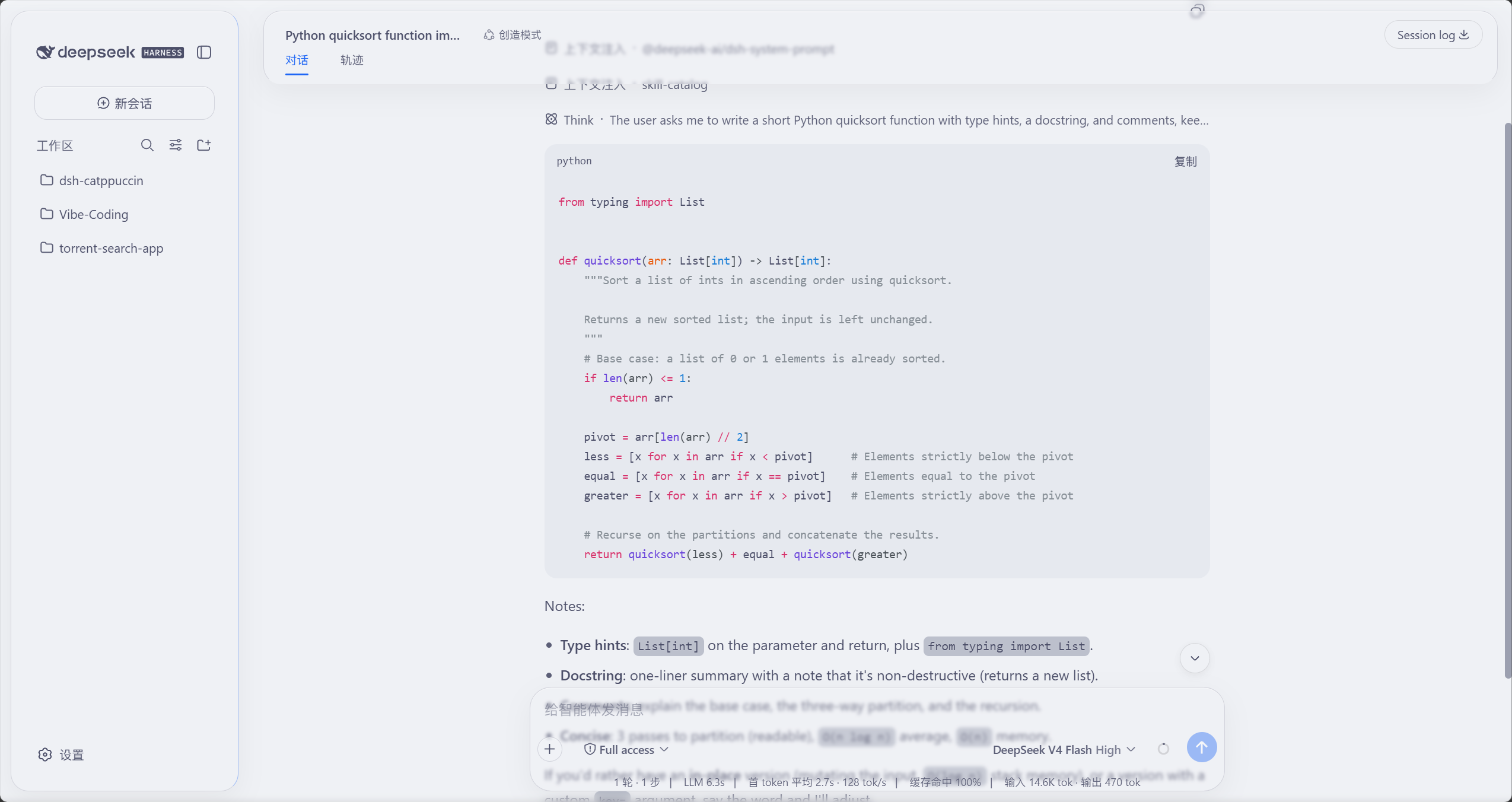
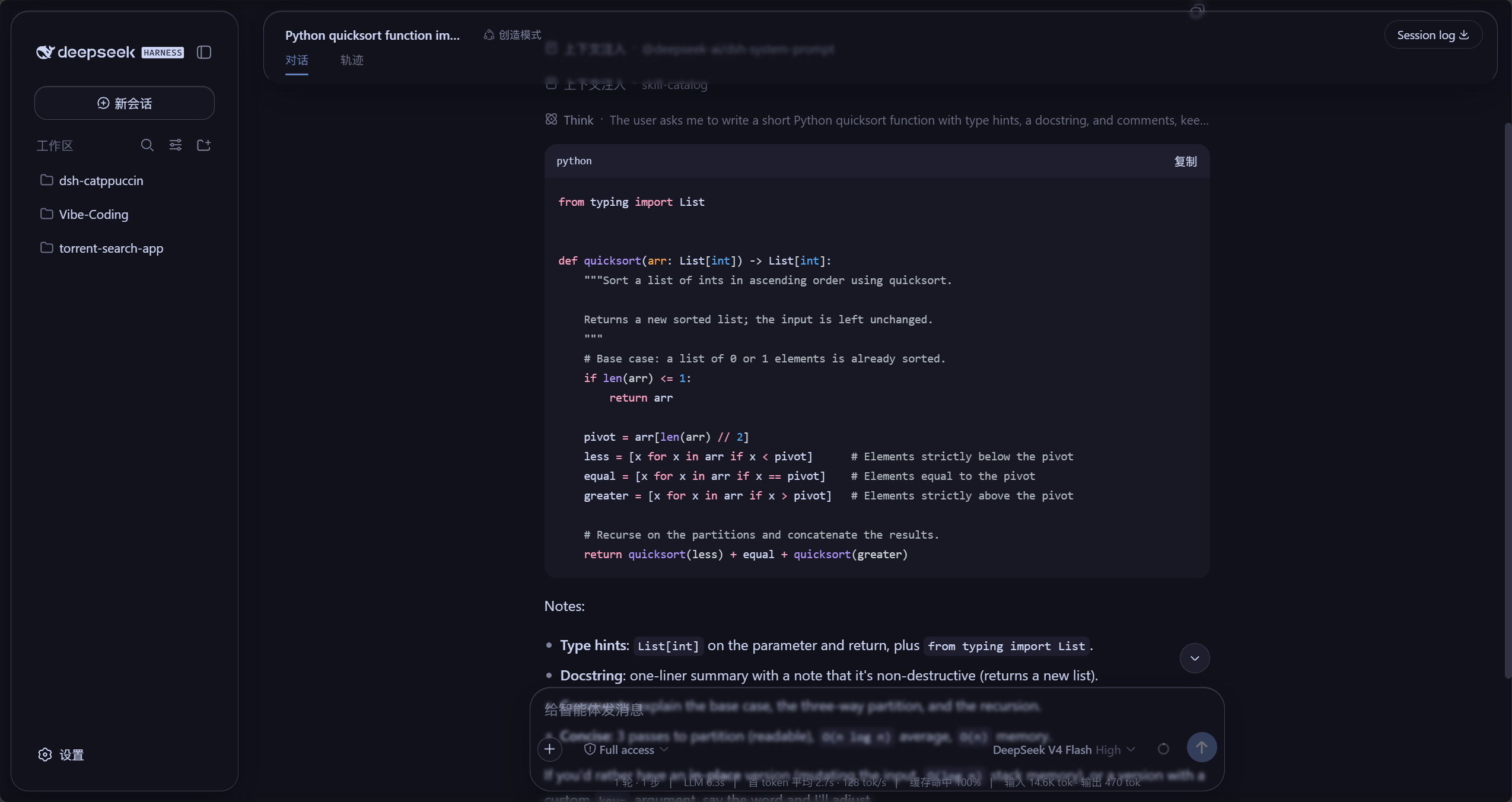
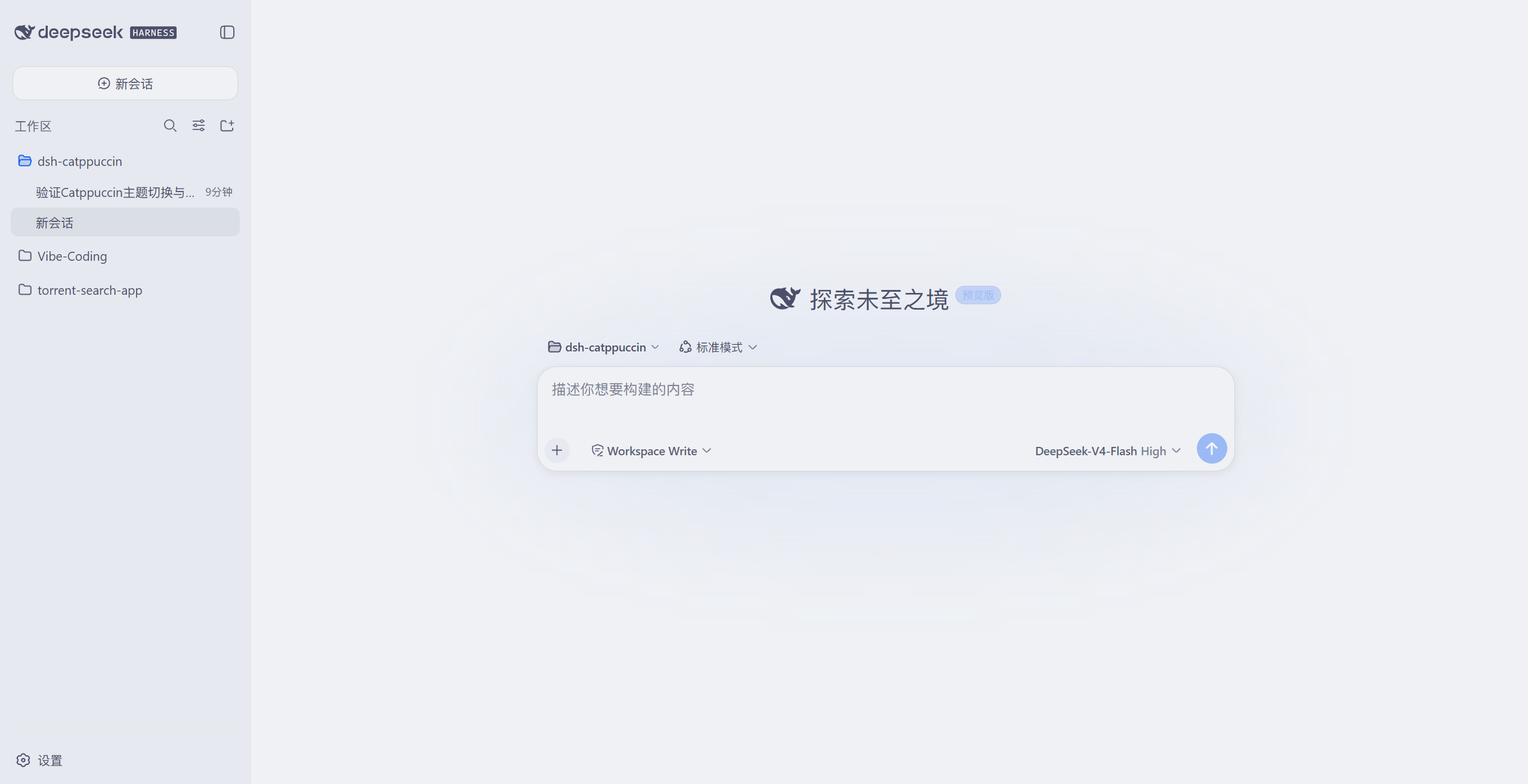
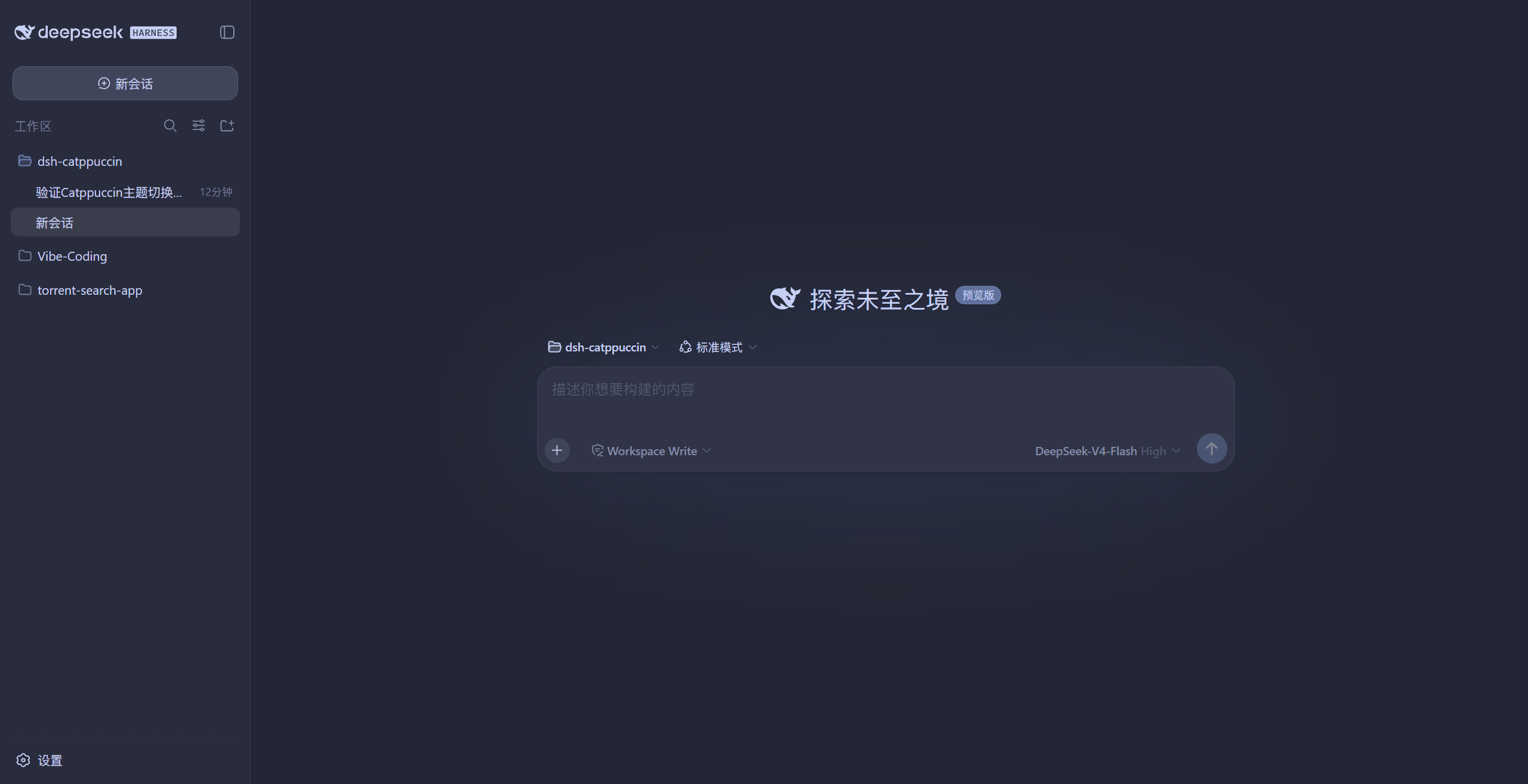
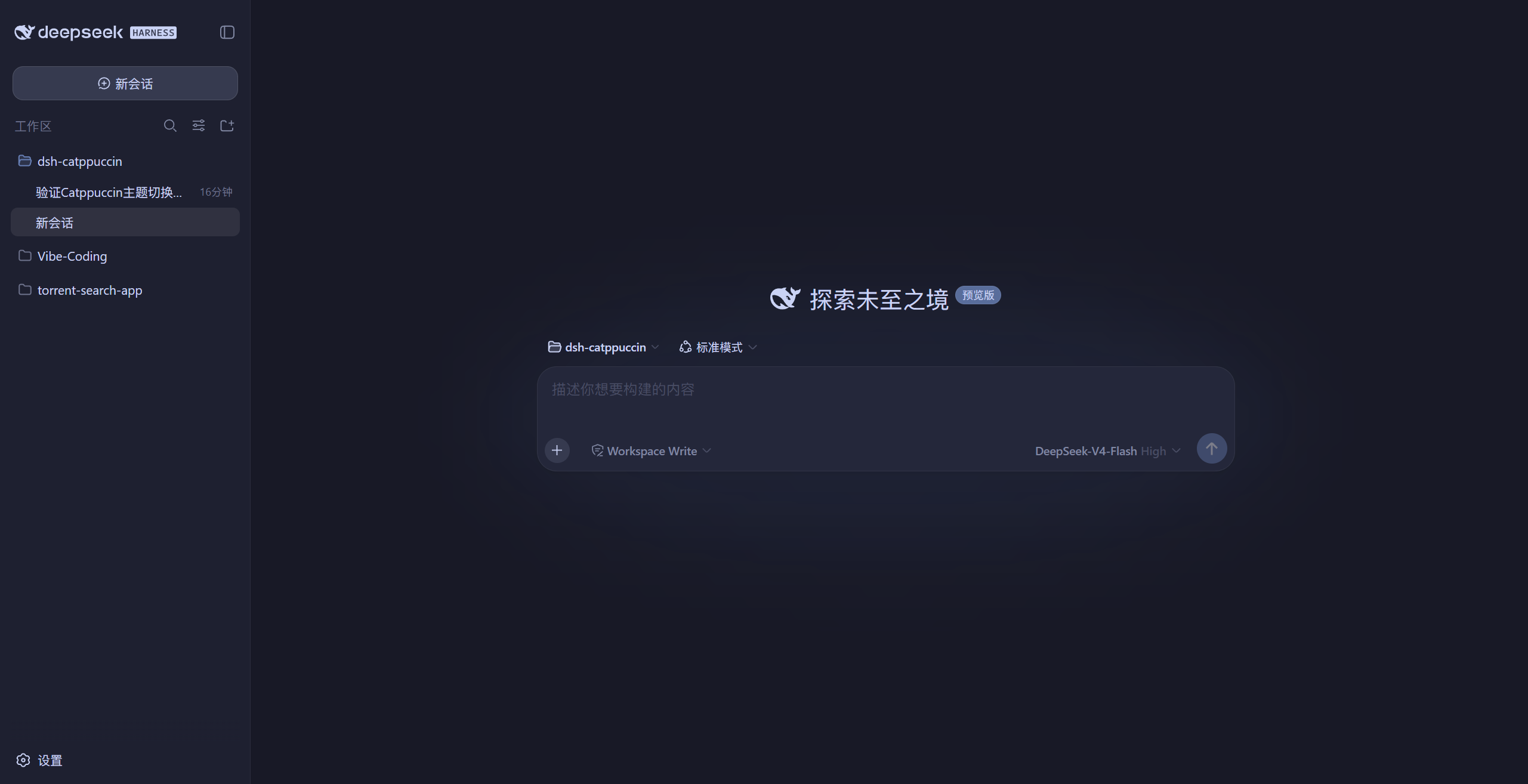
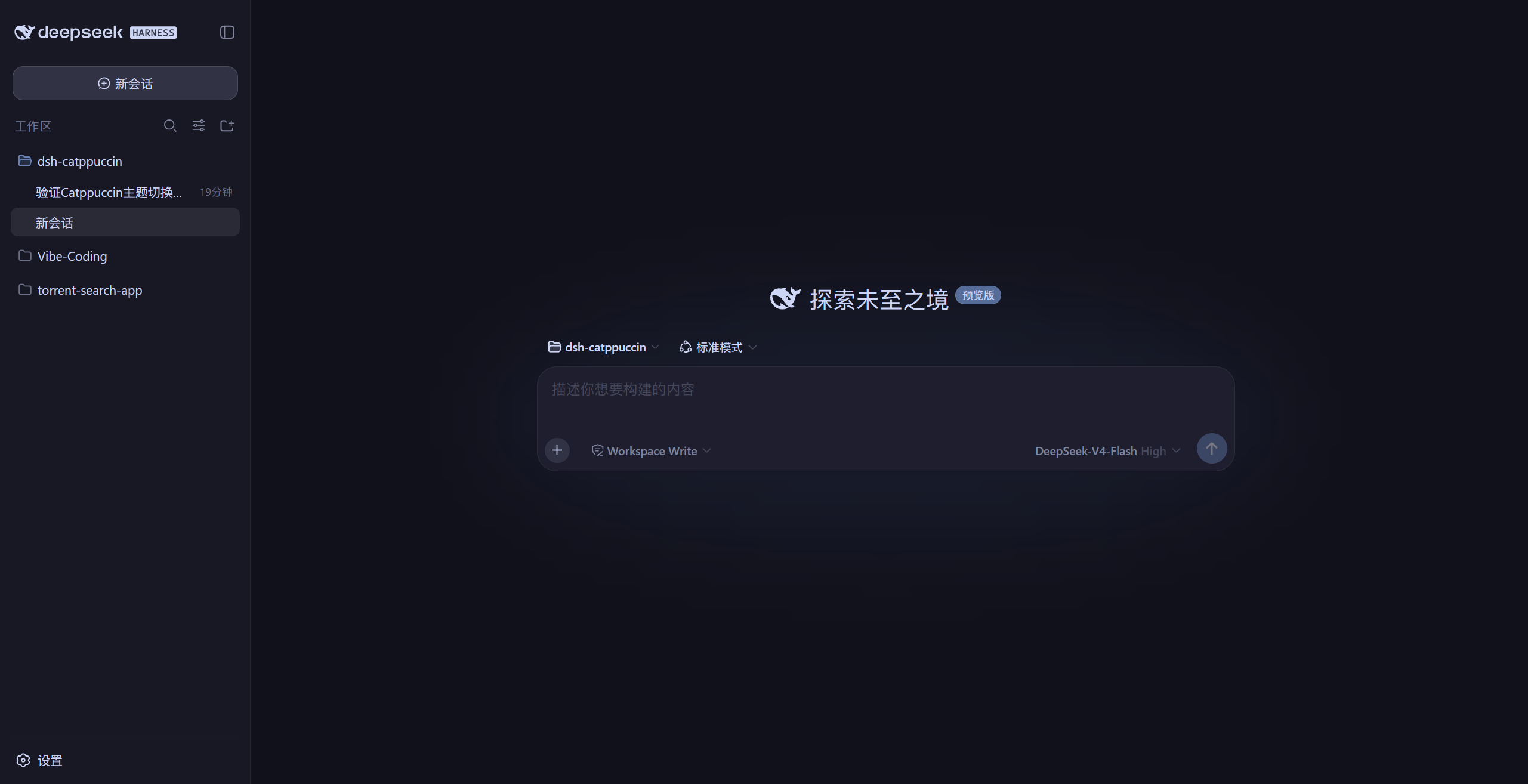
README
English | 中文
A theme & glassmorphism plugin for DeepSeek Harness — Catppuccin flavours for the Web GUI, DSH Desktop and dsh-TUI, plus a switchable frosted-glass skin. Listed on Awesome DSH Plugin.
Contents
- Introduction
- Features
- Previews
- Installation
- Usage
- Glassmorphism
- Compatibility, permissions and failure bounds
- Development
- 🙋 FAQ
- 💝 Credits
Introduction
A Catppuccin theme plugin for
DeepSeek Harness — one package that fits
the Web GUI (dsh web), the desktop shells (the official Electron apps/desktop and the
community DSH Desktop — both on the same desktop profile) and dsh-TUI alike: full recolouring plus a
glass skin on Web / Desktop, and the four official theme palettes auto-synced to the TUI.
It ships all four Catppuccin flavours — Latte, Frappé, Macchiato, Mocha — remapping the whole interface to the matching palette, with a Catppuccin row right below Settings → General → Appearance for one-click switching. Your choice is persisted and restored after restarts.
It also includes an optional glassmorphism skin: the top bar, sidebar, composer, stats line, trajectory view, chat bubbles and the new-session button become frosted-glass cards, with adjustable blur, frost and backdrop brightness. Glass colours follow the active Catppuccin theme automatically.
Features
- 🎨 Four themes: Latte (light), Frappé / Macchiato / Mocha (dark)
- 🧩 Registered into the official theme system, on a par with the built-in light / dark / system themes
- 🎯 Full-UI colour coverage — not just one or two accent colours
- ⚙️ One-click switch in Settings, persisted and restored across restarts
- 🔧 Custom token overrides: override individual colour tokens with
--dsw-* var: valuepairs (e.g. turn comments blue); persisted alongside the selected flavour - 🖍️ Code-block highlight style: default / italic-comments shiki themes
- 🌐 Seven UI languages (Chinese / English / Japanese / Korean / Spanish / French / German, follows the system language)
- 🪟 Glass skin (Mica mode): frosted glass for the top bar / sidebar / composer / stats line / trajectory view / chat bubbles / new-session button, one-click toggle in Settings; mica & compatibility modes (Compatibility keeps the stock layout and only frosts the composer card and floating layers), adjustable blur, frost and backdrop brightness (interaction reference: DSH-Transparent-UI-Plugin)
- 🌫️ Glass details: gradient blur bands at the top/bottom page edges, a floating glass rail when the sidebar is collapsed, a solid background in the theme's own base colour — content softens as it scrolls under the panes
- 🎨 Glass colours follow the current Catppuccin theme
- 🔄 Update check: one-click "Check for updates" in Settings compares the latest npm version and gives you a copyable upgrade command; auto-check is on by default (once at startup, then every 6 hours) and the release channel switches between stable and beta
- 💻 dsh-TUI terminal themes: one command installs into dsh-TUI; the four themes sync to
~/.dsh-tui/themes/automatically (see Installation · dsh-TUI)
Previews
Actual screenshots from a local GUI (the header image is a diagonal blend of the four):
Glass skin (Mica mode)
The frosted-glass effect in light (Latte) and dark (Mocha): the top bar, sidebar, chat bubbles, composer and stats line are all glass cards; messages soften as they scroll past the page edges; the background is the theme's solid base colour:
Installation
Option 1: from npm (recommended)
dsh plugin --profile web add @nonamelego/dsh-catppuccin
Restart dsh web after installing — dsh plugin adds it to the profile's bundles.
Use the profile name of your choice in place of web (e.g. headless).
Desktop: the desktop build's active profile is named desktop
($DSH_HOME/profiles/desktop), so run:
dsh plugin --profile desktop add @nonamelego/dsh-catppuccin
Run it in the DSH terminal of the desktop app (dsh plugin defaults to the active profile),
then restart the app.
Installing from the repo works the same way: dsh plugin --profile desktop add https://github.com/NoNameLeGo/dsh-catppuccin-theme.
Two desktop shells, one profile: the official DeepSeek Harness monorepo ships
apps/desktop/apps/desktop-host(Electron, still in development), and the community DSH Desktop does the same — both boot$DSH_HOME/profiles/desktop, so the command above works for either. This plugin's desktop support targets the official web + desktop builds; the community shell'sdesktopProfilesservice probe is kept. The official shell's profile process carries no dedicated env marker (itsDSH_DESKTOP_NODE_EXECUTABLEis injected only into its package-install children), so the plugin detects that shell through the Electron-as-node runtime (process.versions.electron) instead — the profile name shown in the upgrade copy is therefore correct, and settings reads/writes are unaffected (see the comment insrc/profile-detect.ts).
Option 2: from the repository
dsh plugin --profile web add https://github.com/NoNameLeGo/dsh-catppuccin-theme
When installing from git, pnpm may ask you to allow build scripts — follow pnpm's prompt
and add the package to the profile's pnpm-workspace.yaml allowBuilds, then run it again.
dsh-TUI (terminal) themes
The same package covers the TUI. Install it into the dsh-tui profile:
dsh plugin --profile dsh-tui add @nonamelego/dsh-catppuccin
Installing from the repository works the same way:
dsh plugin --profile dsh-tui add https://github.com/NoNameLeGo/dsh-catppuccin-theme
The package ships a tiny theme-sync plugin row
(dsh-catppuccin-tui-themes, no service dependencies): on every dsh-TUI start it syncs the
four theme JSONs to ~/.dsh-tui/themes/, so upgrades pick up the new palettes. After
installing, launch dsh --profile dsh-tui and pick the theme with /theme —
Catppuccin Latte / Frappé / Macchiato / Mocha, or jump straight to it with
/theme catppuccin-mocha (your choice persists across restarts).
💡 Already installed the plugin for the Web GUI and also use dsh-TUI? No need to install it twice: every Web start auto-syncs the themes to
~/.dsh-tui/themes/(only when the directory already exists).
📁 Prefer not to install the package? Copy
themes/*.jsoninto~/.dsh-tui/themes/(Windows:%USERPROFILE%\.dsh-tui\themes\) by hand — you just won't get updates automatically.
⚠️
catppuccin-*.jsonbelongs to this plugin and is overwritten on sync; rename the files if you want custom themes.
💡 TUI themes only style the TUI itself — the terminal background is up to your terminal. Pairing it with the matching Catppuccin flavour (see the Catppuccin ports list) looks best.
Usage
- Open the Web GUI (default
http://127.0.0.1:3080), or the DSH Desktop app. - Go to Settings → General.
- Find the Catppuccin row below Appearance and pick a flavour: Latte (light), Frappé, Macchiato or Mocha (dark).
- Choosing Follow system reverts to the official theme — it restores the preference you had before enabling Catppuccin (light / dark / follow system) instead of forcing a reset.
Other options in the Catppuccin row
- Code highlight style: default / italic comments — affects only the shiki colours used in code blocks and diffs.
- Custom overrides (collapsible; the button shows the entry count): override individual tokens
with
--dsw-* var: valuepairs, e.g.--dsw-static-blue-500→#89b4fa. The key commits on blur and must start with--(otherwise the entry is dropped); the value also commits on blur, and an empty value deletes the entry; ✕ removes the row. Overrides persist with the flavour.
Glass skin
Right below the Catppuccin theme row in Settings → General you'll find the Glass row:
- Master switch: on — the top bar, sidebar, composer, stats line and trajectory view become frosted glass; off — the UI reverts to stock instantly (no refresh needed).
- Mode: Mica turns the interface into floating frosted cards; Compatibility keeps the stock layout and swaps only the material.
- Performance: Mica blurs large areas (top bar, composer, sidebar), which shows up as
GPU load while output streams (measured ~80% peak in one conversation, under 30% for
Compatibility); the blur radius is not the driver — anything but
nonere-reads the backdrop every frame,0 pxincluded. Prefer Compatibility if that matters: it only frosts the composer card and floating layers, a much smaller footprint. - Presets: Clear / Standard / Frosted one-click presets; fine-tune with the sliders afterwards (a preset lights up when the current knob values match it).
- Blur (0–40 px) and Frost (0–100%): the blur radius and opacity of the glass.
- Backdrop brightness: dark mode darkens 0–50, light mode brightens 50–100 (50 = as-is), mixed straight into the solid background.
Glass colours follow the active theme live; all settings persist across restarts.
Check for plugin updates
In Settings → General, right below the Glass row:
- Clicking Check for updates compares the latest npm version with the installed one:
up to date → shows the current version; newer → shows the new version plus a copyable
upgrade command (the profile name is detected automatically, falling back to
web). - Auto-check: on by default — once after startup, then every 6 hours (switch it off on this row);
the Channel picks Stable (follows
latestonly) or Beta (prereleases too). - Locally linked / source installs (
link:/file:/ git) don't show an npm upgrade command — you'll be told togit pullor rebuild instead. - Channel policy: stable builds follow the
latesttag; prereleases follow bothlatestandbeta(the upgrade command automatically carries@beta). Offline or network failures show the reason and offer a retry.
Glassmorphism
Glassmorphism is a visual style in which panels look like frosted glass — translucent
fills, backdrop blur (backdrop-filter: blur()), and glass details (rim, inner highlight,
soft shadow) — letting the content behind show through, softened.
What this plugin does:
- Seven glass areas: top bar, sidebar, composer, stats line, trajectory view, chat bubbles and the new-session button; in Mica mode they become rounded floating cards and chat content scrolls under the glass, blurred; the collapsed sidebar becomes a floating rail at the edge of the chat area;
- Page-edge gradient blur: a blur band at the top and bottom of the viewport so messages are softened as they melt past the edges (borrowed from DSH-Transparent-UI-Plugin's Aqua skin);
- Theme-following colours: Latte is light glass, Mocha dark glass — switching flavours recolours instantly. The page ground is the theme's solid colour; the brightness knob mixes white/black straight into it;
- One-click toggle: off restores the stock UI exactly; uninstalling the plugin leaves nothing behind.
What Compatibility mode matches
Compatibility mode frosts host and third-party floating surfaces through class substrings and
semantic attributes, needing no cooperation from other plugins — the price is that a substring
cannot tell a surface from a row-level container inside one. Since 0.5.8 the families it
matches are exactly these:
| Family | Anchor |
|---|---|
| Composer card | [data-composer-card] (the host's own attribute) |
| Menus | [role='menu'] |
| Popovers | [class*='popover'] / [class*='dropdown'] (still substrings) |
| Modal dialogs | [role='dialog'][aria-modal='true'] |
| Host right sidebar (open state only) | [data-sidebar-right-panel][data-sidebar-right-open] |
0.5.8 narrowed the three widest families out of the sheet on evidence (the card substring, the
panel substring and row-level tooltips — see issue #17), but a new class name in a third-party
plugin can still be misread. Defaults only change with evidence, so when you hit one:
1. Collect evidence (read-only — paste into the browser console). Lists every element the glass rules match, the matched rule text and its computed values:
(() => {
  const rules = []
  for (const ss of document.styleSheets) {
    let rs; try { rs = ss.cssRules } catch { continue }
    for (const r of rs) if (r.selectorText && r.selectorText.includes('dsh-glass')) rules.push(r)
  }
  const out = []
  for (const el of document.querySelectorAll('[class*="card"],[class*="panel"],[role="tooltip"]')) {
    const hit = rules.filter(r => { try { return el.matches(r.selectorText) } catch { return false } })
    if (!hit.length) continue
    const cs = getComputedStyle(el), b = el.getBoundingClientRect()
    if (b.width < 8 || b.height < 8) continue
    out.push({ cls: String(el.className).slice(0, 48), w: Math.round(b.width), h: Math.round(b.height),
               bf: cs.backdropFilter, bg: cs.backgroundColor,
               rule: hit.map(x => x.style.cssText).join(' | ').slice(0, 60) })
  }
  console.table(out.slice(0, 40))
})()
2. Stop the bleeding locally. The plugin has no "custom CSS" option (DSH's profile patch
layer can only write plugin config — there is no generic style entry point), so this needs an
external injector: a browser extension (Stylus / Violentmonkey) or DevTools Overrides with an
!important rule, e.g.
[class*='yourRow'] { backdrop-filter: none !important; background: none !important; outline: none !important; }
3. Report it. Paste step 1's output plus your DSH and plugin versions into
issues. That is how 0.5.8 was built:
the reporter supplied per-element computed values and we narrowed the defaults — which is also
why there is no "custom CSS" option: the default should be right first, an escape hatch is only a
supplement.
Compatibility, permissions and failure bounds
Compatibility
| Item | Declaration |
|---|---|
| DSH | >=0.1.5-rc.1 (both settings seams: the legacy channel on ≤ 0.1.6-alpha.2 and configForms on ≥ 0.1.7-alpha.1) |
| Node.js | >=20 |
| Profile | web (the Web GUI and both desktop shells run the web UI and share this plugin); desktop profiles are named desktop |
| Verified exact version | 0.1.7-rc.1: installed, started, persisted a setting to disk and restored it across a restart in a real profile (evidence); 0.1.7-rc.2: boot-level e2e and live-page sampling of the glass layer (issues #16 / #17); 0.1.5-rc.3, 0.1.7-alpha.1 and 0.1.7-alpha.2 are declared as the same seam |
The machine-readable form of the above is dsh.compatibility (dsh / dshReleases /
dshOperations) in package.json.
Permissions and external access
| Category | Purpose | Bound |
|---|---|---|
| File reads | Identify the active profile and install source (directory names under $DSH_HOME/profiles/); one-off read of the legacy state file ~/.dsh/catppuccin-state.json for migration |
Read-only. DSH_HOME comes from process.env.DSH_HOME, defaulting to ~/.dsh |
| File writes | Sync the four TUI theme JSONs into ~/.dsh-tui/themes/ (dsh-TUI reads themes only from there; no registration API) |
That one directory only; a strict no-op when ~/.dsh-tui does not exist. Settings themselves are written by DSH's settings service, through its official services |
| Network | The "check for updates" row reads npm registry metadata for @nonamelego/dsh-catppuccin; the page then fetches the result from this plugin's own host route |
registry.npmjs.org and the same-origin plugin route only. No telemetry, no reporting. Offline, the row errors and nothing else is affected |
| Commands | None | No subprocesses, no shell |
| Credentials | None | No tokens, keys or passwords; only DSH_HOME and desktop-shell marker environment variables are read |
Failure bounds
- A failed update check (offline, registry error, rate limit) affects only that settings row — it never blocks startup, themes or glass;
- If theme registration fails, DSH's own themes keep working;
- The only install-time script is
prepare(used locally to buildlib/). The repository'sscripts/(screenshots, E2E, changelog generation) are not published to npm (filesexcludes them) and never run on install.
Development
pnpm install
pnpm typecheck       # tsc --noEmit: type check for src
pnpm typecheck:tests # tsc --noEmit: type check for the specs (vitest transpiles, it never type checks)
pnpm test            # vitest palette-coverage tests
pnpm build           # tsdown build -> lib/index.js (host) + lib/client.js (browser)
Palettes are produced by a generator script — after editing
scripts/generate-palettes.mjs, rerun:
node scripts/generate-palettes.mjs
The changelog draft is generated from your conventional commits (bilingual EN: support
in commit bodies):
pnpm changelog:gen            # print the draft since the last tag
pnpm changelog:gen -- --write # write it into the [Unreleased] section
TypeDoc docs for the public API (./client, ./tui-themes subpath exports) are generated
locally on demand into docs/api/ (that directory is not committed — it's in
.gitignore; wire up CI Pages publishing later if an online copy is ever wanted):
pnpm docs:api
See CONTRIBUTING.md for the contribution guide and docs/state-migrations.md for the state versioning contract.
Local link debugging
Clone the repo, link it into a profile and add it to the bundles (use your own paths;
$DSH_HOME defaults to ~/.dsh):
pnpm --dir ~/.dsh/profiles/web add link:/path/to/dsh-catppuccin
# Windows example:
# pnpm --dir C:\Users\<you>\.dsh\profiles\web add link:D:\dev\dsh-catppuccin
Then add @nonamelego/dsh-catppuccin to the profile's package.json
dsh.profile.bundles and restart dsh web. For DSH Desktop use
~/.dsh/profiles/desktop instead.
🙋 FAQ
- Q: "Why don't I see the Catppuccin themes in the Appearance row?"
A: The stock Appearance row only lists the built-in light / dark / follow-system preferences. The four flavours live in the Catppuccin row right below it. - Q: "How is my theme choice remembered?"
A: The choice persists in DSH's official settings document (the
catppuccinnamespace, stored under the DSH home, shared across every DSH instance on the machine), with localStorage as an in-browser cache and cross-tab sync. So switching browser, clearing site data, a custom port (dsh web --port <custom>) or a second desktop instance never loses the preference; DSH Desktop (the official shell andanywhere-labs/dsh-desktop) restores it across restarts too. The glass switch and every knob persist the same way. Since 0.5.0, a legacycatppuccin-state.jsonis migrated into the official settings once on first launch (the file is kept as a rollback copy). - Q: "How do I know if this plugin has a new version?"
A: Settings → General → Check Catppuccin plugin updates compares against npm in one
click and gives a copyable upgrade command; or run
dsh plugin --profile web update @nonamelego/dsh-catppuccinmanually (re-addthe latest version works too). In DSH Desktop, usedesktopas the profile name, or just rundsh plugin updatein the app's DSH terminal.
💝 Credits
- Catppuccin for the palettes and port templates
- DeepSeek Harness for the plugin system
- DSH-Transparent-UI-Plugin for the glass-skin interaction and implementation reference (mica / compatibility modes, blur / frost / brightness knobs)
Comments
Comments live in GitHub Discussions. Sign in with GitHub to post or react.